Category: Windows (Page 1 of 4)

Add a Windows User to Hyper-V Admin Group to allow co-Hyper-V Management

To add a user to the Hyper-V Administrators group, you must already have administrative privileges on the host machine. This process allows standard users to manage virtual machines without giving them full system administrator access.

Option 1: Use PowerShell (Fastest) 

Open Windows Terminal or PowerShell as an Administrator and run the following command: 

powershell

Add-LocalGroupMember -Group “Hyper-V Administrators” -Member “UserName”

Note: Use code with caution.

(Replace “UserName” with the actual account name or “Domain\UserName” for domain accounts).

Option 2: Use Command Prompt 

Run Command Prompt as an Administrator and use this syntax:

cmd

net localgroup “Hyper-V Administrators” “UserName” /add

Note: Group names are localized; if your Windows installation is not in English, use net localgroup to find the exact name of the Hyper-V group on your system.

Option 3: Use Computer Management (Graphical) 

This is the most common method for Windows 10, 11, and Windows Server users.

  1. Right-click the Start button and select Computer Management.
  2. Navigate to System Tools > Local Users and Groups > Groups.
  3. In the right pane, double-click Hyper-V Administrators.
  4. Click Add… and enter the username of the person you want to add.
  5. Click Check Names to verify, then click OK and Apply.
  6. Important: The user must log out and log back in for the changes to take effect.

How to block Copilot inside of MS365 installed apps

If you paste this into admin powershell, it disables copilot inside of MS365 installed apps. Doesn’t change apps online, or the ability to use other AI’s, even copilot website, BUT it does block the copilot add on items in all installed office apps (Being used for PCA here shortly)

$regPath = “HKCU:\Software\Policies\Microsoft\office\16.0\common\officeai”
if (!(Test-Path $regPath)) { New-Item -Path $regPath -Force }
Set-ItemProperty -Path $regPath -Name “TurnOffCallout” -Value 1

$privacyPath = “HKCU:\Software\Policies\Microsoft\office\16.0\common\privacy”
if (!(Test-Path $privacyPath)) { New-Item -Path $privacyPath -Force }
Set-ItemProperty -Path $privacyPath -Name “disconnectedstate” -Value 2

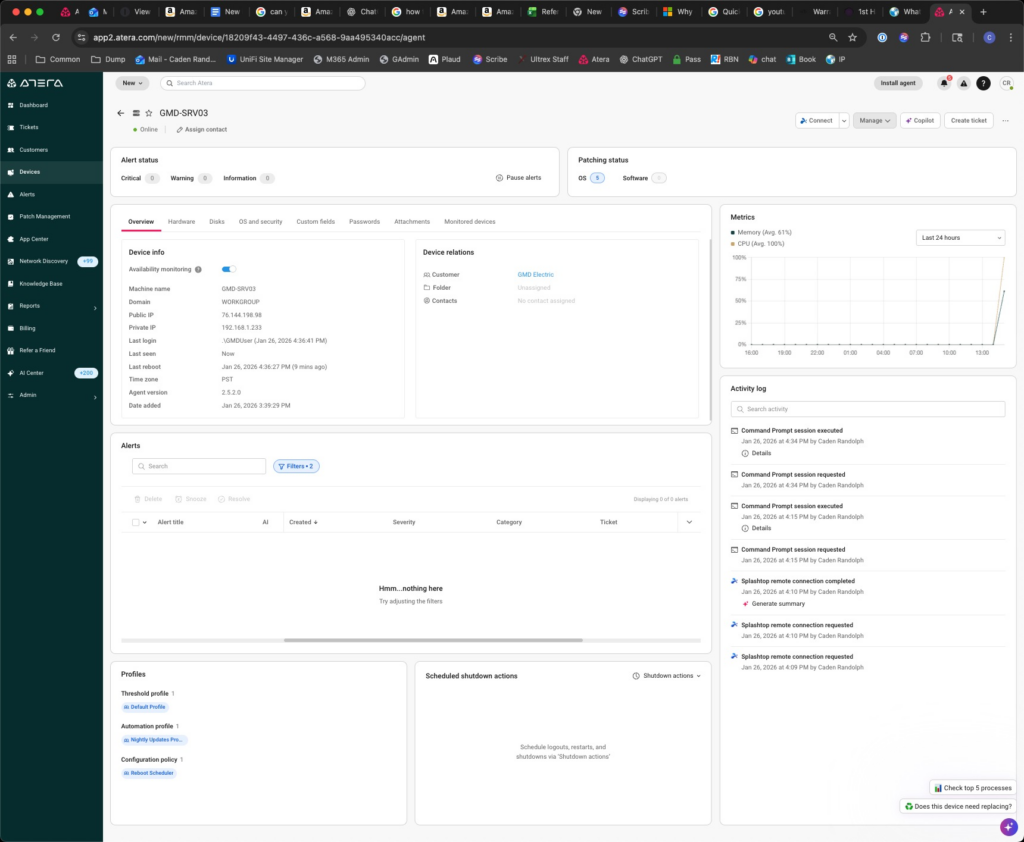
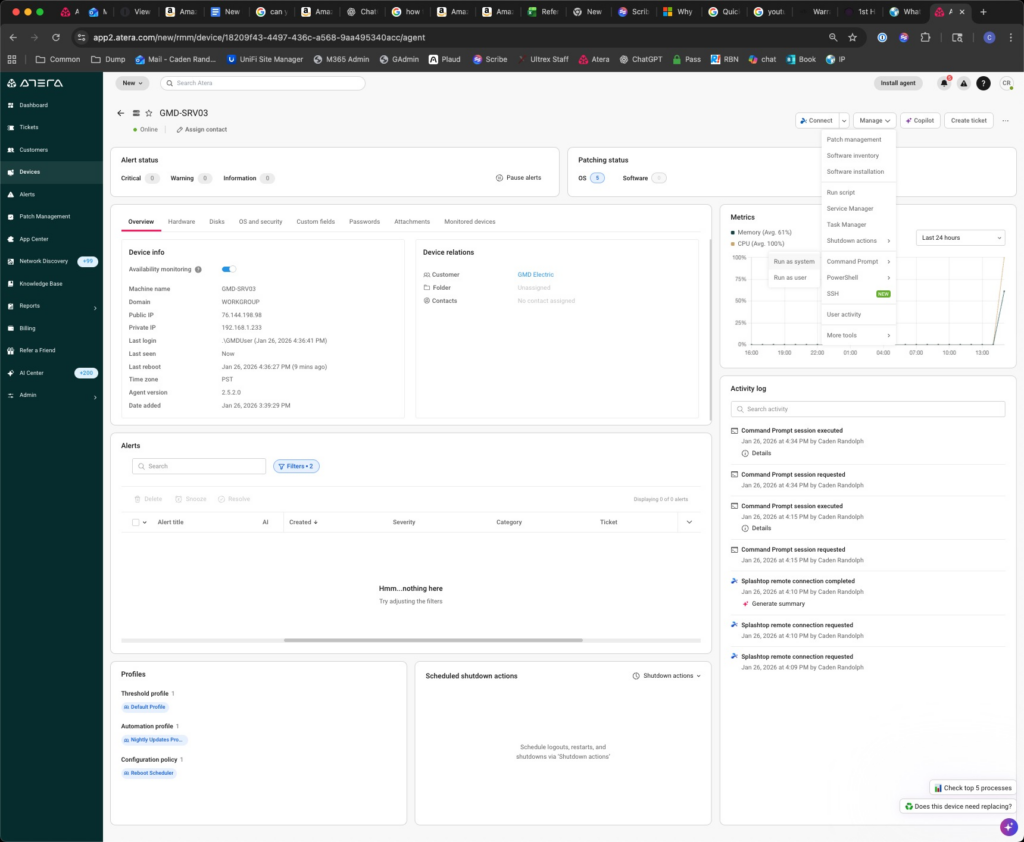
Renaming Device with command prompt in Atera

If you want to rename a device in Atera without opening the device through cmd

click Manage dropdown

Click run as System command prompt

Type: wmic computersystem where name=”%COMPUTERNAME%” call rename name=”NEWCOMPUTERNAME”

Hit return

Type in the console shutdown /r /t 0

Hit return

Reload Atera after the computer has restarted the computer should be renamed

Fixing Blank “Save As” Dialog Window in Adobe Acrobat

Fixing Blank “Save As” Dialog Window in Adobe Acrobat

Issue

From ticket #5088 – When using Save As in Adobe Acrobat, the dialog box may appear blank, preventing you from saving the file as another name in another location. This issue can occur on both Windows and macOS.


Cause

Adobe Acrobat attempts to “display online storage options” during the save process. A preference setting can cause the dialog to render incorrectly.


References

https://helpx.adobe.com/acrobat/kb/blank-save-as-dialog-mac.html


Resolution

Disable the online storage option in Acrobat:

  1. Open Adobe Acrobat Preferences
    • Go to Edit > Preferences (Windows) or Adobe Acrobat > Preferences (macOS).
  2. Navigate to General Settings
    • In the left-hand menu, select General.
  3. Disable Online Storage Option
    • Locate:
      Show online storage when saving files
    • Toggle this OFF.
  4. Restart Acrobat
    • Close and reopen Adobe Acrobat to apply changes.

Alternate Workaround

If the issue persists or you need a quick alternative:

  • Use Microsoft Print to PDF (Windows) or Print to PDF (macOS):
    • From the print dialog, select the PDF printer option.
    • Save the file manually after printing.
  • Go to the location the file is saved in originally in File Explorer
    • Copy and paste the file from that location into the destination folder path

Export Public Folder Calendar Events to a Shared Calendar in Outlook Classic

Export Public Folder Calendar Events to a Shared Calendar in Outlook Classic

Overview

This guide explains how to export calendar events from a Public Folder in Outlook Classic (desktop app) and import them into a shared calendar using an .ics file.


Steps

  1. Open the Public Folder Calendar
    • Launch the Outlook Classic desktop app.
    • Navigate to the Public Folder calendar you want to export.
  2. Save the Calendar as an .ICS File
    • Go to File > Save Calendar.
    • Select the desired folder.
    • (Optional) Set a date range for the events you want to export.
    • Save the file in .ics format to your preferred location.
  3. Import Events into the Shared Calendar
    • Open the destination shared calendar in Outlook Classic.
    • Drag and drop the saved .ics file directly into the shared calendar.
    • All events from the Public Folder calendar will be imported.

Notes

  • Ensure you have the necessary permissions for both the Public Folder and the shared calendar.
  • Large calendars may take a few moments to process after import.

Hide a Local User Account from the Sign-In Screen in Windows 11 by GUI or by Powershell Admin/Script

Hide a Local User Account from the Sign-In Screen in Windows 11 by GUI or by Powershell Admin/Script


Overview

This guide explains how to create or use a local Windows 11 user account while hiding it from the login screen, so that the account remains active and accessible (by name/password), but does not appear among visible users at sign-in. The script near the end after the GUI steps will make this faster.

NOTE: The script is untested as of 6-20-25 because I don’t have time but from the looks of it seems pretty good. Definitely test on a throwaway vm before deploying the script please. – Andrae

This will be good for hiding the Scanning user especially, attention raised from Tavros #3583 where staff was concerned about having this extra user installed for no clear reason. We can use this to hide service accounts as needed so it doesn’t become a concern for anyone that might be a little more tech-fearful or just wants more cleanliness.


🔒 Who This Is For

  • Administrators creating service, support, or maintenance accounts.
  • Users who want to keep an account functional but discreet (not visible to regular users).

✅ Requirements

  • You must be logged in with an administrator account.
  • Be comfortable using the Registry Editor (regedit.exe).
  • 👇 (Optional) Backup your registry or create a System Restore point.

🧰 Step-by-Step Guide

1. Open Registry Editor

  • Press Win + R, type regedit, and press Enter.

2. Navigate to This Key

CopyEditHKEY_LOCAL_MACHINE\
 SOFTWARE\Microsoft\Windows NT\
 CurrentVersion\Winlogon

3. Create Required Subkeys

  • Right-click Winlogon ➜ New ➜ Key, name it SpecialAccounts.
  • Under SpecialAccounts, create another key named UserList.

4. Add the User to Hide

5. Restart Windows

  • Logs off or reboot the PC to apply changes.
  • The specified user will no longer appear on the Windows 11 login screen, although the account is still active with its password intactwintips.org+1umatechnology.org+1.

🔄 Unhide or Re-enable an Account


🔔 Important Notes

  • Account remains usable: Users can still log on if they manually type the account name and password (e.g. via `Ctrl+Alt+Del ➜ “Other User”)superuser.com+20xjamesli.com+2wintips.org+2.
  • Does not increase security: This is an obscurity measure, not real protection—admins with registry or local privileges can still see and modify hidden accounts.
  • Admin account caution: If you hide the only admin-level account, consider having another visible admin available to avoid lockout0xjamesli.com+4checksomebytes.com+4wintips.org+4.

👥 Alternative Methods

MethodDescription
Disable the AccountMakes the account unusable, not just hidden. Run: net user username /active:notechssh.com+7wintips.org+7superuser.com+7
Group PolicyEnterprise/Pro users can adjust GPO to hide last user or enumerate accounts; not aimed at per-user hiding

🔍 Troubleshooting

  • Registry path must be exact, including spelling and capitalization.
  • Ensure the username matches exactly (including spaces or symbols).
  • If changes aren’t immediate, reboot.
  • If locked out of admin rights, you can still revert using runas from a standard accountanswers.microsoft.com+1superuser.com+1.

✅ Summary

To hide an active local user account from the Windows 11 sign-in screen:

  1. Use Registry Editor to add a DWORD under:CopyEditHKLM\SOFTWARE\Microsoft\Windows NT\CurrentVersion\Winlogon\SpecialAccounts\UserList
  2. Name it after the user and set the value to 0.
  3. Restart the computer.
  4. To unhide, change value to 1 or delete it.

This method effectively hides the account from the login UI, while preserving its functionality—useful for behind-the-scenes or admin accounts.


📚 Sources

Let me know if you’d like screenshots, automation scripts, or batch commands to make this process even easier!

Favicon
Favicon
Favicon

Sources

You said:

A powershell script to do this even quicker would be awesome if you’ve got it.

ChatGPT said:

Here’s a PowerShell script that automates hiding (or unhiding) a local user account from the Windows 11 login screen by updating the registry:

powershellCopyEdit<#
 .SYNOPSIS
   Hide or show a local user account on the login screen (Windows 10/11).
 .PARAMETER Username
   Name of the local user account to toggle.
 .PARAMETER Hide
   Specify $true to hide the account, $false to show (or remove) it.
 .EXAMPLE
   .\HideLocalUser.ps1 -Username "ServiceAccount" -Hide $true
#>

param(
  [Parameter(Mandatory)][string]$Username,
  [Parameter()][bool]$Hide = $true
)

$regPath = "HKLM:\SOFTWARE\Microsoft\Windows NT\CurrentVersion\Winlogon\SpecialAccounts\UserList"

# Ensure the key path exists
if (-not (Test-Path $regPath)) {
    New-Item -Path $regPath -Force | Out-Null
}

# Set DWORD to 0 to hide, 1 (or delete) to show
if ($Hide) {
    New-ItemProperty -Path $regPath -Name $Username -PropertyType DWORD -Value 0 -Force | Out-Null
    Write-Output "✅ '$Username' is now hidden from the login screen."
} else {
    # Option A: Set value to 1
    if (Get-ItemProperty -Path $regPath -Name $Username -ErrorAction SilentlyContinue) {
        Remove-ItemProperty -Path $regPath -Name $Username -ErrorAction SilentlyContinue
    }
    Write-Output "✅ '$Username' is now visible on the login screen."
}

📌 How to Use

  1. Save the above script as HideLocalUser.ps1.
  2. Open PowerShell as Administrator.
  3. Run to hide:powershellCopyEdit.\HideLocalUser.ps1 -Username "YourUserName" -Hide $true
  4. Or run to unhide:powershellCopyEdit.\HideLocalUser.ps1 -Username "YourUserName" -Hide $false
  5. Reboot the PC to apply the changes and refresh the sign-in screen.

🧠 How It Works


✅ Bonus Tip

To quickly hide built-in or admin accounts, you can edit the script like this (no prompts):

powershellCopyEdit.\HideLocalUser.ps1 -Username "Administrator" -Hide $true

Great for service or admin user automation.

SentinelOne force removal of issues

Updated Notes for the Ultrex Process:

Plug pen drive into computer, and copy the TEMP folder to the C drive- should contain this note doc, and two installer files (Exe and MSI)

Reboot the computer into safe mode (Hold Shift and click reboot- keep holding shift until you are presented with the troubleshooting steps- pick startup items, reboot into safe mode).

Once in Safe Mode, open a command prompt window and navigate to C:\Temp using

Cd..

Cd..

cd C:\Temp

Run the following command:

SentinelOneInstaller_windows_64bit_v25_1_3_334.exe -c -t eyJ1cmwiOiAiaHR0cHM6Ly91c2VhMS1jdzA0bWRyLnNlbnRpbmVsb25lLm5ldCIsICJzaXRlX2tleSI6ICI1YmZmNWU1NDI1YTJlZmJjIn0=

Wait until the cleaner process is finished

Reboot the computer when it says

——————————————————————————————————————————————————————————————————————————————————————————————————————————————————————————————————————————————————————————————————————–

Original Notes from S1 Admin Team:

The best way to proceed is by following these steps:

Download the latest SentinelOne installation package from the console and save it to C:\Temp

Get the site token for the relevant site from our S1 management portal

eyJ1cmwiOiAiaHR0cHM6Ly91c2VhMS1jdzA0bWRyLnNlbnRpbmVsb25lLm5ldCIsICJzaXRlX2tleSI6ICI1YmZmNWU1NDI1YTJlZmJjIn0=

Important note: The command will work even if the Site Token used is not the one on which the endpoint currently resides.

Replace XX.X.X.XXX with the installation package version you downloaded from the console

Replace with the token you copied in Step 2

Reboot the computer into safe mode (Hold Shift and click reboot- keep holding shift until you are presented with the troubleshooting steps- pick startup items, reboot into safe mode).

Once in Safe Mode, open a command prompt window and navigate to C:\Temp using

Cd..

Cd..

cd C:\Temp

Run the following command:

SentinelOneInstaller_windows_64bit_v25_1_3_334.exe -c -t eyJ1cmwiOiAiaHR0cHM6Ly91c2VhMS1jdzA0bWRyLnNlbnRpbmVsb25lLm5ldCIsICJzaXRlX2tleSI6ICI1YmZmNWU1NDI1YTJlZmJjIn0=

Wait until the cleaner process is finished

Reboot the computer when it says

How to uninstall the Atera agent by Powershell Script

How to uninstall the Atera agent by Powershell Script 

https://support.atera.com/hc/en-us/articles/5849002658844-How-do-I-remove-the-Atera-Agent-after-my-trial-has-expired

Regarding your query, what I would recommend, after you rename the PC, make sure to reboot it.  

After that, I would recommend to run the following script using PowerShell ISE as admin, locally :  

https://support.atera.com/hc/en-us/articles/5849002658844-How-do-I-remove-the-Atera-Agent-after-my-trial-has-expired

Once the script is finished, reboot the device again. In order for the registry keys to be removed / updated, reboot would be needed.  

After this, I would recommend using the CMD installation method instead of .MSI in order to install Atera Agent and assign it to the right customer. 

Function Get-UninstallCodes ([string]$DisplayName) { 

‘HKLM:SOFTWARE\Microsoft\Windows\CurrentVersion\Uninstall’, ‘HKLM:SOFTWARE\WOW6432Node\Microsoft\Windows\CurrentVersion\Uninstall’ | ForEach-Object { 

Get-ChildItem -Path $_ -ErrorAction SilentlyContinue | ForEach-Object { 

If ( $(Get-ItemProperty -Path $_.PSPath -Name ‘DisplayName’ -ErrorAction SilentlyContinue) -and ($(Get-ItemPropertyValue -Path $_.PSPath -Name ‘DisplayName’ -ErrorAction SilentlyContinue) -eq $DisplayName) ) { 

$str = (Get-ItemPropertyValue -Path $_.PSPath -Name ‘UninstallString’) 

$UninstallCodes.Add($str.Substring(($str.Length – 37),36)) | Out-Null 

Function Get-ProductKeys ([string]$ProductName) { 

Get-ChildItem -Path ‘HKCR:Installer\Products’ | ForEach-Object { 

If ( $(Get-ItemProperty -Path $_.PSPath -Name ‘ProductName’ -ErrorAction SilentlyContinue) -and ($(Get-ItemPropertyValue -Path $_.PSPath -Name ‘ProductName’ -ErrorAction SilentlyContinue) -eq $ProductName) ) { 

$ProductKeys.Add($_.PSPath.Substring(($_.PSPath.Length – 32))) | Out-Null 

Function Get-ServiceStatus ([string]$Name) { (Get-Service -Name $Name -ErrorAction SilentlyContinue).Status } 

Function Stop-RunningService ([string]$Name) { 

If ( $(Get-ServiceStatus -Name $Name) -eq “Running” ) { Write-Output “Stopping : ${Name} service” ; Stop-Service -Name $Name -Force } 

Function Remove-StoppedService ([string]$Name) { 

$s = (Get-ServiceStatus -Name $Name) 

If ( $s ) { 

If ( $s -eq “Stopped” ) { 

Write-Output “Deleting : ${Name} service” 

Start-Process “sc.exe” -ArgumentList “delete ${Name}” -Wait 

} Else { Write-Output “Not Found: ${Name} service” } 

Function Stop-RunningProcess ([string]$Name) { 

$p = (Get-Process -Name $_ -ErrorAction SilentlyContinue) 

If ( $p ) { Write-Output “Stopping : ${Name}.exe” ; $p | Stop-Process -Force } 

Else { Write-Output “Not Found: ${Name}.exe is not running”} 

Function Remove-Path ([string]$Path) { 

If ( Test-Path $Path ) { 

Write-Output “Deleting : ${Path}” 

Remove-Item $Path -Recurse -Force 

} Else { Write-Output “Not Found: ${Path}” } 

Function Get-AllExeFiles ([string]$Path) { 

If ( Test-Path $Path ) { 

Get-ChildItem -Path $Path -Filter *.exe -Recurse | ForEach-Object { $ExeFiles.Add($_.BaseName) | Out-Null } 

# Mount HKEY_CLASSES_ROOT registry hive 

New-PSDrive -Name HKCR -PSProvider Registry -Root HKEY_CLASSES_ROOT | Out-Null 

####### 

# START: Information gathering 

####### 

# Get MSI package codes from the uninstall key 

$UninstallCodes = New-Object System.Collections.ArrayList 

‘AteraAgent’, ‘Splashtop for RMM’, ‘Splashtop Streamer’ | ForEach-Object { Get-UninstallCodes -DisplayName $_ } 

# Get product keys from the list of installed products 

$ProductKeys = New-Object System.Collections.ArrayList 

‘AteraAgent’, ‘Splashtop for RMM’, ‘Splashtop Streamer’ | ForEach-Object { Get-ProductKeys -ProductName $_ } 

# Define all the directories we’ll need to cleanup at the end of this script 

$Directories = @( 

“${Env:ProgramFiles}\ATERA Networks”, 

“${Env:ProgramFiles(x86)}\ATERA Networks”, 

“${Env:ProgramFiles}\Splashtop\Splashtop Remote\Server”, 

“${Env:ProgramFiles(x86)}\Splashtop\Splashtop Remote\Server”, 

“${Env:ProgramFiles}\Splashtop\Splashtop Software Updater”, 

“${Env:ProgramFiles(x86)}\Splashtop\Splashtop Software Updater”, 

“${Env:ProgramData}\Splashtop\Splashtop Software Updater” 

# Get all possible relevant exe files so we can make sure they’re closed later on 

$ExeFiles = New-Object System.Collections.ArrayList 

“${Env:ProgramFiles}\ATERA Networks” | ForEach-Object { Get-AllExeFiles -Path $_ } 

# Define a list of services we need to stop and delete (if necessary) 

$ServiceList = @( 

‘AteraAgent’, 

‘SplashtopRemoteService’, 

‘SSUService’ 

# Define a list of registry keys we’ll delete 

$RegistryKeys = @( 

‘HKLM:SOFTWARE\ATERA Networks’, 

‘HKLM:SOFTWARE\Splashtop Inc.’, 

‘HKLM:SOFTWARE\WOW6432Node\Splashtop Inc.’ 

####### 

# END: Information gathering 

####### 

# Uninstall each MSI package code in $UninstallCodes 

$UninstallCodes | ForEach-Object { Write-Output “Uninstall: ${_}” ; Start-Process “msiexec.exe” -ArgumentList “/X{${_}} /qn” -Wait } 

# Stop services if they’re still running 

$ServiceList | ForEach-Object { Stop-RunningService -Name $_ } 

# Terminate all relevant processes that may still be running 

$ExeFiles.Add(‘reg’) | Out-Null 

$ExeFiles | ForEach-Object { Stop-RunningProcess $_ } 

# Delete services if they’re still present 

$ServiceList | ForEach-Object { Remove-StoppedService -Name $_ } 

# Delete products from MSI installer registry 

$ProductKeys | ForEach-Object { Remove-Path -Path “HKCR:Installer\Products\${_}” } 

# Unmount HKEY_CLASSES_ROOT registry hive 

Remove-PSDrive -Name HKCR 

# Delete registry keys 

$RegistryKeys | ForEach-Object { Remove-Path -Path $_ } 

# Delete remaining directories 

#Write-Host “Waiting for file locks to be freed” ; Start-Sleep -Seconds 4 

$Directories | ForEach-Object { Remove-Path -Path $_ } 

Human Google Interface

HGI – Human-Google Interface

This includes more than most people will use often, but

here’s my list for the next batch of Windows admins to

save and pass around:

sysdm.cpl System Properties (to rename computer and

join domain)

dssite.msc Active Directory sites and services

dsa.msc Active Directory users and computers

appwiz.cpl Add/Remove programs

compmgmt.msc Computer management

timedate.cpl Date/Time management

devmgmt.msc Device Manager

dhcpmgmt.msc DHCP Management

cleanmgr Disk Cleanup Utility

diskmgmt.msc Disk Management

desk.cpl Display Settings

dnsmgmt.msc DNS Server Management

eventvwr.msc Event Viewer

lusrmgr.msc Local user and groups manager

mmc.exe Microsoft Management Console

main.cpl Mouse settings

ncpa.cpl Network adapter settings

powercfg.cpl Power Configuration

intl.cpl Regional Settings

services.msc Services

fsmgmt.msc Shared Folder Management

firewall.cpl Windows Firewall

wf.msc Windows Firewall Advanced

compmgmt.msc

Control + Win + Shift + B to “restart” your GPU driver.

Crtl windows key + v you get clipboard with a gui

.cpl and .msc shortcuts.

Man my life changed with those lol.

appwiz.cpl – Add or Remove Programsncpa.cpl – Network Connections

secpol.msc – Local Security Policy

sysdm.cpl – System Properties

If you are looking at a folder in Windows Explorer, click

into the path box, type cmd and hit enter. Command

prompt opens in that folder.

(Also, it finds an unfixed bug where you can’t access the

path box until you go to another folder and come back)

« Older posts

© 2026 Ultrex Staff

Theme by Anders NorenUp ↑