Author: Jim Smith

HTML Blocks for our main site for the map/location blocks

Albany Block:

<div class=”wp-block-columns are-vertically-aligned-center has-palette-color-5-background-color has-background” style=”display:flex;flex-wrap:nowrap;align-items:center;border-radius:8px;margin-top:40px;margin-bottom:40px;padding-top:30px;padding-right:30px;padding-bottom:30px;padding-left:30px;box-shadow:var(–wp–preset–shadow–natural)”>

<div class=”wp-block-column” style=”flex-basis:40%; min-width: 220px;”>

<h3 style=”text-decoration:underline”>Albany Office</h3>

<p style=”font-size:16px”><a href=”https://www.google.com/maps/search/?api=1&query=110+SW+9th+Ave+Albany+OR+97321″ target=”_blank” rel=”noopener noreferrer” style=”text-decoration:none;color:inherit;”>110 SW 9th Ave<br>Albany, OR 97321</a></p>

<p style=”font-size:16px; margin-bottom: 5px;”><strong>Phone:</strong> <a href=”tel:541-928-6522″>541-928-6522</a></p>

<p style=”font-size:16px; margin-bottom: 5px;”><strong>Email:</strong> <a href=”mailto:sales@ultrex.com”>sales@ultrex.com</a></p>

<p style=”font-size:16px;”><strong>Hours:</strong> M-F (8am – 5pm)</p>

</div>

<div class=”wp-block-column” style=”flex-basis:60%”>

<iframe src=”https://www.google.com/maps/embed?pb=!1m18!1m12!1m3!1d2834.78216504265!2d-123.1078736!3d44.6321455!2m3!1f0!2f0!3f0!3m2!1i1024!2i768!4f13.1!3m3!1m2!1s0x54c038b368417641%3A0x6b49987816825c04!2s110%20SW%209th%20Ave%2C%20Albany%2C%20OR%2097321!5e0!3m2!1sen!2sus!4v1711730000000!5m2!1sen!2sus” width=”100%” height=”300″ style=”border:0; border-radius:4px;” allowfullscreen=”” loading=”lazy”></iframe>

</div>

</div>

SALEM BLOCK:

<div class=”wp-block-columns are-vertically-aligned-center has-palette-color-5-background-color has-background” style=”display:flex;flex-wrap:nowrap;align-items:center;border-radius:8px;margin-top:40px;margin-bottom:40px;padding-top:30px;padding-right:30px;padding-bottom:30px;padding-left:30px;box-shadow:var(–wp–preset–shadow–natural)”>

<div class=”wp-block-column” style=”flex-basis:40%; min-width: 220px;”>

<h3 style=”text-decoration:underline”>Salem Office</h3>

<p style=”font-size:16px”><a href=”https://www.google.com/maps/search/?api=1&query=1715+Capitol+St+NE+Salem+OR+97301″ target=”_blank” rel=”noopener noreferrer” style=”text-decoration:none;color:inherit;”>1715 Capitol St NE<br>Salem, OR 97301</a></p>

<p style=”font-size:16px; margin-bottom: 5px;”><strong>Phone:</strong> <a href=”tel:503-391-9595″>503-391-9595</a></p>

<p style=”font-size:16px; margin-bottom: 5px;”><strong>Email:</strong> <a href=”mailto:sales@ultrex.com”>sales@ultrex.com</a></p>

<p style=”font-size:16px;”><strong>Hours:</strong> M-F (8am – 5pm)</p>

</div>

<div class=”wp-block-column” style=”flex-basis:60%”>

<iframe src=”https://www.google.com/maps/embed?pb=!1m18!1m12!1m3!1d2819.336120562544!2d-123.0298177!3d44.9450702!2m3!1f0!2f0!3f0!3m2!1i1024!2i768!4f13.1!3m3!1m2!1s0x54bfff12643a6d71%3A0xc3f5a89c996616a!2s1715%20Capitol%20St%20NE%2C%20Salem%2C%20OR%2097301!5e0!3m2!1sen!2sus!4v1711730000000!5m2!1sen!2sus” width=”100%” height=”300″ style=”border:0; border-radius:4px;” allowfullscreen=”” loading=”lazy”></iframe>

</div>

</div>

How to set up Splashtop for RMM on any Debian Based Linux Distro

How to Run the Splashtop Windows Viewer Client on Linux

This is shamelessly stolen from the following website, and I’d prefer you go there for the data, since they put in the work. I’ve only copied it here in case it’s ever not available there, I want a backup.

https://help.swif.ai/en/articles/12625363-how-to-run-the-splashtop-windows-viewer-client-on-linux

This guide explains how to run the Splashtop RMM Windows Viewer client app on a Linux machine so that administrators can remotely access Mac or Windows devices running the Splashtop Streamer.

Prerequisites
Linux Distribution: Ubuntu 24.04 (tested)
Also tested on Linux Mint as of 3-30-26

Wine Version: 9.16 or higher (Wine 10.0 recommended)

Fonts: Microsoft TrueType Core Fonts (required for proper rendering)

Step 1: Install Wine and Microsoft Fonts
First, add the Wine repository and install the stable version of Wine along with the Microsoft TrueType fonts package.

wget -O – https://dl.winehq.org/wine-builds/winehq.key | sudo gpg –dearmor -o /etc/apt/keyrings/winehq-archive.key –

sudo wget -NP /etc/apt/sources.list.d/ https://dl.winehq.org/wine-builds/ubuntu/dists/noble/winehq-noble.sources

sudo apt update && sudo apt install –install-recommends winehq-stable ttf-mscorefonts-installer
💡 Tip:
Verify your Wine installation with:
​wine –version
Ensure it shows wine-9.16 or later.

Step 2: Download and Install Splashtop RMM
Log in to your Swif.ai portal.

Download the Splashtop RMM Windows Viewer installer (e.g. Splashtop_RMM_Win_INSTALLER_v3.7.6.0.exe).

Run the installer using Wine:

wine ~/Downloads/Splashtop_RMM_Win_INSTALLER_v3.7.6.0.exe
This will install the Splashtop RMM Viewer client under:
​~/.wine/drive_c/Program Files (x86)/Splashtop/Splashtop Remote/Client for RMM/

Step 3: Register the Desktop Shortcut and MIME Handler
To allow the Linux desktop to recognize Splashtop RMM links from your browser (e.g., when launching from the Swif RMM portal), create and run the following registration script.

Create a new file called rmm-register.sh in your home directory.

Paste the following content:

#!/bin/bash
# Registers the Splashtop RMM Viewer client to open remote sessions via Wine.

file_path=$HOME/.local/share/applications/splashtop-viewer.desktop

cat << EOF > “$file_path”
[Desktop Entry]
Encoding=UTF-8
Name=Splashtop RMM
Exec=wine “$HOME/.wine/drive_c/Program Files (x86)/Splashtop/Splashtop Remote/Client for RMM/clientoobe.exe” -a %u
Type=Application
StartupNotify=true
Terminal=false
MimeType=x-scheme-handler/st-rmm;
EOF
Save and run the script as your normal user (no sudo needed):

bash ~/rmm-register.sh
This registers the Splashtop RMM protocol handler (st-rmm://) so that Linux can automatically open remote desktop sessions launched from the Swif.ai portal.

Step 4: Connect to Remote Devices
Once registered:

Open the Swif.ai RMM or device management portal.

Launch a remote session from any managed Mac or Windows device running the Splashtop Streamer.

The Splashtop RMM Viewer client will open on your Linux machine via Wine and connect as expected.

Troubleshooting
Issue

Possible Cause

Solution

Splashtop Viewer client doesn’t launch

Missing MIME registration

Re-run the rmm-register.sh script

Fonts or UI appear broken

Missing TTF fonts

Reinstall ttf-mscorefonts-installer

Error running Wine

Incompatible version

Upgrade Wine to 9.16 or later

Streamer connection fails

Firewall or network restriction

Verify port access for Splashtop services

Summary
You can now use the Splashtop RMM Viewer client on Linux to access remote Mac and Windows devices directly through the Swif.ai portal.

Although this configuration is not officially supported by Swif.ai, it works reliably when Wine is properly installed and registered as shown above.

Making and Using Temporary Access Passes in MS365

Temporary Access Pass (TAP) in Microsoft 365

Enable TAP in Entra ID first:

  1. Entra admin center – Protection – Authentication methods
  2. Click Temporary Access Pass
  3. Set to Enabled, configure who can use it, set lifetime (default 1 hour, max 8 hours or 30 days for one-time use)
  4. Save

Create a TAP for a user:

  1. Entra admin center – Users – select the user ( https://entra.microsoft.com/ )
  2. Authentication methods
  3. Click Add authentication method
  4. Choose Temporary Access Pass
  5. Set duration and whether it’s one-time use
  6. Copy the code – you only see it once

How the user uses it:

  • Go to outlook.com or sign in wherever you need to
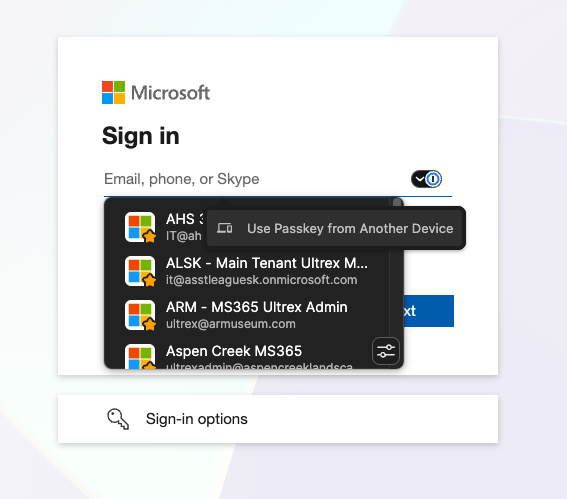
  • When prompted for a password, click “Sign-in options” – then “Temporary Access Pass”
  • Enter the TAP code
  • Once in, they set up their MFA method (Authenticator app, etc.)

Common use cases at an MSP:

  • New employee first login
  • User locked out / lost MFA device
  • Migrating a user to a new device and need them to register fresh

Key notes:

  • TAP bypasses MFA temporarily – treat it like a password
  • One-time use TAPs expire after first login
  • Reusable TAPs expire based on the time window you set

Ultrex IT Sales Primer 

What We Do 

Ultrex is a IT Service provider focused on small to mid-sized organizations that need dependable IT without hiring a full internal team. We provide: 

  • User IT support 
  • Cybersecurity and compliance (PCI/HIPAA/etc) 
  • IT Trainings- on things like AI, Email Security, cloud storage- anything IT related
  • VoIP solutions 
  • Cloud services management 
  • Strategic IT planning and budgeting 

We are proactive, user-focused, and relationship-driven. We do not just fix problems. We prevent ongoing issues and guide clients long term. 

What Makes Someone a Good Fit 

1. They Rely on Technology Daily 

  • 5 to 100 employees is ideal 
  • Use Microsoft 365, cloud apps, or Google Workspace (or want to) 
  • Businesses that operate M-F 8-5  
  • At least 3 Staff who work on computers primarily 

2. They Feel IT Pain 

  • Weak response from current provider if on outsourced IT now 
  • In house staff wearing multiple hats, not true IT, just trying to make things work 
  • Reactive-only break-fix support (if they’re paying someone hourly, or having a non IT staffer muddle through it) 
  • Frequent outages or recurring issues 
  • No strategic IT plan 
  • Cost fluctuates with every ticket or call-in. Projects that cost extra 
  • Feeling like current IT is just trying to sell them machines and extra services 

3. They Want a Partner, Not a Vendor 

  • Open to guidance 
  • Want structure, documentation, and standards 
  • Willing to listen to input and advice 

Red Flags – Poor Fit 

  • Only want the cheapest option / Only talking about price 
  • Refuse to invest in themselves 
  • Need 24/7 or after hours support 
  • Everyone talks about needing fast response times, but when defined, is it within our SLA’s? 
  • Have changed IT providers more than 2 times in the last 5 years 
  • Have internal IT staff who see us as a threat instead of support 

Questions to Ask 

About Their Current Situation 

  • Who handles your IT today? 
  • What frustrates you most about your current setup? 
  • What gets in the way of your staff doing their best work? 
  • When was your last major outage? 
  • How do you handle cybersecurity today? 
  • Is there a machine that if it broke, you’d lose your efforts? Do you know for sure your backups are in a good spot? 
  • What sort of projects or changes would you want to do on if IT was a fixed cost? 
  • What would one day of downtime cost you? Is it worth spending money to proactively avoid that? 

How to Position Ultrex 

Lead with outcomes, not tools. 

Instead of: “We provide managed IT.” 

Say things like: “We help you minimize downtime, train and support your staff, and plan technology so it supports growth instead of slowing you down.” 

Focus on: 

  • Flexibility (Not being one size fits all) 
  • Strategy 
  • Ease of mind- just having someone you can call, no added cost 
  • Long-term partnership 

Closing Notes: 

You are not selling just IT support. 
You are selling peace of mind- business owners who don’t have to manage every piece, but can leave us to help their team. 

The right client feels relief during the conversation. 
The wrong client argues about price before understanding the offering. 

Pricing starts at 100 per supported staffer per month. Multiplier of .5x – 2.5x depending on variables once we do the in-person sales visit. (To account for things like pending projects, staff IT comfort levels, legacy software, environment complexity etc).

We specialize in 501c3 NonProfits. Explain we are managed by a former church staffer who loves supporting nonprofits most, if you’re talking to one. 

Find the pain. Quantify the risk. Position Ultrex IT as the proactive solution. 

THE PROCESS:

Find potential new client

Go to www.Consulting.ultrex.com and book a 1 hour in person apt with me. Put in the client info, not yours, since they’ll get the confirmation and follow up emails. Make sure you put in the full address and contact info- since that’s where I’ll go, and the number I’ll call if there’s a cancellation or reschedule request. On the “what are we getting together for” line, it’s important you know the client gets what you put there. Please put a – and your initials at the end of the line, so I know what account rep booked the apt.

Then, I do my research based on the client email you provide. I’ll arrive on the day of the apt knowing all I can about the client so I can be of most use.

After the visit, I’ll write a bid, and send it to you to then present to the client. If you’d like me at the presentation meeting, just book me again. Do not commit to any timeline for onboarding, please leave all non-financial discussions between me and the client. The onboarding fee is at your discretion. Edits to the contract? Just email me and I’ll update and send you new ones as fast as possible.

© 2026 Ultrex Staff

Theme by Anders NorenUp ↑





