Category: MS365 (Page 3 of 3)

How to Send Emails from a Different Account Using Outlook

Configuring Outlook to Send Emails From Another Account

If you need to send emails from a different email account using Outlook, follow these steps:

  1. Open Outlook and start a new email.
  2. Click on the three dots (…) in the options menu of the new email window.
  3. Select the ‘From’ field dropdown.
  4. Choose the desired email account you have been authorized to send from. If it’s your first time sending from that account, you may need to add it using the shared email box feature.
  5. Once selected, this setting will remain available for future emails, making it easy to switch between authorized accounts.

This process allows for smooth switching between various accounts and is available in both Outlook.com and Outlook classic versions.

Great Youtube Links for customers

Please follow the formatting below

—————————————————————-

Link:

Use:

Training on the basics of use, and the difference between MS programs Lists, Planner, Project and ToDo.

—————————————————————-

How to set up DKIM and SPF for DNS records in Google Workspace

How to set up DKIM and SPF for DNS records in Google Workspace

Raised from ticket #2059

If you are experiencing issues with your emails being marked as spam, setting up DKIM (DomainKeys Identified Mail) and SPF (Sender Policy Framework) records can help improve your email deliverability. Follow these steps to configure these records:

Setting Up DKIM

  1. Access the Google Admin Console: Sign in to your Google Admin console using your administrator account.
  2. Navigate to: Apps > Google Workspace > Gmail.
  3. Authenticate Email: Click on Authenticate email.
  4. Generate a DKIM Key:
    • Select your domain from the dropdown.
    • Click on Generate new record.
    • Choose your DKIM key settings:
      • DKIM key bit length: Choose 2048-bit for better security.
      • Prefix selector: Use the default ‘google’ if this is your first setup.
    • Click Generate.
  5. Add the DKIM Key to Your DNS Records:
    • Log in to your domain host’s DNS management console.
    • Add a new TXT record with the following details:
      • Host/Name: Enter the TXT record name provided (e.g., google._domainkey).
      • Value: Paste the TXT record value generated in the Admin console.
    • Save the changes.
  6. Activate DKIM Signing:
    • Return to the Google Admin console.
    • Select your domain in the Authenticate email section.
    • Click on Start authentication.
    • The status should update to Authenticating email with DKIM.

Note: DNS changes can take up to 48 hours to propagate.

Setting Up SPF

To set up SPF, you will need to add a TXT record to your DNS settings:

  1. Log in to your domain host’s DNS management console.
  2. Add a new TXT record with the following details:
    • Host/Name: @ (or your domain name)
    • Value: v=spf1 include:_spf.google.com ~all
  3. Save the changes.

By following these steps, you can enhance your email security and reduce the likelihood of your emails being marked as spam.

Helpful Microsoft Learn Article discussing Email Encryption

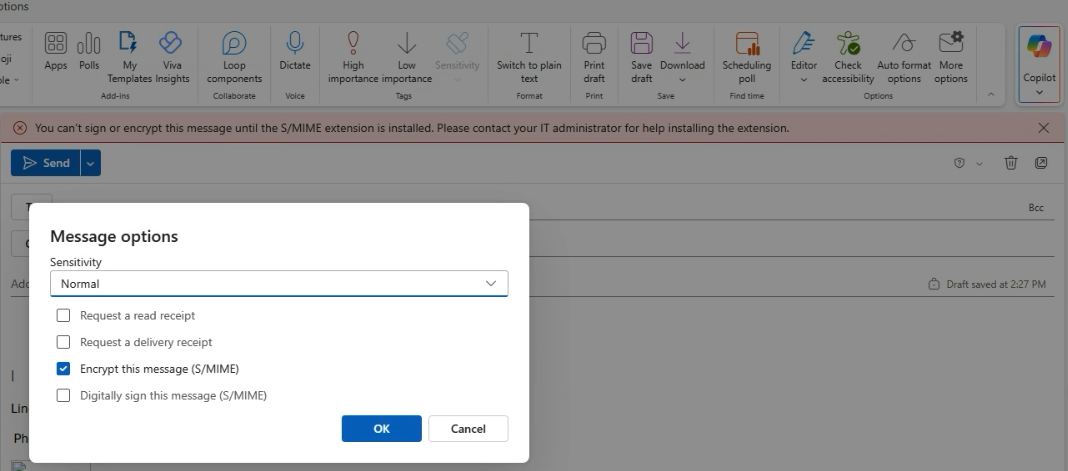
This came up in troubleshooting how S/MIME plays into email encryption for Business users. Valuable to understand the behind the scenes of how email encryption works so we can help our customers understand when they go to click the wrong way of encrypting their emails as a Premium user 🙂

https://learn.microsoft.com/en-us/purview/email-encryption

Short and sweet – there are two ways to encrypt emails in Outlook, and only one is the one we’d really want to recommend for maximum useability, but that users have the option to select if they don’t know better:

  1. Default recommendation, and the one we’re used to:
    1. New Message > Options > Encrypt > Encrypt
    1. This encrypts emails on the server level and lets servers authenticate senders and recipients to allow the recipients to actually read the email more readily.
  2. Not recommended because way more work on sender and recipient end to allow recipient to actually read the email
    1. New message > More Options > Encrypt with S/MIME and Digitally sign with S/MIME
    2. Encrypting with S/MIME, if not configured properly (and likely with Microsoft’s help) will error out like in the image above, and will also require the recipient to have configured S/MIME certs on their end in order to actually read the email.

If you run into this, that’s the gist of why we wouldn’t want to recommend option 2 🙂 way more hassle for not a lot of extra payoff unless an org is getting extra serious about their ability to verify the sender/recipient.

How to export emails from Microsoft Purview

How to export emails from Microsoft Purview

Raised from ticket #2038

If you need to export emails from a Microsoft 365 tenant using the Microsoft Purview compliance portal, follow these steps:

Step 1: Assign eDiscovery Permissions

  • Ensure your account has the necessary permissions by adding it to the eDiscovery Manager role group.
  • In the Microsoft Purview compliance portal, navigate to Permissions > Email & collaboration roles > Roles, and select the eDiscovery Manager role group.
  • Add your account to the eDiscovery Administrator list. NOTE: You need to have Business Premium / Office E3 or higher to allow for actual eDiscovery exports.
  • Verify that the Export role is assigned to this role group.
  • Note: Changes in permissions might take up to 24 hours to apply.

Step 2: Create a Content Search

  • In the compliance portal, go to Content search and select New search.
  • Provide a name and description for the search.
  • Under Locations, enable Exchange mailboxes and select the mailboxes you wish to export.
  • To export all emails, leave the Conditions section empty.
  • To export only a specific date range, add a Condition for “Received” and select before, after, or between certain dates
  • Submit the search and wait for it to complete.

Step 3: Export Search Results

  • Once the search is complete, select it from the list and choose Export results.
  • In the export options:
    • Under Output options, select All items, including ones that have unrecognized format, are encrypted, or weren’t indexed for other reasons.
    • Under Export Exchange content as, choose One PST file for each mailbox and can likely leave the default selections. Read them carefully though.
  • Start the export process. Note: This can take over an hour to export depending on the size of export you’re doing.

Step 4: Download the Exported PST Files

  • After the export job is prepared, navigate to the Exports tab in the compliance portal.
  • Select your export job and copy the Export key.
  • Click Download results, which will prompt you to install the eDiscovery Export Tool if it’s not already installed.
  • In the eDiscovery Export Tool, paste the export key and specify the download location on your local computer.
  • Initiate the download to retrieve the PST files.

How to Add Shared Mailboxes in Outlook

How to Add Shared Mailboxes in Outlook

Purpose

This article explains how to add a shared mailbox in both Outlook.com (web) and the Outlook mobile app.
You’ll typically need to do this when you have access to a departmental or team mailbox (for example, info@, support@, or billing@) and need to view or send emails on its behalf.


Adding a Shared Mailbox in Outlook.com (Web Version)

  1. Sign in to your Outlook.com account.
  2. In the left folder pane, right-click on Folders and select Add shared folder.
  3. Enter the email address of the shared mailbox.
  4. Click Add.

Result: The shared mailbox will now appear in your folder list, usually under your personal mailbox folders. You can read, send, and manage emails based on the permissions assigned.


Adding a Shared Mailbox in the Outlook Mobile App (iOS/Android)

  1. Open the Outlook app on your mobile device.
  2. Tap the profile icon (top-left corner).
  3. Tap the gear icon to open Settings.
  4. Scroll down and select Add Mail Account → Add a Shared Mailbox.
  5. Enter the shared mailbox email address and tap Add Shared Mailbox.

Result: The shared mailbox will now appear alongside your personal mailbox in the account list.


Final Notes

  • Make sure your account has been granted access to the shared mailbox by an administrator before attempting to add it.
  • If the mailbox does not appear after adding it, try restarting Outlook or removing and re-adding your account.

How to Export Microsoft Teams Chats Using Microsoft Purview (eDiscovery Premium)

How to Export Microsoft Teams Chats Using Microsoft Purview (eDiscovery Premium)


Purpose of This Article

This guide explains how to export Microsoft Teams chat conversations using the Microsoft Purview Compliance Portal through the eDiscovery (Premium) feature.

You’ll need this process when:

  • A client or internal request requires archived Teams conversations for review or compliance.
  • You’re performing legal discovery, HR investigations, or internal audits.
  • Teams data must be preserved or exported in a readable format (such as PDF or native message files).

Step-by-Step Instructions

1. Access the Microsoft Purview Compliance Portal

  1. Open a browser and go to: https://compliance.microsoft.com.
  2. Sign in with an admin or compliance account that has eDiscovery Manager or Administrator permissions.

2. Create an eDiscovery (Premium) Case

  1. In the left-hand navigation, go to eDiscovery (Premium).
  2. Select + New case.
  3. Give the case a clear name and description (e.g., “HR Chat Review – October 2025”).
  4. Click Save to create the case.

3. Add Custodians (Users) to the Case

  1. Open the case you just created.
  2. Navigate to the Data sources tab.
  3. Click Add custodians.
  4. Search for and select the users whose Teams chats you need to export.
    • When you add custodians, their connected data sources (mailboxes, OneDrive, etc.) are automatically linked to the case.

4. (Optional) Apply a Legal Hold

If you need to preserve data to prevent deletion:

  1. Select the custodians you added.
  2. Click Apply hold.
  3. Confirm which data sources (Exchange, OneDrive, etc.) to include.
  4. Apply the hold.
    • This ensures that even deleted messages are retained for the duration of your investigation.

5. Create a Collection for Teams Chats

  1. Go to the Collections tab within your case.
  2. Click + New collection.
  3. Define your search parameters:
    • Locations: Select Exchange mailboxes (Teams messages are stored there).
    • Query: To target Teams messages, use kind:im OR kind:microsoftteams
  4. Run the search to estimate how many items match.
  5. When satisfied, save the collection.

6. Add Search Results to a Review Set

  1. From the search results, choose Add to review set.
  2. This allows you to view Teams conversations in a threaded (chat-style) layout.
  3. Name the review set and click Add.

7. Export the Teams Chats

  1. In the Review sets tab, open the review set you created.
  2. Select the conversations you wish to export.
  3. Click Export.
  4. Configure your export options:
    • Export entire conversations as PDFs or individual chat messages as separate files.
    • Choose whether to include metadata or transcripts.
  5. Start the export.
  6. Once complete, download the export package from the Exports section to your local system.

Final Notes

  • Licensing: eDiscovery (Premium) requires Microsoft 365 E5 or a similar add-on license. Ensure your tenant has access before starting.
  • Permissions: The user performing this task must have the eDiscovery Manager role in Purview.
  • Storage Location: Teams chat exports are derived from Exchange mailboxes, not from Teams directly—this is by design.

Summary

Exporting Teams chats through Microsoft Purview ensures compliance, transparency, and legal defensibility. By following these steps—creating a case, adding custodians, collecting chat data, and exporting—you can retrieve Teams conversations safely and in a reviewable format.

Finished Result: You’ll have a downloadable export (PDF or file set) of Teams chat conversations, properly preserved and ready for review or recordkeeping.

Defederate Steps from GoDaddy to MS365

A few things to do first. Make sure you can login with the godaddy admin account to Portal.Azure.com
And change the password for the “admin@net…..” account. This will be your new admin account to login into MS365

1. PowerShell Execution Policy:

Problem: By default, PowerShell often blocks running scripts.

Check: Run Get-ExecutionPolicy in PowerShell.

Solution: If it shows “Restricted,” run Set-ExecutionPolicy Bypass -Scope Process.

This temporarily allows scripts to run in the current PowerShell session.

2. Install Microsoft Graph Module:

Run: Install-Module Microsoft.Graph -Scope CurrentUser -Repository PSGallery -Force in PowerShell (as administrator).

Wait: This may take time. Wait until it returns to the system prompt.

3. Run the De-federation Script:

Run the provided script from the blog post. 

https://docs.tminus365.com/configurations/godaddy/defederating-godaddy-365

Here is the primary Script to run

Write-Host “Checking for MSGraph module…”

$Module = Get-Module -Name “Microsoft.Graph.Identity.DirectoryManagement” -ListAvailable

if ($Module -eq $null) {

        Write-Host “MSGraph module not found, installing MSGraph”

        Install-Module -name Microsoft.Graph.Identity.DirectoryManagement

    }

Connect-MgGraph -Scopes “Directory.Read.All”,”Domain.Read.All”,”Domain.ReadWrite.All”,”Directory.AccessAsUser.All”

#Enter the Admin credentials from “Become a tenant Admin in GoDaddy”

Get-MgDomain

#See that the domain is “federated”#

Update-MgDomain -DomainId “<InsertFederatedDomain>” -Authentication Managed

Prompts:

You might be asked about allowing network paths and untrusted modules.

Answer “Yes” or “Yes to All” to these prompts.

You will be asked to enter your godaddy admin credentials.

Action: The script will change the domain from “federated” to “managed.”

Note – Don’t close Powershell yet!

4. Post-Script Actions:

Log in to the Microsoft 365 admin center.

Remove GoDaddy from the partner list.

Reset all the logins for the users.

Remove Global Admin from any account not freshly created during this process.

Assign proper licenses for users- often they’ll come over with only exchange online licenses. 

When all is done. Run Disconnect-MgGraph  in powershell. This will disconnect from the domain so the computer can do a different migration without issues. 

How to disable multi-factor authentication MS365

Some customers want multi-factor app access turned off.

For those that want it. You need to ensure that the users have disabled multi-factor authentication.

AND

From the 365 account go to Identity/Entra.

Select Overview

Choose Properties

Scroll to the bottom and look for a small print says “Manage Security Defaults”

Change the option to Disabled (Not recommended).

Accept past the warning.

The 365 accounts are now set to not enforce multifactor authentication for everyone. Unless it is enabled at the individual level.

Newer posts »

© 2026 Ultrex Staff

Theme by Anders NorenUp ↑