Category: IT Knowledge Base Articles (Page 10 of 11)

Device Cap Reached

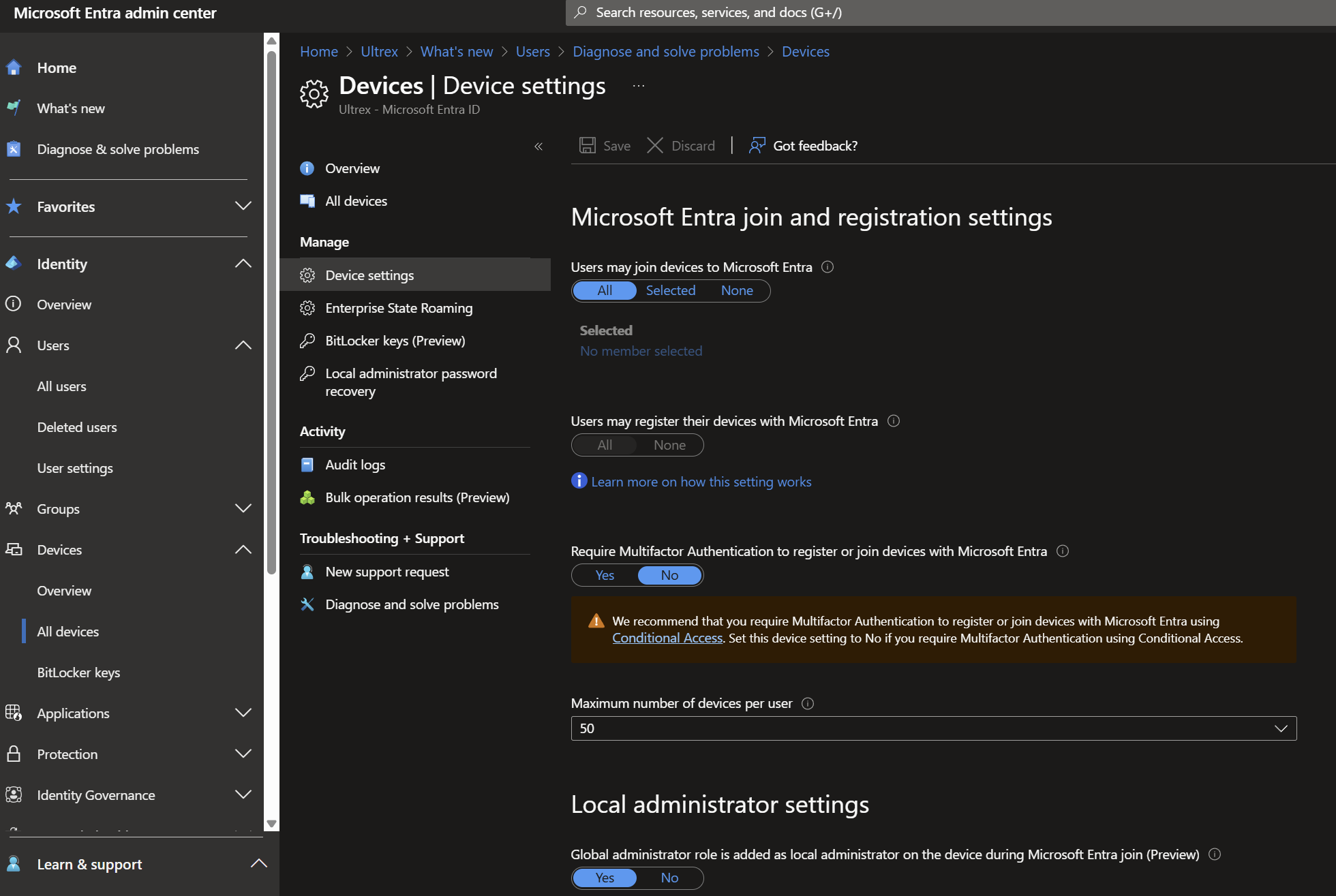
Occasionally, you will reach your device cap when entra joining devices. There are TWO places to check this- intune.microsoft.com and entra.microsoft.com.

Intune will tell you device limit per user is 5 by default, and you can modify it to 15. theres also options for DEM accounts. I tried with no success.

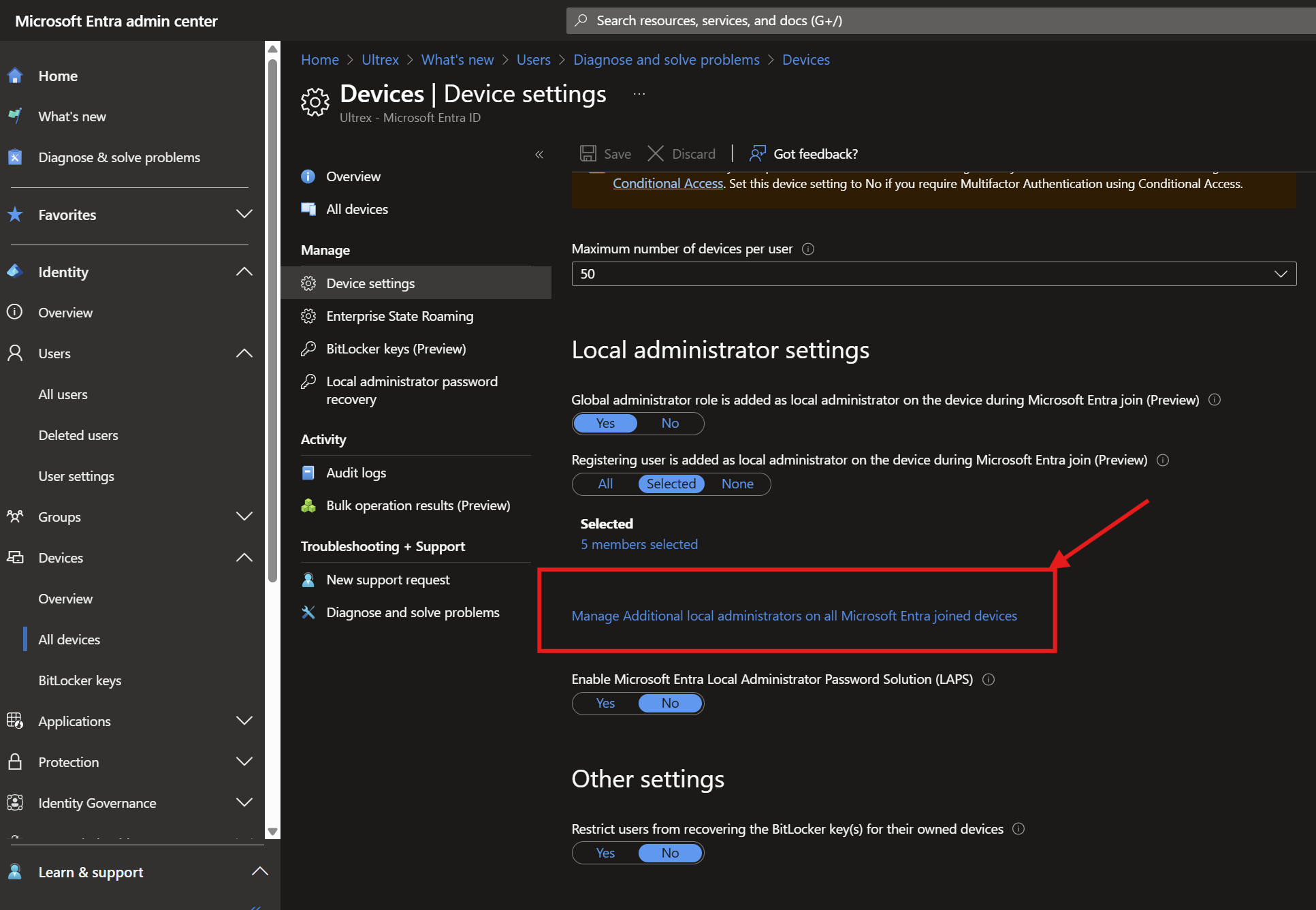
The alternative- Entra settings allow you to change the device cap to unlimited. Yeehaw

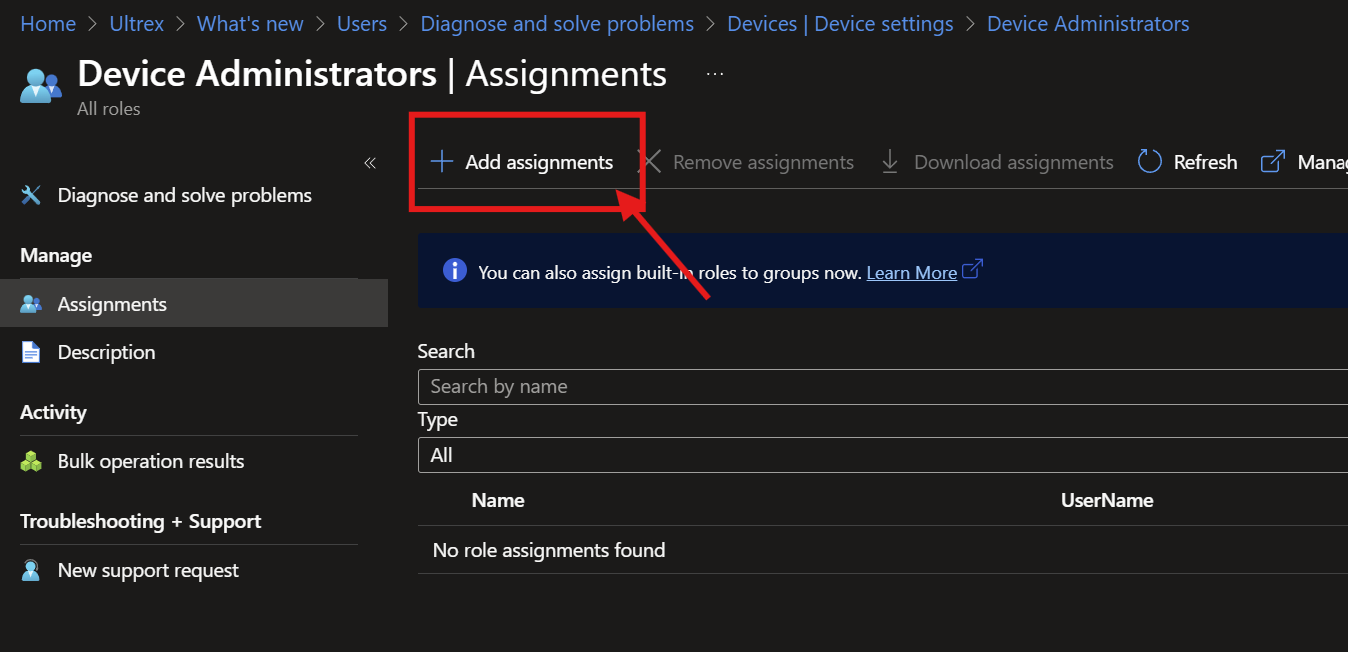
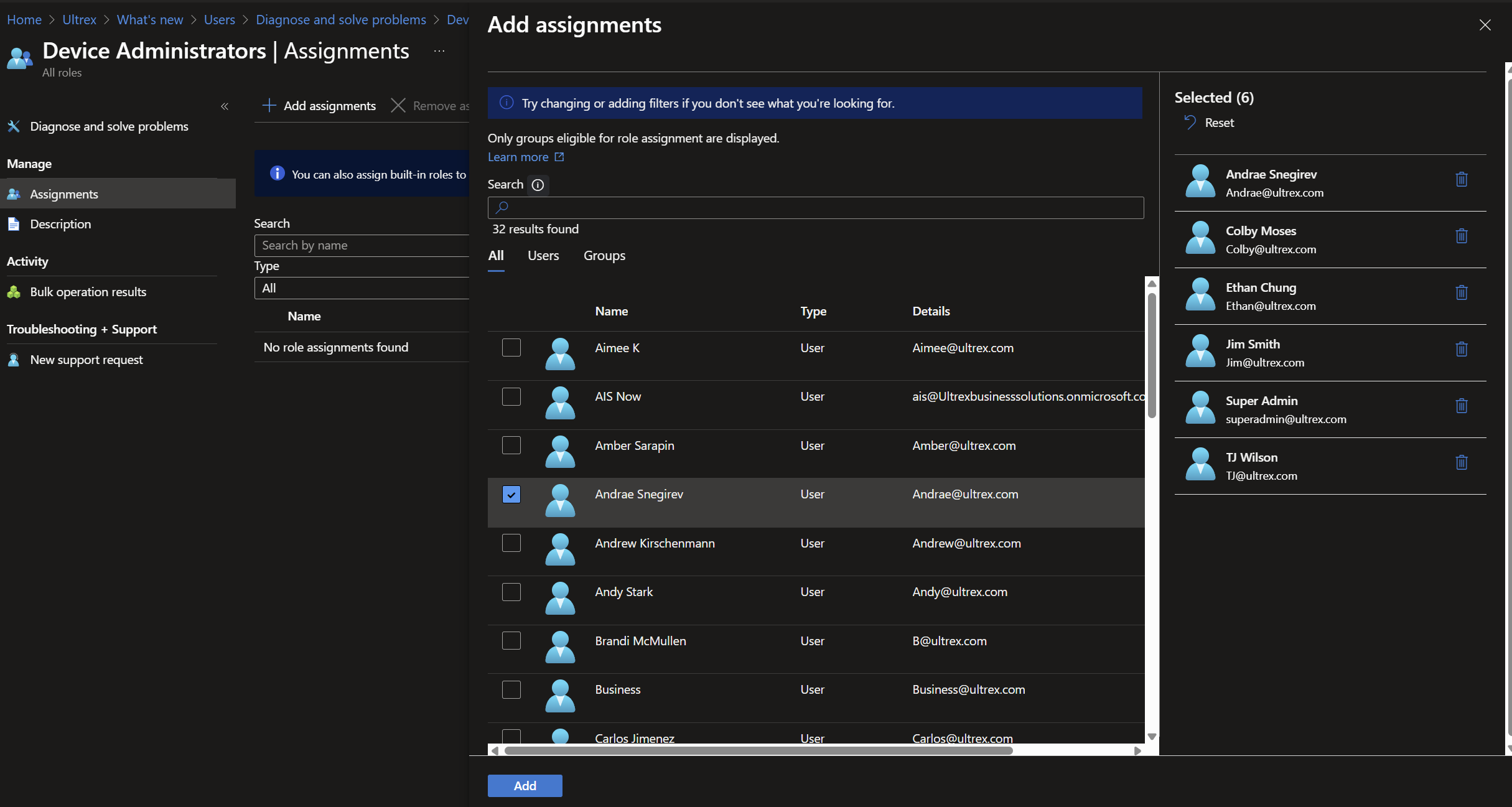
Use Entra

SWCD and SonicWall Cloud App Security portal for SonicWall quarantined or flagged emails – How to get there and what to do

SWCD and SonicWall Cloud App Security portal for SonicWall quarantined or flagged emails – How to get there and what to do

Raised from ticket #3381

Steps provided by WesternNRG

If you receive a notification about a quarantined email, follow these steps to determine if it is safe to release:

  1. Check the sender’s email address carefully. Ensure it matches the expected domain.
  2. Verify if you were expecting an email from that sender.
  3. Access the CAS Admin Portal to review the quarantined email:
    • Log in to the CAS Admin Portal.
    • Navigate to Quarantine > Quarantine Items.
    • Find the email in question and click on the subject header.
    • Review the Security Stack on the right side to see the analysis of the email.
    • Check for any flagged attachments and their details.
  4. If an attachment is flagged as potentially malicious, do not release the email immediately.
  5. Consider downloading the attachment to an isolated computer with strong antivirus software to scan it for threats.
  6. Based on the scan results, decide whether to release the email or not.

Always exercise caution when dealing with quarantined emails, especially if they contain attachments. If in doubt, consult your IT support team for further assistance.

SonicWall Whitelisting IP Address in Firewall

Hello Jim,

I spoke with Andrae and during the call we discussed the allow rule needed to be created. He mentioned it would be a penetration test-like event from the internet needing inbound access, but despite there being no inbound access rules existing for CISA he mentioned there was never any reports of the tests not working in the past.

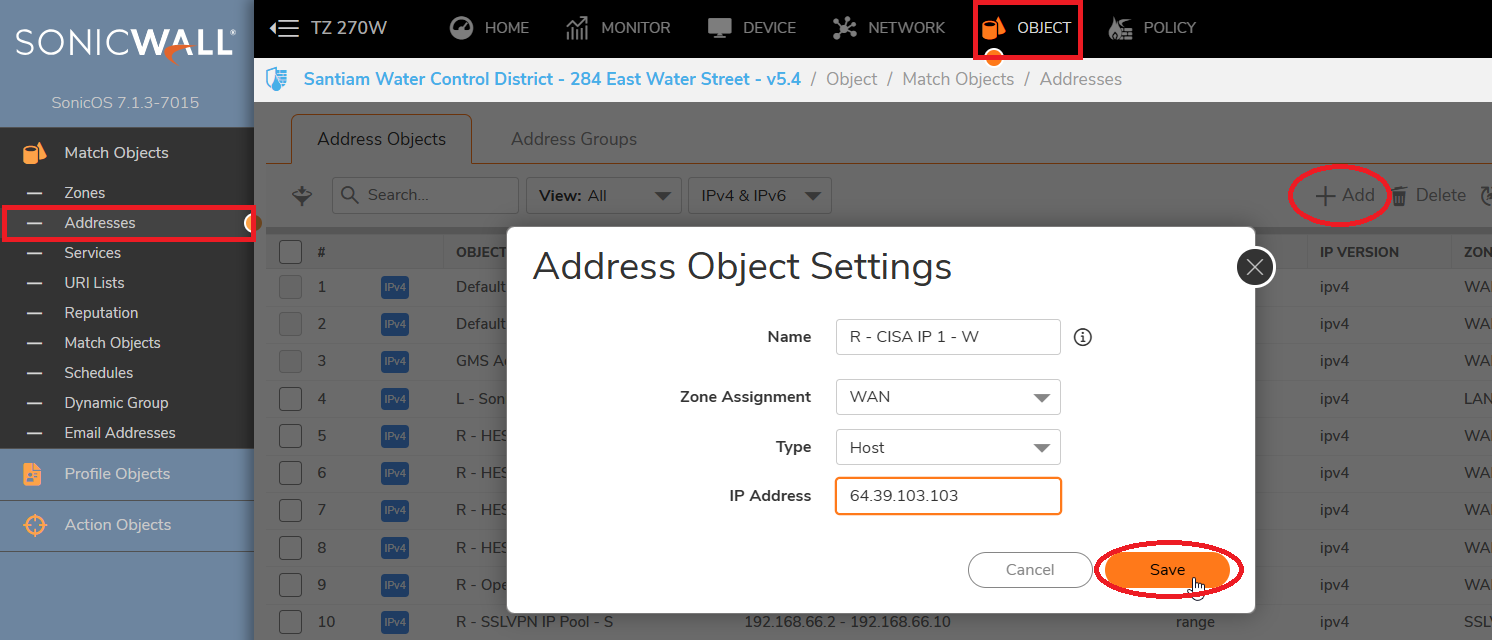
We created address objects for the CISA IPs listed and then added them to a group. We then created an inbound access rule to allow those IPs in the group access any zone with any port/service. There was no NAT policy created since it doesn’t seem like they need access to a specific device at a specific private IP.

To create these address objects, in the top menu select Object

      On the left menu select Addresses

      Click Add towards the right side of the Addresses menu

      Put a unique name, because the IPs are on the internet select WAN zone, for the first IP select Host because it’s a /32 (255.255.255.255)

            For the other IPs, since they are a /29 and /28 network we chose Network and put the corresponding subnet masks under the network IP.

      Click Save

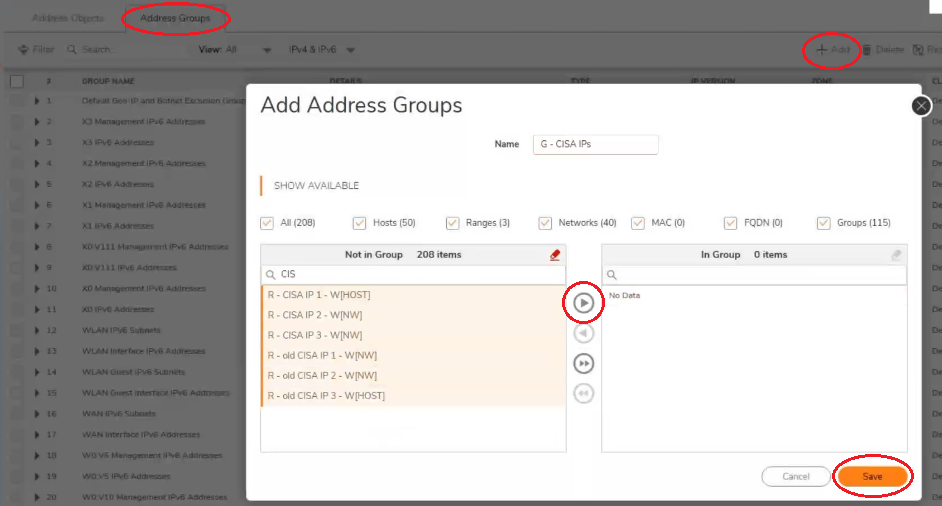
To create an address group, or add new objects to an existing group, click Address Groups at the top left of the Adress Object menu

      To create a group Click Add, to edit an existing group search for the group name, hover over it and click the Pencil icon to edit

      Search for the address objects you want to add on the left side by the unique name

      Select each address object by clicking on each or holding down left click while dragging the cursor over the group of Address objects you wish to select

      Click the right facing arrow in the middle to move the selected objects into the group

      Click Save

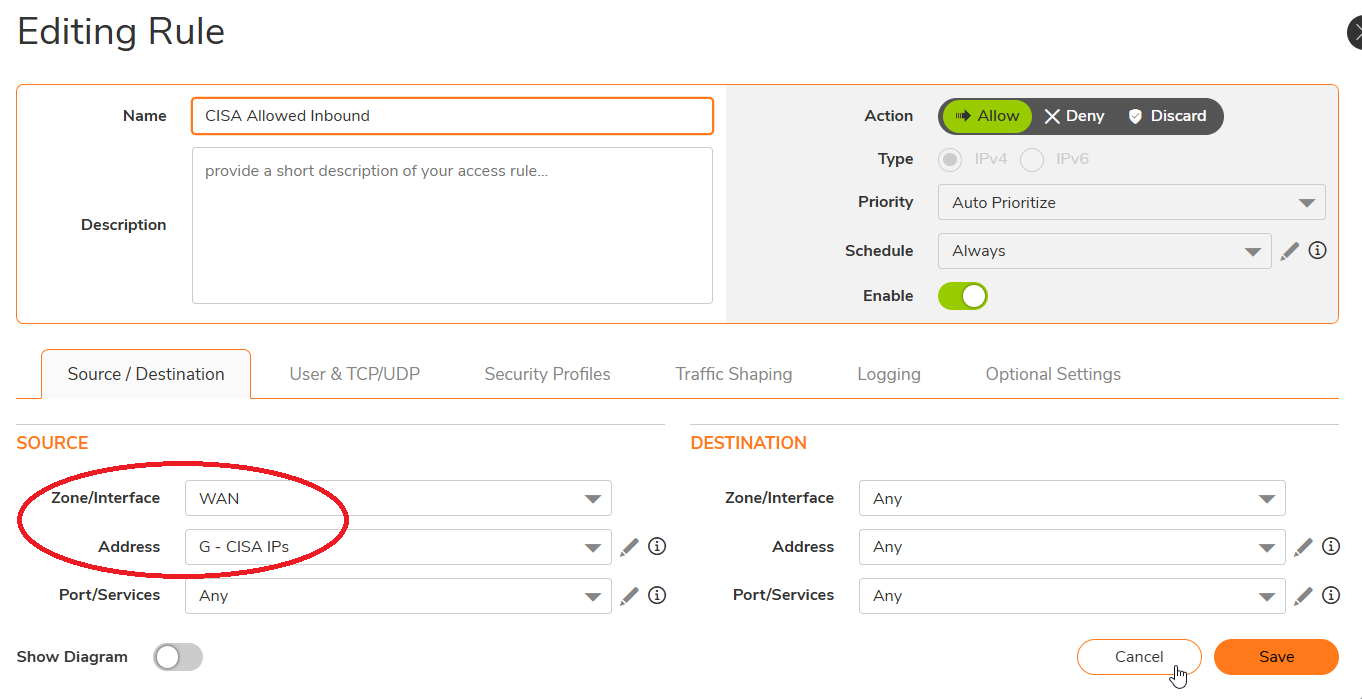
To create access rules, on the top menu navigate to Policy and on the left side menu select Access Rules

      Click the +Add option on the bottom left to bring up the screen below.

      Since we created an inbound access rule from the internet, we selected WAN for the Source Zone

      For the Source Address we selected the group we created which contains the address objects we created.

            This locks the rule down to only allow traffic with a source IP from the IP pool in the “G – CISA IPs” group

      We left the Destination as Any to allow them open access to the network.

As discussed, I’ll close this ticket for you now but if you have any questions in the future feel free to reach out anytime.

Thank you and have a great rest of your day!

Kind Regards,

Josh Littaua    
Western NRG, Inc.  Total Internet Security
(805) 658-0800 |  Fax: (805) 465-8480
j.littaua@westernnrg.com www.WesternNRG.com

CFM MFA Letter

Subject: From your Friends at Ultrex – Multi-Factor Authentication (MFA) Setup for Account Security

Hey there CFM Team 🙂 this is Andrae with Ultrex IT!

As we help you all transition to Microsoft accounts in the coming months (today for many of you), to ensure we are maintaining the highest standards of data protection and complying with HIPAA requirements, we are fully implementing multi-factor authentication (MFA) for all user accounts.

Why MFA Is Important

As a reminder, MFA adds an essential layer of security by requiring not just a password but also a verification code generated by an app on your phone. This helps prevent unauthorized access, even if someone has your login credentials.

Default MFA App: Google Authenticator

We ask users to install the Google Authenticator app if you don’t already have it (looks like a multi-colored asterisk), A colorful logo with a white background

AI-generated content may be incorrect. as it offers a secure and user-friendly option without requiring a Google account. Here are a few key points:

No Google account needed: You can use it without signing in or linking your Google profile. Please do NOT sign in with your CFM email address within the Authenticator app.

Minimal permissions: The app only requests camera access to scan QR codes when setting up MFA. It does not allow us (Ultrex or CFM) to access to your phone’s camera or data. If you’d still prefer to not allow camera access, we can help you get the complex setup key typed in instead 🙂

No work access to your phone: Installing this app does not give us (Neither CFM nor Ultrex) any control over or visibility into your device.

Optional Account Syncing

If you would like to sign in to the app with a Google account, doing so will allow the codes you set up to sync with your account. Please only do this with a personal gmail account- many items use MFA in the modern age, and we don’t want to one day have you locked out of personal items if you work status changes. Signing in is helpful if your phone is lost, damaged, or replaced—signing back in with the same Google account will allow your authentication codes to carry over to the new device.

If you choose not to sign in and something happens to your device, just let your supervisor know your code isn’t working and we’ll assist in setting up a fresh code for your account.

Questions or Concerns?

We understand that some users may be hesitant about installing work-related apps on personal phones. While Google Authenticator is the default choice, there are other secure MFA options available. If you have any questions or would like to explore alternatives, please reach out to Deb so we can make a plan that works for you while keeping your account secure. 🙂

Checking Domain Function level and upgrading if needed

Windows Server 2022 Datacenter: WX4NM-KYWYW-QJJR4-XV3QB-6VM33

Windows Server 2022 Standard: VDYBN-27WPP-V4HQT-9VMD4-VMK7H

1- 

Run the following PowerShell command (in elevated mode) to verify :

Get-ADObject (Get-ADRootDSE).schemaNamingContext -Property objectVersion

Compare to:

AD version

Windows Server 2000

13

Windows Server 2003

30

Windows Server 2003 R2

31

Windows Server 2008

44

Windows Server 2008 R2

47

Windows Server 2012

56

Windows Server 2012 R2

69

Windows Server 2016

87

Windows Server 2019

88

Windows Server 2022

88

CMD 

Open command prompt (elevated rights) on Domain controller and

navigate to source directory of Windows Server ISO. In my case the

location was d:\support\adprep\adprep.exe.

cd..

cd..

cd DVD (assuming you copied the DVD contents to a folder on the C drive called DVD

cd support

cd adprep

Run the command adprep.exe /forestprep

Run adprep.exe /domainprep

Google Workspace Data Export Tool vs Google Takeout (For Admins)

Google Workspace Data Export Tool vs Google Takeout (For Admins)

🛠️ Google Workspace Data Export Tool (For Admins)

This tool allows super administrators to export data for the entire organization or specific users.

🧠 Summary

  • Use the Data Export Tool for organization-wide data exports or when a user is not available / doesn’t make sense to change their password and prevent their account access while we export.
  • Use Google Takeout when users are available and need to export their own data.

✅ Prerequisites for Admin Data Export

  • You must be a super administrator.
  • The admin account must be at least 30 days old.
  • 2-Step Verification must be enabled for the admin account.
  • The organization must have fewer than 1,000 users.

📋 Steps to Export Data

  1. Sign in to the Google Admin console.
  2. Navigate to Data > Data Export.
  3. Click Start Export.
  4. You’ll receive an email confirming the export has started.
  5. After approximately 48 hours, you’ll receive another email with a link to download the data from a Google Cloud Storage bucket or can navigate back to the Data Export list and download the results.
  6. https://admin.google.com/ac/customertakeout

⚠️ Important Considerations

  • The export process can take up to 14 days, depending on the amount of data.
  • The exported data is available for 30 days in the Cloud Storage bucket.
  • Ensure you download the data before it is automatically deleted.

👤 Google Takeout (For Individual Users)

Google Takeout allows users to export their own data from various Google services.

✅ Prerequisites for Google Takeout

  • The user must have access to their Google account.
  • Admins can control if/which services are available for export via the Admin Console.

📋 Steps to Export Data

  1. Visit Google Takeout takeout.google.com and sign into the account you need data from
  2. Select the Google services you want to export data from.
  3. Click Next Step.
  4. Choose the delivery method (e.g., download link via email, add to Drive, Dropbox, etc.).
  5. Select the export frequency, file type, and size.
  6. Click Create Export.
  7. You’ll receive an email in the user’s inbox when your export is ready.

⚠️ Important Considerations

  • The time it takes to prepare the export depends on the amount of data; it can range from minutes to days.
  • Download links are available for 7 days.
  • Some services may have limitations on the number of exports per day.

Wiping and Reloading Intel Macs

Wiping and Reloading Old Intel Macs

1)        Restart PC, and hold CMD + R to enter Recovery Mode.

2)        Enter Disk Utility > Select Primary Drive Partition > Erase > Rename, select macOS Extended, Journaled > Erase

3)        Exit Disk Utility

4)        Select “Reinstall macOS ____”

5)        If not given the option to reinstall most up to date macOS or says “Cannot contact servers”, restart PC and let it enter Internet Recovery to reinstall OS X

6)        Once OS X is installed, you need to get the base OS installers from here and create bootable media to add the installer to the Applications folder and update from there.

7)        For finding the installers

a.        https://support.apple.com/en-us/102662

8)        Directions to create bootable media with the installer

a.        https://support.apple.com/en-us/101578

Export Customer Vault from 1Pass

If you’ve got a customer we need to export all passwords we are storing for them, you’ll need to do a vault export.

Because of accountability, in the case of a customer off-boarding, we should make a new master/admin/global admin account for the new IT, and give them a default name and password. Let them set up their own MFA. 

But if we need to export all that we do have, you’ll need to use the desktop app of 1password 7. 1password 8 does not have export functionality per vault, but rather only our entire account (All vaults). As of the writing of this support article on 1-4-25.

Once you install 1pass 7 on a machine, then you can log in and do an export into CSV of all items in the vault directly. This can then be encrypted email (MAKE SURE) and sent to the new IT or customer. Change the default setting of “common items” to be “all items” and it’ll then export even MFA token strings that people who know what they’re doing can import to their tool of choice.

This will also export all secure notes we save in there. This makes 1pass the best way to give a single export and it’ll include notes saved within the vault as well.

When we would ever send this, it’s incredibly important that we mention that this is an unencrypted file, so we recommend keeping it secure, as accessing it would compromise all accounts instantly.

Unifi UNVR RAID and Hot Spare Configuration Clarifications

Raised from Ticket #3516

Overview

This article clarifies how the UniFi Network Video Recorder (UNVR) handles RAID configurations, drive initialization, and hot spare functionality. It combines insights from official UniFi documentation, Crosstalk Solutions’ setup guides, and field experience.


RAID Configuration Options in UNVR

The UniFi UNVR supports several RAID configurations, but the most commonly recommended for security camera setups is RAID 5 due to its balance of redundancy and usable storage.

  • RAID 5 requires a minimum of 3 drives
  • Provides 1 drive’s worth of redundancy
  • Allows for one drive failure without data loss
  • Offers better storage efficiency than RAID 1 or RAID 10

For example, 3 x 10TB drives in RAID 5 = 30TB total – 10TB for parity = 20TB usable storage

For example, 4 x 10TB drives in RAID 5 = 40TB total – 10TB for parity = 30TB usable storage


Hot Spare Drive Behavior

What Is a Hot Spare?

hot spare is a drive that is pre-installed and sits unused until another drive fails. When a failure occurs, the system automatically begins rebuilding the array using the hot spare.

Important Clarifications:

  • The hot spare must be installed during the RAID setup phase.
  • You cannot insert it later without reinitializing the array.
  • Reformatting the array is required to enable the hot spare function.

Hot Spare Use Case:

In a 4-drive RAID 5 setup:

  • 3 drives are active
  • 1 drive is the hot spare
  • For example, 4 x 10TB drives in RAID 5- but one is just a standby, doing nothing = 40TB total – 10TB for parity and -10 for hot spare = 20TB usable storage
    • Hot spare and raid 5 would require four drives, so there’s no 3 drive option.

This allows for faster failover and quicker recording recovery, although it still requires some time to rebuild after a failure.


Initialization and Setup Considerations

Initialization Time

Initial drive formatting and RAID setup can take a long time—estimates vary based on drive size and health. For 10tb drives, 2 days is a conservative estimate, though this may shorten significantly once the initialization progresses past early stages.

System Behavior When Drives Are Added or Removed

  • UNVR is not a hot-add system. Adding or removing drives resets existing footage.
  • Adding a fourth drive after the fact (not during initial setup) means a full reformat is required, and previous recordings will be lost.
  • Always backup data before any changes to the RAID array.

Recommended Action Steps

  1. Initial Setup
    • Install all drives (including intended hot spare)
    • Choose RAID 5 during setup
    • Configure the hot spare at the time of initialization
  2. If Adding a Hot Spare Later
    • Backup any critical data
    • Insert the fourth drive
    • Reformat the RAID array and enable hot spare role for the new drive
  3. Post-Setup Maintenance
    • Monitor drive health via UniFi Protect
    • Replace failed drives promptly
    • Ensure that replacement drives match size and speed class for best results

Summary

ConfigurationDrives UsedUsable StorageRedundancyNotes
RAID 5 Only3 x 10TB20TB1 driveGood storage-to-redundancy ratio
RAID 5 + Hot Spare4 x 10TB30TB1 drive + 1 hot spareHigher resilience, slower total storage setup
Adding Drive LaterN/AN/AN/ARequires full reformat and loss of current footage

References


Notes from Support Experience

  • Formatting large drives can be slow initially but speeds up as the process progresses.
  • Hot spare must be present at setup to be configured easily.
  • Rebuilding after failure using a hot spare is faster than traditional full array rebuilds, but not instant.
  • Backup capability is limited through UniFi Protect, so plan for external backups if data preservation is critical.

Using FileZilla to bypass older machine software compatibility for cloud upload

Consider the following a good bypass when using the sharepoint upload tool isn’t an option

​When performing data migrations to OneDrive on systems running older operating systems like Windows 7 or Windows Server 2012, you may encounter significant challenges due to outdated security protocols and compatibility issues. In such scenarios, utilizing FileZilla Pro can serve as an effective alternative to facilitate the migration process.​

Challenges with OneDrive on Older Operating Systems:

TLS Protocol Limitations:

Windows 7 and Windows Server 2012 do not natively support TLS 1.1 and TLS 1.2, which are required for secure connections to Microsoft 365 services, including OneDrive. This limitation can prevent the OneDrive application from establishing a connection, leading to sign-in issues. ​
Microsoft Answers

Deprecation of Support:

Microsoft has ended support for the OneDrive desktop application on older operating systems. While the application may still function, it no longer receives updates or technical support, increasing the risk of compatibility and security issues.​

Why FileZilla Pro is a Viable Alternative:

FileZilla Pro offers built-in support for various cloud storage services, including OneDrive. By using FileZilla Pro, you can bypass the limitations of the native OneDrive application on older operating systems. It provides a reliable and secure method to upload data to OneDrive without relying on the deprecated OneDrive client.​

Steps to Use FileZilla Pro for OneDrive Data Migration:

Install FileZilla Pro:

Download and install FileZilla Pro from the official website.​

Connect to OneDrive:

Open FileZilla Pro and navigate to File > Site Manager.​

Click on New Site and select Microsoft OneDrive as the protocol.​

Authenticate using your Microsoft 365 credentials.​

Transfer Files:

Once connected, you can drag and drop files between your local system and OneDrive, facilitating the data migration process.​

Important Considerations:

Security Implications:

Ensure that the use of third-party applications like FileZilla Pro aligns with your organization’s security policies. While FileZilla Pro is a reputable application, it’s essential to maintain compliance with internal security standards.​

Alternative Solutions:

If upgrading the operating system is feasible, consider transitioning to a supported version of Windows to utilize the latest OneDrive application with full support and security updates.​

By understanding the limitations of older operating systems and leveraging tools like FileZilla Pro, you can effectively manage data migrations to OneDrive, ensuring continuity and security in your organization’s operations.

« Older posts Newer posts »

© 2026 Ultrex Staff

Theme by Anders NorenUp ↑