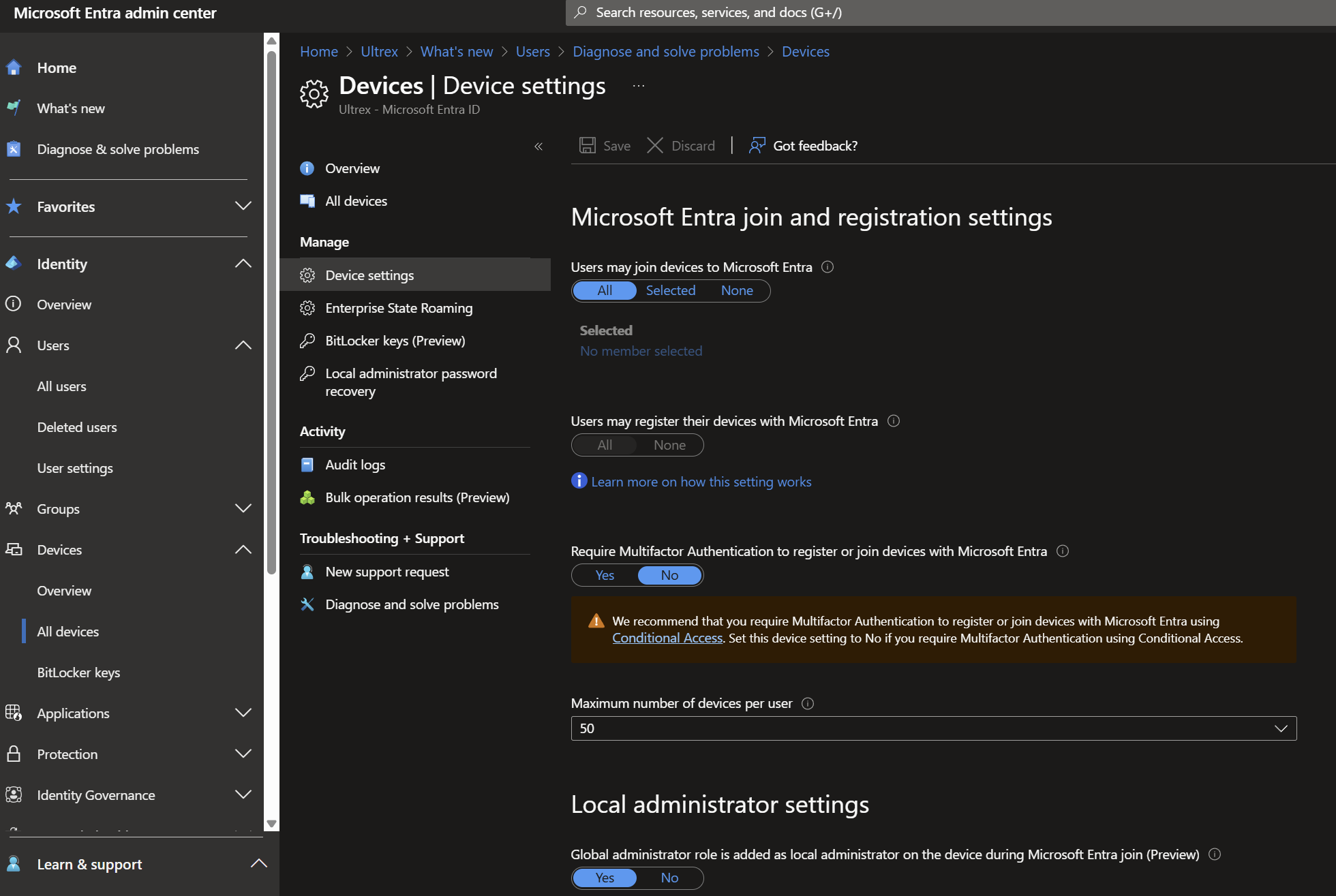
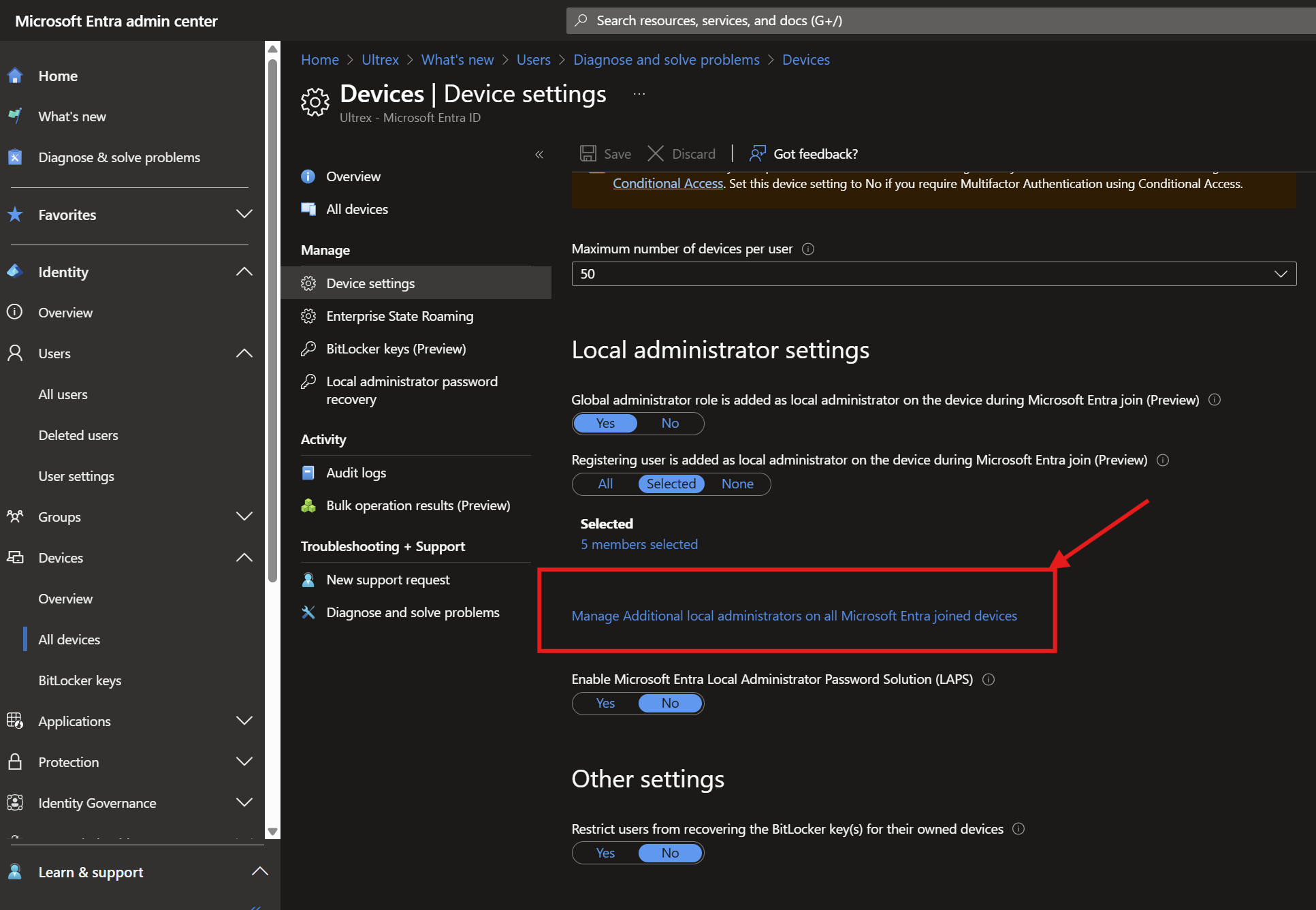
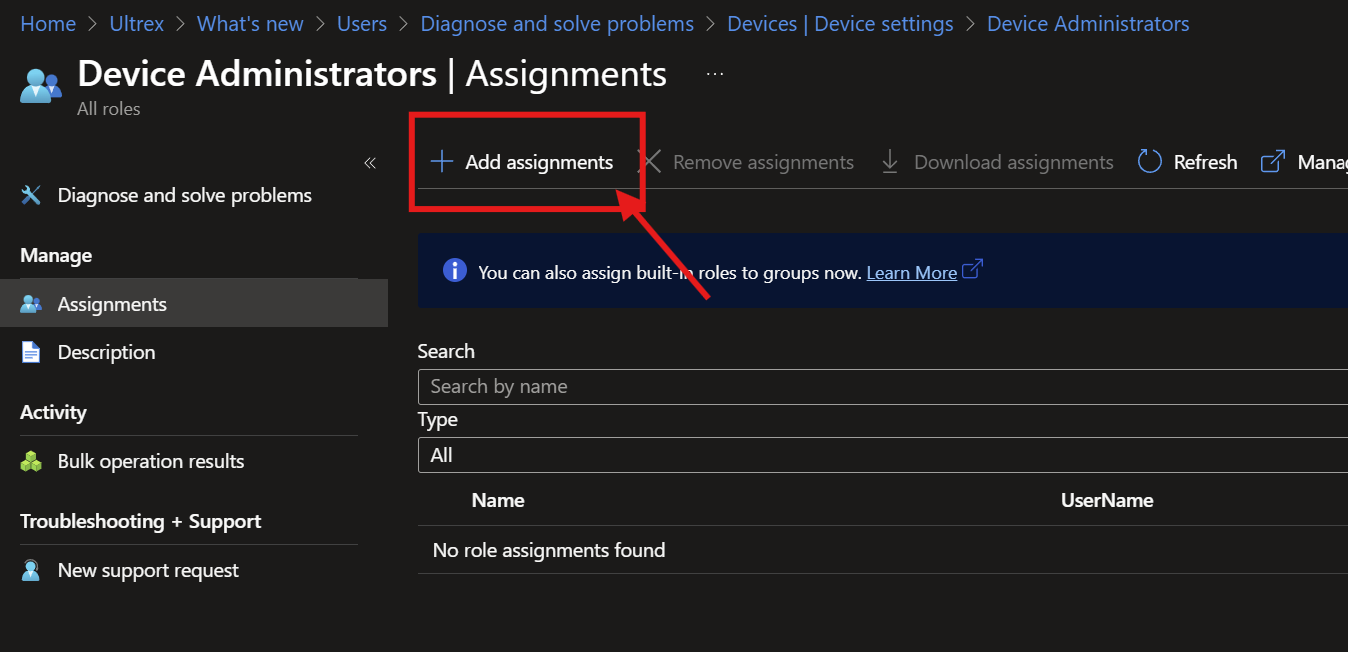
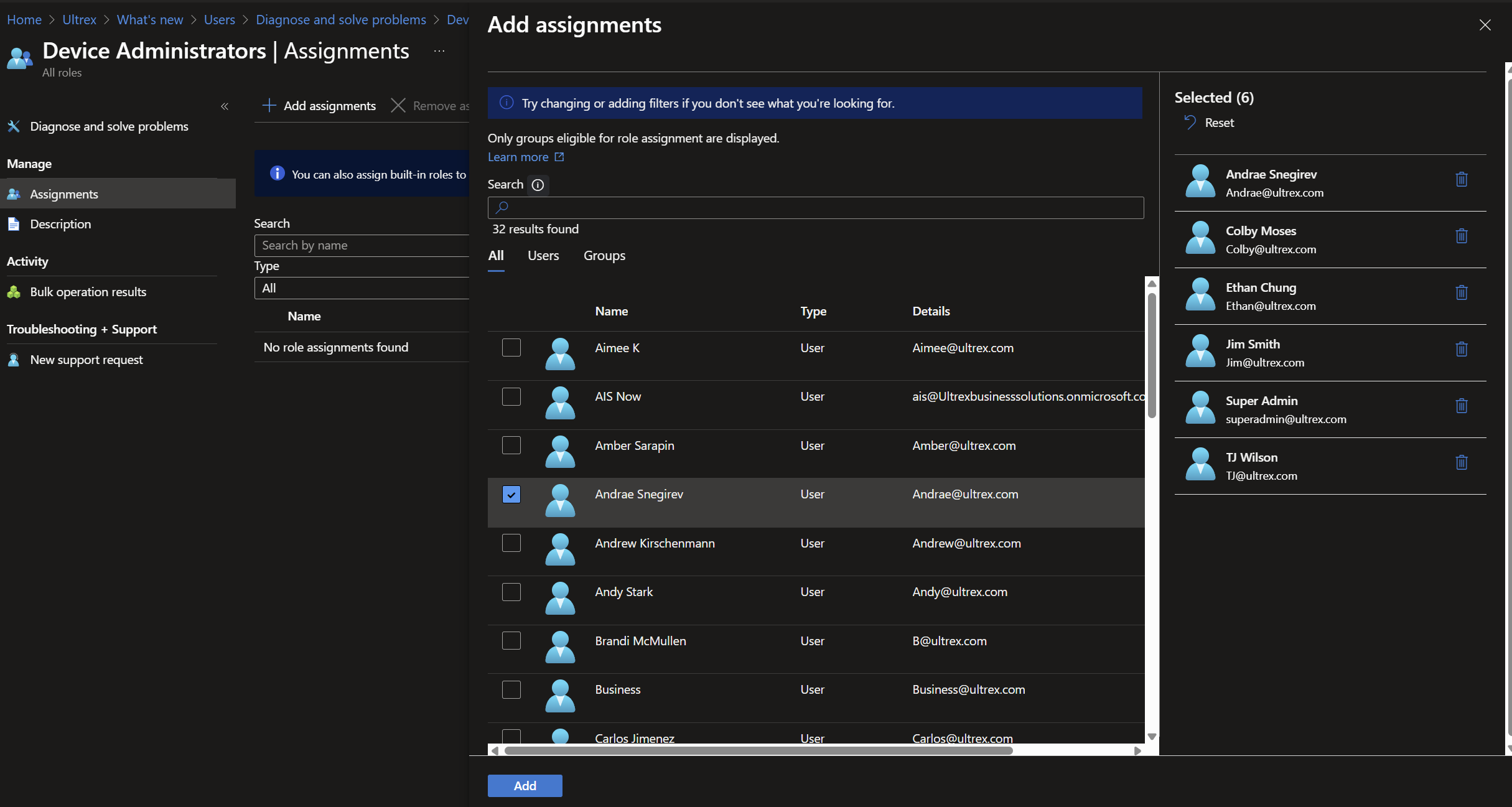
Entra and Intune Research Notes
What I need to know:
What do I gain security wise on MS365 premium and how do I make it happen?
Entra vs intune, and what does the oobe do instead of enrollment?
ALL 24H2
———————————————————————
T1- no network connection, default key.
Logged in as local user
Went to work or school account page, used main button, then main box
Logged in, then rebooted computer
Device is now enrolled in ENTRA, and after a few extra minutes, intune as well
DOES show up in defender portal
Does not allow you to log in to machine as company user
Edge does Sync auto- no login needed
Start menu is updated to company
Onedrive not auto logged in, but I signed in
Activation is still not active – relies on device key, not taking from MS365 license
So very clearly this method gives the company control, but it’s still your device, your users, and your
Windows licensing
RESULT :
This is likely the best option for BYOB Organizations
———————————————————————
T2- no network connection, default key
Went to join to work or school, main connect button, and then clicked option to join Entra bottom of that
box.
Initially login is still main user (local account)
Adding onedrive- first login still required PW/MFA
Left allow my org to manage this device checked
After this: edge has my account, no login required.
Word/office is logged in auto
Windows not showing active, including still running pro
Restart and sign in as Jim@Ultrex.com on login page
Signing in as Jim@Ultrex- start menu still personal mode
Rebooted- went back to local user as default
Logged in with company email again
Had to go to activation page, then click to log in again- now device shows proper on all activation settings
In Intone and Entra dashboards- these two machines (oobe and this) appear fully equal on that front
After a power down and turn back on, activation has popped out again and wants me to sign back in on
the activation page
Device IS on the defender premium page
Further reboots still default to local user
Logged in as Jim@Ultrex then deleted local user
Still logs in as now deleted user by default.
T oo Messy- Don’t like this option
RESULT :
If someone has an existing user, and doesn’t want to start over with a new user profile, they can join Entra
and Intune, and just leave their current user. When they want to log into the device as an email, they’ll
need to reload/lose the current user profile
———————————————————————
T3- Still on OOBE. Untouched post-install
Runs oobebypassnro and login with a local offline user
Plug machine into network post loading in
MS store- company portal
Log in, and leave “let company manage this device checked)
Device shows up in Entra Dashboard
Search box is company
Edge is logged in, no auth needed, bookmarks ext etc all there
Device now shows up in intune as well. BEFORE onedrive login (maybe 5 minutes)
Onedrive signs in, auth required
Still local user
Sign out
OOBEd again, going back to OOBE enviro
Can’t re-enroll the device, fails on OOBE so would need wiped and reloaded at this point
Based on later findings, I could have deleted from the panel for Entra and Intune, and Joined again.
Even without that- DID show up in Defender portal for security- doesn’t need email login for security
———————————————————————
T4- Logging in with MS365 account from main oobe page (installed pro in the first place)
Very first login, start menu is Ultrex tied (company logo search etc)
Initial one drive sign in needed no pw
Edge was pre logged into my account
Edge was signed into outlook.com from my very first opening. No MFA, No anything
RESULT :
No surprise- if you can do OOBE on pro in the first place, the world is an infinitely better place
———————————————————————
T8 – windows 24H2 Home installed fresh
Local user, 11 Home
Accounts/COnnect to work account, main option
Log in as me
Device is enrolled in Entra
Device shows up in intune
T ook offline, used 3v66t key and upgraded to pro
Gave back network conection
OOBE/Sysprep can’t generalize
Ran Normal OOBE
Set up for work or school, but can’t because the device is already enrolled
Can go into intune and Entra and delete the device from both dashboards, then click try again
no sooner than 60 seconds later
Onedrive automatic (No auth needed), edge sync auto, start menu company
Device shows in Intune and Entra perfectly
Defender not showing up? (see note below)
ACTIVATION STATUS: PERFECTION DAMMIT
This works!
RESULT :
If someone has a machine on home, you can join it to Entra and Intune, and then only upgrade
to pro if they need it for some other reason, and if they do need to upgrade to pro, you’ll have to
go delete the device from intune and entra dashbpoards. If you do that, then all works well
———————————————————————
T9
Windows 11 Home
DIDN’T join to company Entra or Intune before upgrading
Just local user, logged in, upgraded using 3v66t code (like a new purchase)
Gave back network connection
Can’t generalize
Just ran main sysprep
On next bootup, chose set up for work or school, works perfect, logs in as email, and is
company controlled
Signing in to onedrive is fully auto- no pw or MFA needed
Search box is company info
Edge is synced auto
Device shows in Intune and Entra perfectly
Defender not showing up (see note below)
ACTIVATION STATUS: PERFECTION DAMMIT
Note from MS:
Windows 11 Home devices that have been upgraded to one of the below supported editions
might require you to run the following command before onboarding:
DISM /online /Add-Capability /CapabilityName:Microsoft.Windows.Sense.Client~~~~
. For more information about edition upgrades and features, see Features)
Was able to confirm that in OS’s upgraded from home, you can run this command, it had a 50%
success rate across 4 identical VM’s. (literally clones of each other). Even on the ones where it
ran, it did not bring them into defender management. SO our new default is use Entra and
Intune if that’s what’s wanted- and you can leave it on HOME. But if you want pro, just freaking
install Pro in the first place. I’ve also now updated an ISO of 24H2 so it will ALWAYS ask for the
key, AND let you not put a key, and still select what version of windows to install clean (even if
one is saved in the EFI or BIOS). From now on, we use that one, please update your ventoy
soon as possible.
Final Notes:
Company portal app is enrolling device in entra/intune
Entra and intune can both be done with windows home
Entra is access to stuff based on identity
Intune is device management
Defender portal is weak, and not worth much- but only comes on clean, initial W11 Pro installs.