Resolution found here: https://www.reddit.com/r/HyperV/comments/1he54pv/comment/m92ko75/?utm_source=share&utm_medium=web3x&utm_name=web3xcss&utm_term=1&utm_content=share_button&rdt=43004
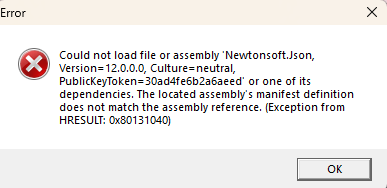
If you run into this error when trying to Quick Create in Hyper V:
“Could not load file or assembly ‘Newtonsoft.Json, Version=12.0.0.0,
Culture=neutral, PublicKeyToken=30ad4fe6b2a6aeed’ or one of its
dependencies. The located assembly’s manifest definition does not
match the assembly reference. (Exception from HRESULT:
0x80131040)”
Then the workaround is an easy one.
============
u/overlockfr
It’s caused by a file that somehow got updated in the Hyper-V install.
Here’s how to fix it, until Hyper-V gets updated properly.
Create a file called VMCreate.exe.config with the content below, and then move it to C:\Program Files\Hyper-V
For windows machines running Windows 11 24H2 version. There are instances where RDP works on the first login and then freezes on subsequent logins. The following adjustment on the Host machine the user is connecting to fixes this issue.
Go to Gpedit.msc then take the following path
Local Computer Policy> Computer Configuration > Administrative Templates > Windows Components > Remote Desktop Services > Remote Desktop Session Host > Connections > Select network detection on the server – set to Enabled, Turn off Connect Time Detect and Continuous Network Detect
Make sure to hit apply and restart the device to ensure it takes.
Here’s a cleaned-up, polished version of your article—formatted professionally for your company’s Knowledge Base while keeping it practical and technical:
📘 Mapping Network Drives via Group Policy in Windows Server 2022
Overview
This guide explains how to automatically map shared network folders as drives using Group Policy Preferences (GPP) on Windows Server 2022. It also covers the roles of Organizational Units (OUs) and Security Groups, along with best practices for scalable, flexible management.
🔧 Key Components & Requirements
Before proceeding, ensure the following:
Windows Server 2022 domain environment
Domain-joined client systems
Users and computers are located in Organizational Units (OUs) (not default containers)
Shared folders with proper NTFS and share permissions
🧩 Understanding OUs vs. Security Groups
Concept
Description
Organizational Units (OUs)
Logical containers for users, computers, and other OUs. They support GPO linkage and delegation of administrative rights.
Security Groups
Membership-based collections used for granting permissions (NTFS, shares) and GPP item-level targeting.
Key Differences:
A user or computer can reside in only one OU at a time.
Users can belong to multiple security groups simultaneously.
OUs apply policies broadly and help delegate control.
Groups grant granular access control and can span across OUs.
⚠️ Important: Default containers like Users and Computersdo not support GPOs. Move all accounts into proper OUs for Group Policies to apply.
🏗️ Active Directory Structure Best Practices
a. Create Organizational Units
Method 1 – ADUC GUI:
Open Active Directory Users and Computers (ADUC).
Right-click the domain → New → Organizational Unit.
Name and optionally protect the OU from accidental deletion.
✅ Remove this item when it is no longer applied – automatically unmaps drives when users leave a group.
🔁 Apply once and do not reapply – useful for one-time setups.
This allows one GPO to deploy multiple drive mappings, each targeted to different security groups, across any OU.
🔗 Linking and Applying the GPO
Link the GPO to the desired OU(s) or domain root.
On clients, run:
gpupdate /force
or simply reboot.
Users who:
Have their account within the linked OU, and
Belong to one of the targeted Security Groups
will automatically receive the appropriate mapped drives.
🧰 Maintenance & Troubleshooting
Verify GPO scope:
gpresult /h report.html
or use
Get-GPOReport
Adjust mappings by changing security group membership, not by moving users between OUs.
Keep GPOs modular—avoid editing the Default Domain Policy.
Use Item-Level Targeting to minimize GPO clutter and boost performance.
📋 Summary Table
Task
Tool / Method
Notes
Create OU
ADUC / PowerShell
New-ADOrganizationalUnit
Move Accounts
ADUC / PowerShell
Move-ADObject
Create Security Group
ADUC
Add users, define scope
Link Drive-Mapping GPO
GPMC
User Config → Preferences → Drive Maps
Configure Mapped Drive
GPP + Targeting
Set UNC, drive letter, group conditions
Enable Cleanup Options
Within preference item
Use “Remove this item…” / “Apply once…”
Apply / Test Policy
Command line
gpupdate / gpresult
Maintain Setup
ADUC / PowerShell
Adjust memberships, review policies
💡 Final Thoughts
A user belongs to one OU, but can be part of many groups. Using Item-Level Targeting with Security Groups enables flexible, modular, and scalable GPO management across OUs.
This approach:
Simplifies administration
Reduces GPO sprawl
Keeps drive mappings logical and maintainable
Tip: Combine OUs for structure and Groups for control. That balance keeps your environment clean, efficient, and easy to scale.
Would you like me to format it for Markdown, Confluence, or SharePoint export? I can adjust the headings and table syntax accordingly.
How to take over a server when you don’t know the password: Put in disk for server 2022 (USB/DVD is fine, as long as you can boot from it) Boot from install media Next Repair your computer Troubleshoot Command prompt Find out what your bootable drive is, might be C drive, might be D- just pick them, then run Dir Once you find the right volume, browse into windows directory Cd windows Cd system32 Rename utilman.exe utilman.old Copy cmd.exe utilman.exe Dir cmd.exe Dir utilman.exe To confirm sizes match Cd.. Cd.. bcdedit /set {bootmgr} timeout 15 bcdedit /set displaybootmenu yes Close cmd window, reboot machine using GUI Upon reboot, use F8 and boot into safe mode (OR ELSE SFC) Click accessibility button to bring up command prompt Now run: Net user administrator DEAD1599@@ /domain (Don’t use domain if not a domain machine) Log in with new password to confirm it Reboot into normal mode and log in with new password
Snapshots, which are known as checkpoints in Hyper-V, come in handy when you need to retain the last properly running state of a VM before deploying new software or installing an update. However, you have to be careful while deleting snapshots otherwise, you might lose important data.
In this post, we explain the mechanism of Hyper-V checkpoints. We will cover when to use these checkpoints and show how to delete snapshots from the Hyper-V Manager interface and by using PowerShell.
NAKIVO for Hyper-V Backup
Agentless, application-aware backups for Hyper-V. Anti-ransomware protection, instant VM boot from backup, other virtual/physical platform support and more.
Before we go into detail about how Hyper-V checkpoints work, let me clear up any confusion related to the terms snapshots and checkpoints.
Snapshots and checkpoints represent the same capability of saving the state of a VM at a particular point in time. This state can be reverted to in the future if an issue occurs with the VM. Microsoft refers to the feature of saving the state of a VM as snapshots for releases before Windows Server 2012 R2. In subsequent releases, Microsoft uses the term checkpoints. In addition, snapshots is the term used in VMware environments. In this post, we are using both terms interchangeably as the covered mechanism and procedures apply to both snapshots and checkpoints. So, how do checkpoints/snapshots work?
How Hyper-V checkpoints are saved
Hyper-V VM data is saved in the form of a .vhdx file. When a checkpoint is created, the .vhdx file becomes a read-only file. New modifications applied to the VM are saved in a differencing virtual hard disk. This differencing virtual hard disk is saved in the form of a .avhdx file in the same folder as that containing the .vhdx file.
You can create a chain of checkpoints. Each checkpoint represents the state of the VM at a specific point in time. Each checkpoint is represented by an .avhdx file.
The mechanism of Hyper-V checkpoints is efficient with storage utilization. However, the performance of virtual disk reading operations is significantly reduced. The reason is that reading files would require checking the whole chain of checkpoints (.avhdx files) until the VM’s .vhdx file is reached.
In the screenshot below, you can see one parent .vhdx virtual disk and two .avhdx disks after creating two Hyper-V checkpoints for a VM.
According to this mechanism, deleting a .avhdx file does not delete the checkpoint. Instead, this kind of deletion breaks the chain and leads to data loss.
To delete a checkpoint without losing data, the .avhdx file should be merged with another (parent) .avhdx file (or .vhdx file) in the chain. If this checkpoint is the only checkpoint for the VM, the .avhdx file is merged with the .vhdx file, and the .vhdx file becomes writable again.
In the next section, we will show how to delete snapshots (checkpoints) from the Hyper-V Manager interface without losing data.
Delete Snapshots by Using the Hyper-V Manager Interface
Hyper-V Manager is a free GUI tool for managing Hyper-V hosts and VMs. It can be used to provision VMs, allocate RAM, create snapshots or delete them.
Right-click the checkpoint to be deleted from the Checkpoints pane. Select Delete Checkpoint…
In the screenshot below, you can see a parent .vhdx virtual disk and an .avhdx snapshot file after deleting the second Hyper-V checkpoint.
Delete Snapshots by Using PowerShell
To perform bulk actions on Hyper-V VMs, Windows PowerShell is more efficient than the Hyper-V Manager GUI as you can use commands to delete multiple snapshots at once. Besides, some actions, such as deleting a checkpoint that has no delete option in the GUI, can only be accomplished via PowerShell.
A checkpoint that cannot be deleted from the Hyper-V Manager is called a lingering checkpoint. Lingering checkpoints happen when a VM backup job fails.
When a VM backup job begins using a backup solution, the VM is placed into read-only mode. The new data submitted by VM users is saved to a special type of checkpoint called a recovery checkpoint. When the backup job completes successfully, the recovery checkpoint’s .avhdx file is merged with the VM .vhdx file, and the checkpoint is automatically deleted. However, if the backup job fails, the recovery checkpoint is not deleted automatically and remains as a lingering checkpoint.
Get the checkpoint exact name with the command Get-VMSnapshot. Provide the VMName when prompted.
Run the command:Get-VM -Name <VMName> | Get-VMSnapShot -Name <CheckpointName> | Remove-VMSnapshot
Verify that the checkpoint has been successfully deleted with the command:Get-VMSnapshot
Final Thoughts
Creating checkpoints is a good practice for the sake of testing and creating an acceptance environment. However, keeping checkpoints is not recommended in a production environment. Checkpoints adversely impact the Hyper-V performance of reading operations.
Deleting checkpoints’ files from the disk directly leads to data loss. Checkpoints should be deleted from the Hyper-V Manager. The PowerShell can be used as well to delete them specially if they have no delete option in the Hyper-V Manager GUI.
Adopting a backup and replication solution is crucial for your data and application protection.
a. If you are installing the operating system on a computer configured for RAID or AHCI
mode, you may pre-install the Intel(R) Rapid Storage Technology driver using the
“F6” (Load Driver) installation method described in section 6.3 below.
b. If you’re installing the operating system on a computer configured for ‘Intel(R) Smart
Response Technology’ or ‘System Acceleration with Intel(R) Optane(TM) Technology’, you
must pre-install the Intel(R) Rapid Storage Technology driver using the
“F6” (Load Driver) installation method described in section 6.3 below. The Intel(R) RST pre-OS version must support the Intel(R) RST technology that you are installing to.
c. To install Intel(R) Rapid Storage Technology from within the OS during runtime,
double-click on the self-extracting and self-installing setup file and answer all
prompts presented.
6.2 Intel(R) RST Windows Automated Installer*. Installation from HDD, USB, or CD-ROM
Note: This method is applicable to computers configured for RAID or AHCI mode.
a. Obtain the Intel(R) Rapid Storage Technology setup file name: SetupRST.exe and
double-click to self-extract and to begin the setup process.
b. The Welcome window appears. Click ‘Next’ to continue.
c. For systems running in RAID mode, the Uninstallation Warning window appears. You will
not be able to uninstall the driver in this mode. Click ‘Next’ to continue.
d. The Software License Agreement window appears. If you agree to these terms, click the
check box then click ‘Yes’ to continue.
e. Select the check box to install Intel(R) Optane(TM) Memory and Storage Management application if required then click ‘Next’ to continue.
f. If the Windows Automated Installer* Wizard Complete window is shown without a prompt
to restart the system, click ‘Finish’ and proceed to step “g”. If it is shown with a
prompt to restart the system, select ‘I want to restart my computer now.’
(selected by default) and click ‘Finish’. Once the system has restarted, proceed to
step “g”.
g. To verify that the driver was loaded correctly, refer to section 7.
6.3 Pre-Installation of INTEL(R) RST driver using the “Load Driver” Method.
a. Extract driver files from SetupRST.exe:
– Open terminal in the directory with SetupRST.exe by right-clicking the directory
and selecting “Open in Terminal” or “Open PowerShell here”
– Enter the following command:
./SetupRST.exe -extractdrivers SetupRST_extracted
b. Copy all driver files from the SetupRST-extracted to a USB key media.
c. For Microsoft Windows OS*:
– During the operating system installation, after selecting the location to install
Windows, click ‘Load Driver’ to install a third party SCSI or RAID driver.
d. When prompted, insert the USB media and press Enter.
e. Follow the prompts and browse to the location of the installation files. Select the
appropriate ‘.inf’ file (64 or 32 bit). If a supported controller is detected there
will be no error message. Follow prompts to continue and complete the installation.