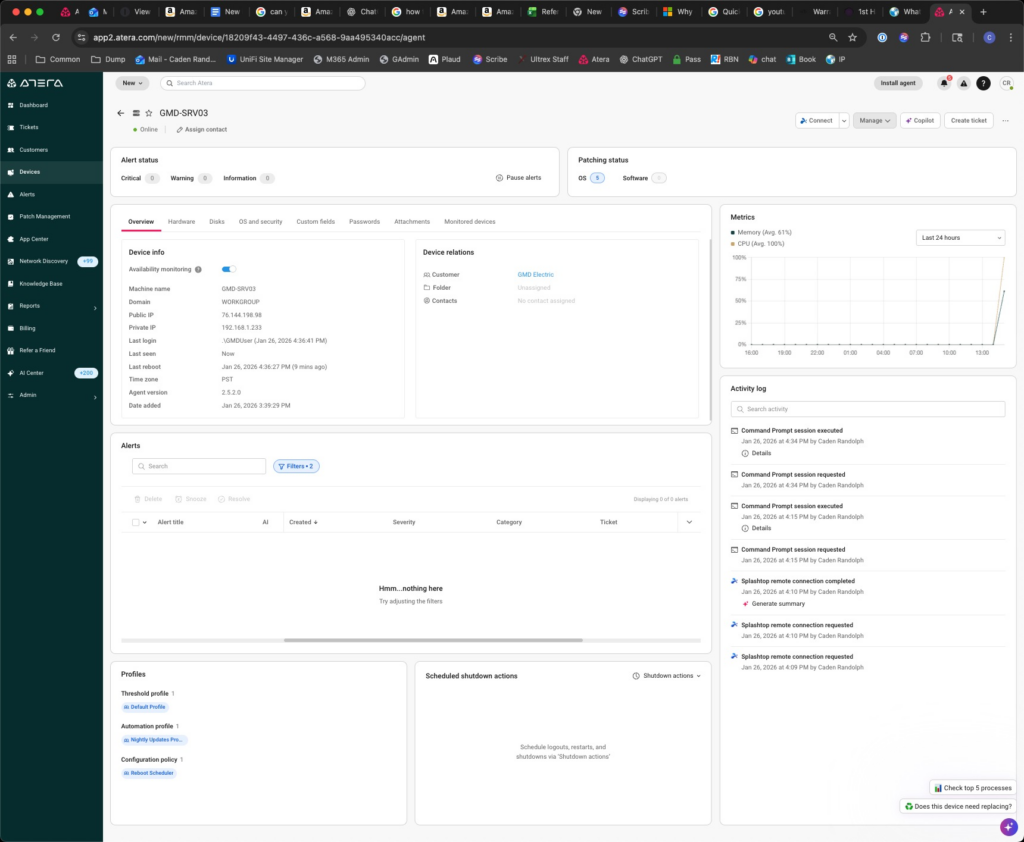
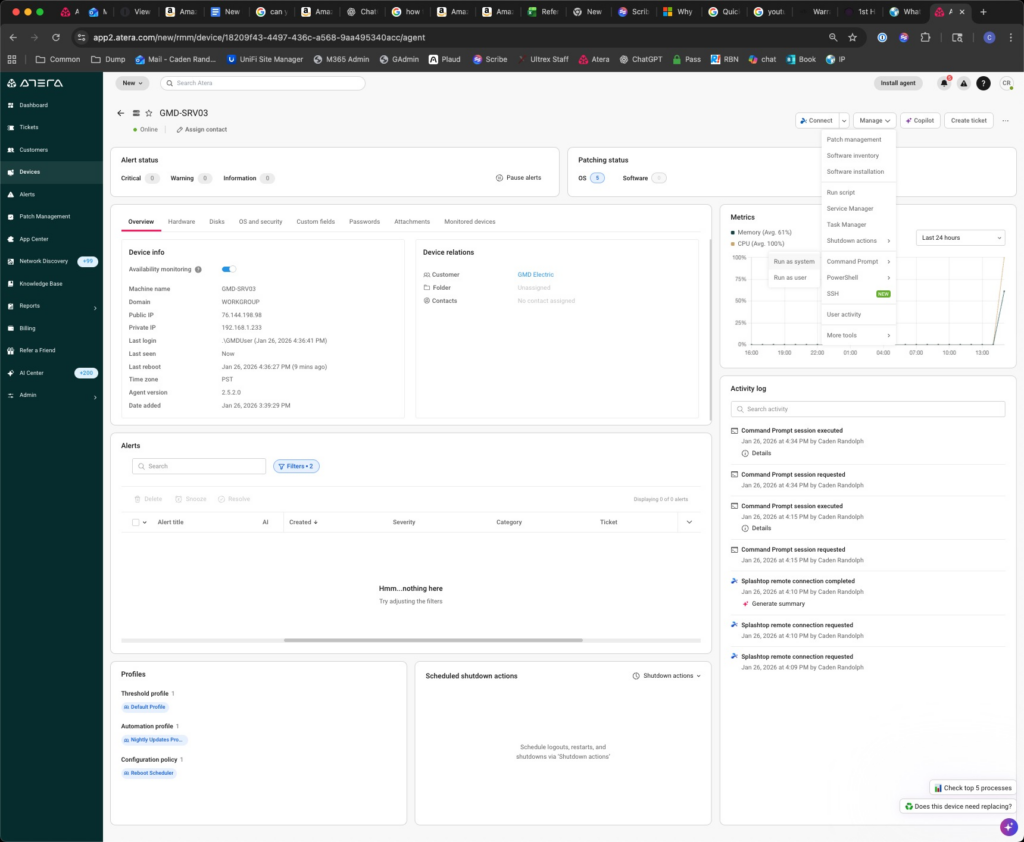
Validated multiple different scenarios as a dry run using the Ultrex Test MS365 Tenant.
Lessons Learned:
– If a folder / file is owned by User 1 in OneDrive and User 1 has shared contents to User 2 with edit permissions (didn’t test with view permissions), and then User 1 is unlicensed/deleted, from User 2’s OneDrive you can still move files/folders into a Sharepoint site that User 2 is a site member of w/ edit permissions as well, by using OneDrive’s “Move To” company sharepoint site function.
o The value of this is that file version history will move across with the contents to the Sharepoint site.
– Sharepoint Migration tool is the best tool to use if you have files locally synced on the computer you want to upload from. But since this is essentially creating a copy of those files (if downloading from OneDrive), then you’ll lose file version history and will be uploading a fresh copy into the sharepoint site you need.
When name files / sharepoint sites, plan how you will be syncing the files to your users’ devices. Sharepoint sites will display name in the following order: “Document Library Name – Sharepoint Site Name”. For example in MPP’s it will show as “Shared – Accounting”. Then if you’re having users look in separate spots for where files are living (i.e. OneDrive for items owned by you, and Sync to Device for Sharepoint Sites that will show up in a separate line in File Explorer outside of the OneDrive live), it needs to be clear which library is for which site since you only have so much room.
If having users “Add Shortcut to OneDrive”, make sure to just select the Document Library tab and say “Add Shortcut to OneDrive” without highlighting any of the subfolders, and this will add the Full Parent Library folder in a top level folder in OneDrive. Avoids having to select each folder and say “Add Shortcut to OneDrive” and clutter OneDrive with a million unclearly named folders.
If you’ve already cloned the drive, but now you’ve got wasted extra space, but you can’t extend the partition because there’s a windows recovery partition in the way. The video linked walks you through it perfectly.
Here’s how you fix that:
command line:
reagentc /disable
diskpart
list partition
select partition x
detail partition
delete partition override
Re-create the Recovery Partition
list partition
select partition x
set id=
gpt attributes=
list volume
select volume y
remove letter=y
exit
reagentc /enable
Note: x=disk or partition number, y=volume letter.
Run Powershell as an administrator, copy and paste the code below and hit enter. Windows should activate using Option 1 for most Windows OS’s, but use TSForge Option if you need to license a Server install. This can also be used to push through an office install.
NOTE: Only use this at the approval of a supervisor. If we overuse this without the correct licensing as its foundation, we risk a customer being set up for issues in an audit. This command is to be used when Windows fails to activate a license that we know its supposed to activate, often after a Return to OOBE for Entra/Intune Enrollment.
Use the one below for most reliable resolution of get.activated.win in Ultrex Office –
If none of the options above work, use this code in powershell administrator mode instead:
if ($ExecutionContext.SessionState.LanguageMode.value__ -ne 0) {
    $ExecutionContext.SessionState.LanguageMode
    Write-Host "Windows PowerShell is not running in Full Language Mode."
    Write-Host "Help - https://massgrave.dev/fix_powershell" -ForegroundColor White -BackgroundColor Blue
    return
}

function Check3rdAV {
    $avList = Get-CimInstance -Namespace root\SecurityCenter2 -Class AntiVirusProduct | Where-Object { $_.displayName -notlike '*windows*' } | Select-Object -ExpandProperty displayName
    if ($avList) {
        Write-Host '3rd party Antivirus might be blocking the script - ' -ForegroundColor White -BackgroundColor Blue -NoNewline
        Write-Host " $($avList -join ', ')" -ForegroundColor DarkRed -BackgroundColor White
    }
}

function CheckFile {
    param ([string]$FilePath)
    if (-not (Test-Path $FilePath)) {
        Check3rdAV
        Write-Host "Failed to create MAS file in temp folder, aborting!"
        Write-Host "Help - https://massgrave.dev/troubleshoot" -ForegroundColor White -BackgroundColor Blue
        throw
    }
}

[Net.ServicePointManager]::SecurityProtocol = [Net.SecurityProtocolType]::Tls12
$URLs = @(
    'https://raw.githubusercontent.com/massgravel/Microsoft-Activation-Scripts/37ec96504a2983a5801c43e975ab78c8f9315d2a/MAS/All-In-One-Version-KL/MAS_AIO.cmd',
    'https://dev.azure.com/massgrave/Microsoft-Activation-Scripts/_apis/git/repositories/Microsoft-Activation-Scripts/items?path=/MAS/All-In-One-Version-KL/MAS_AIO.cmd&versionType=Commit&version=37ec96504a2983a5801c43e975ab78c8f9315d2a',
    'https://git.activated.win/massgrave/Microsoft-Activation-Scripts/raw/commit/37ec96504a2983a5801c43e975ab78c8f9315d2a/MAS/All-In-One-Version-KL/MAS_AIO.cmd'
)

foreach ($URL in $URLs | Sort-Object { Get-Random }) {
    try { $response = Invoke-WebRequest -Uri $URL -UseBasicParsing; break } catch {}
}

if (-not $response) {
    Check3rdAV
    Write-Host "Failed to retrieve MAS from any of the available repositories, aborting!"
    Write-Host "Help - https://massgrave.dev/troubleshoot" -ForegroundColor White -BackgroundColor Blue
    return
}

# Verify script integrity
$releaseHash = '49CE81C583C69AC739890D2DFBB908BDD67B862702DAAEBCD2D38F1DDCEE863D'
$stream = New-Object IO.MemoryStream
$writer = New-Object IO.StreamWriter $stream
$writer.Write($response)
$writer.Flush()
$stream.Position = 0
$hash = [BitConverter]::ToString([Security.Cryptography.SHA256]::Create().ComputeHash($stream)) -replace '-'
if ($hash -ne $releaseHash) {
    Write-Warning "Hash ($hash) mismatch, aborting!`nReport this issue at https://massgrave.dev/troubleshoot"
    $response = $null
    return
}

# Check for AutoRun registry which may create issues with CMD
$paths = "HKCU:\SOFTWARE\Microsoft\Command Processor", "HKLM:\SOFTWARE\Microsoft\Command Processor"
foreach ($path in $paths) {
    if (Get-ItemProperty -Path $path -Name "Autorun" -ErrorAction SilentlyContinue) {
        Write-Warning "Autorun registry found, CMD may crash! `nManually copy-paste the below command to fix...`nRemove-ItemProperty -Path '$path' -Name 'Autorun'"
    }
}

$rand = [Guid]::NewGuid().Guid
$isAdmin = [bool]([Security.Principal.WindowsIdentity]::GetCurrent().Groups -match 'S-1-5-32-544')
$FilePath = if ($isAdmin) { "$env:SystemRoot\Temp\MAS_$rand.cmd" } else { "$env:USERPROFILE\AppData\Local\Temp\MAS_$rand.cmd" }
Set-Content -Path $FilePath -Value "@::: $rand `r`n$response"
CheckFile $FilePath

$env:ComSpec = "$env:SystemRoot\system32\cmd.exe"
Start-Process -FilePath $env:ComSpec -ArgumentList "/c """"$FilePath"" $args""" -Wait
CheckFile $FilePath

$FilePaths = @("$env:SystemRoot\Temp\MAS*.cmd", "$env:USERPROFILE\AppData\Local\Temp\MAS*.cmd")
foreach ($FilePath in $FilePaths) { Get-Item $FilePath | Remove-Item }
Once powershell is successful, a command prompt window will open and give you multiple options. Select option 1 if you only need the version of Windows activated. If you need to change the product type, there should be an option to do so in the same command dialogue box
Open PowerShell as AdministratorEnsure you’re running PowerShell with administrative privileges.
Set Execution Policy (if not already set)This allows the script to run: powershell CopyEditSet-ExecutionPolicy RemoteSigned -Scope Process -Force
Install the winget-install Script This script automates the installation of WinGet and its dependencies: powershell CopyEditInstall-Script -Name winget-install -Force If prompted to install the NuGet provider or trust the repository, respond with ‘Yes’ or ‘Y’.
Run the Installation Script Execute the script to install WinGet: powershell CopyEditwinget-install.ps1 This will download and install all necessary components, including dependencies like Microsoft.UI.Xaml and Microsoft.VCLibs.
Verify the Installation After completion, confirm that WinGet is installed: powershell CopyEditwinget --version You should see the installed version number displayed.