Command Line to turn off Popup related to windows compatibility driver.
Sc stop PcaSvc
Enter
It’s okay if the first command errors out.
Sc config PcaSvc start= disabled
enter
Will need to reboot to finish applying.
Command Line to turn off Popup related to windows compatibility driver.
Sc stop PcaSvc
Enter
It’s okay if the first command errors out.
Sc config PcaSvc start= disabled
enter
Will need to reboot to finish applying.
Add User and Set Password to Never Expire (especially for Scanning User)
Net user Scanning Scanning12 /add
Make PW never expire
Commands to Setup and Share Scans Folder through CLI
Mkdir C:\SCANS (creates Scans folder)
Dir C:\ (to confirm Scans folder creation)
Cd c:\scans (to select scans folder)
Net share scans=c:\scans /grant:Scanning,full (to grant read/write permissions with Scanning User – confirm permissions if needed)
Dell Optiplex 3020 BIOS Reset (often at ACS)
BIOS Password was turned on, removing the CMOS battery to reset the bios didn’t seem to change anything. It may have been because the power cable was still plugged in so this may be a non issue, but just in case here are the jumper directions for this computer.
Raised from ticket #2745
If you are using RustDesk and want to set it up for dual monitors on both the source and remote computers, follow these steps:
After completing these steps, you should see two separate windows, each corresponding to one of your remote monitors. You can then drag each window to the respective screens on the machine you are remoting from.
Note: There are currently no video tutorials available for this process, but future assistance will include a recorded walkthrough for better understanding.
Thank you, and have a great day!
We now have a paid, private, hosted Rustdesk server- so you don’t have to use the public one, but also don’t need to be setting up one for every customer.
I follow the instructions found here:
Good ole network chuck.
Now in Linode, we have an ubuntu server, running docker, running rustdesk server.
All that to say, from now on, you can go to the network tab within settings
The IP of the Ultrex server (only for us and paying customers on retainer)
172.234.230.92
Put that into the ID server and Relay server area.
Then in the API server, leave it blank
Then in the Key field, put:
YM2qOJS2H2MMa5BqJrxaSrYZwtiGncmWhB+y4GI2pPw=
Alternatively you can use this and the import button
==Qfi0zdQBnMJdEN5tiQodVbj52RpR3dallcTFGeypUcCVTYN1kMIJzUK9Ucy0UWiojI5V2aiwiIiojIpBXYiwiIykjLwMjMuQzMy4iM3EjI6ISehxWZyJCLiITOuAzMy4CNzIjLycTMiojI0N3boJye
That’s it- you’ll know it’s working when it doesn’t tell you “for faster speed host your own server”
This isn’t able to see any traffic going through it, just relaying peoples devices from their computers to each other, but not containing any unencrypted traffic. 🙂
Check Expiration Status:
Checking the computer for specified users (Note: must edit the script to check for the usernames you want to check) and what the password expiration status is.
https://app2.atera.com/new/admin/scripts/f63ecf72-e251-4442-bb31-751dcf44c3a6/edit
Password Resets:
Specify and reset multiple users with desired password (NOTE: make sure to edit the username and password before changing).
The script will check if the computer has the specified username, will change the password accordingly if so, and if not will purely skip over the user without making a change.
https://app2.atera.com/new/admin/scripts/00b6aaa1-7653-4662-99d8-dbc3a6d08d7c/edit
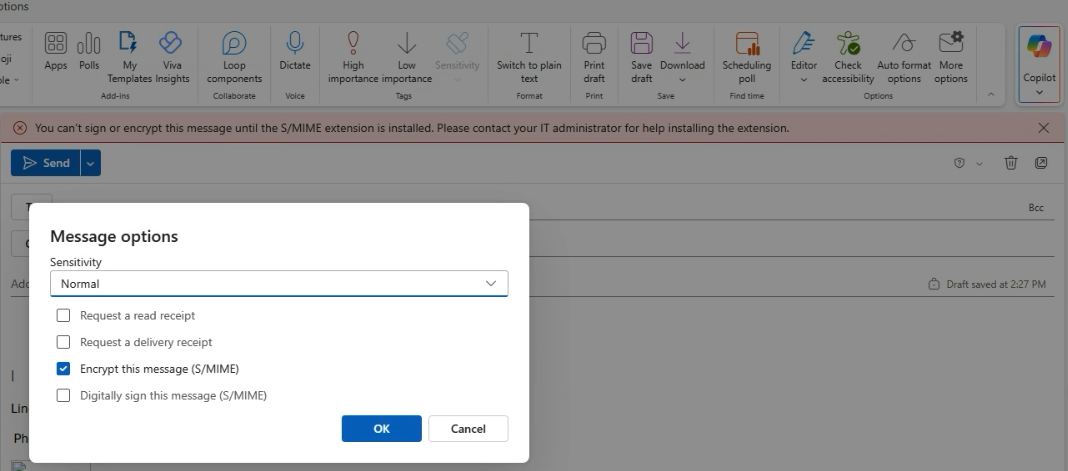
This came up in troubleshooting how S/MIME plays into email encryption for Business users. Valuable to understand the behind the scenes of how email encryption works so we can help our customers understand when they go to click the wrong way of encrypting their emails as a Premium user 🙂
https://learn.microsoft.com/en-us/purview/email-encryption
Short and sweet – there are two ways to encrypt emails in Outlook, and only one is the one we’d really want to recommend for maximum useability, but that users have the option to select if they don’t know better:
If you run into this, that’s the gist of why we wouldn’t want to recommend option 2 🙂 way more hassle for not a lot of extra payoff unless an org is getting extra serious about their ability to verify the sender/recipient.
To streamline how we gather and send information to LTT Partners (Harper Wimble’s team) or other low-voltage vendors for cable run bids—especially when no walkthrough is needed.
Vendor:
Goal:
To request bids for low voltage runs (cameras, access control, etc.) without needing an on-site walkthrough by providing complete documentation, photos, and videos.
Make sure you collect and/or create the following materials:
To: harper@lttpartners.com
This article explains how to completely remove the Atera Agent (and any associated Splashtop components) from a Windows computer using a PowerShell script.
This process is typically required when:
Use this procedure before reinstalling the Atera Agent, particularly if:
Before running the script:
Paste the full script from Atera’s documentation (linked below):
👉 Atera Official Script Reference
Or use the version below (verified and compatible for Ultrex use):
Function Get-UninstallCodes ([string]$DisplayName) {
‘HKLM:SOFTWARE\Microsoft\Windows\CurrentVersion\Uninstall’, ‘HKLM:SOFTWARE\WOW6432Node\Microsoft\Windows\CurrentVersion\Uninstall’ | ForEach-Object {
Get-ChildItem -Path $_ -ErrorAction SilentlyContinue | ForEach-Object {
If ( $(Get-ItemProperty -Path $_.PSPath -Name ‘DisplayName’ -ErrorAction SilentlyContinue) -and ($(Get-ItemPropertyValue -Path $_.PSPath -Name ‘DisplayName’ -ErrorAction SilentlyContinue) -eq $DisplayName) ) {
$str = (Get-ItemPropertyValue -Path $_.PSPath -Name ‘UninstallString’)
$UninstallCodes.Add($str.Substring(($str.Length – 37),36)) | Out-Null
}}}}
Function Get-ProductKeys ([string]$ProductName) {
Get-ChildItem -Path ‘HKCR:Installer\Products’ | ForEach-Object {
If ( $(Get-ItemProperty -Path $_.PSPath -Name ‘ProductName’ -ErrorAction SilentlyContinue) -and ($(Get-ItemPropertyValue -Path $_.PSPath -Name ‘ProductName’ -ErrorAction SilentlyContinue) -eq $ProductName) ) {
$ProductKeys.Add($_.PSPath.Substring(($_.PSPath.Length – 32))) | Out-Null
}}}
Function Get-ServiceStatus ([string]$Name) { (Get-Service -Name $Name -ErrorAction SilentlyContinue).Status }
Function Stop-RunningService ([string]$Name) { If ( $(Get-ServiceStatus -Name $Name) -eq “Running” ) { Write-Output “Stopping : ${Name} service” ; Stop-Service -Name $Name -Force }}
Function Remove-StoppedService ([string]$Name) { $s = (Get-ServiceStatus -Name $Name); If ( $s ) { If ( $s -eq “Stopped” ) { Write-Output “Deleting : ${Name} service”; Start-Process “sc.exe” -ArgumentList “delete ${Name}” -Wait } } Else { Write-Output “Not Found: ${Name} service” }}
Function Stop-RunningProcess ([string]$Name) { $p = (Get-Process -Name $_ -ErrorAction SilentlyContinue); If ( $p ) { Write-Output “Stopping : ${Name}.exe” ; $p | Stop-Process -Force } Else { Write-Output “Not Found: ${Name}.exe is not running”}}
Function Remove-Path ([string]$Path) { If ( Test-Path $Path ) { Write-Output “Deleting : ${Path}”; Remove-Item $Path -Recurse -Force } Else { Write-Output “Not Found: ${Path}” }}
Function Get-AllExeFiles ([string]$Path) { If ( Test-Path $Path ) { Get-ChildItem -Path $Path -Filter *.exe -Recurse | ForEach-Object { $ExeFiles.Add($_.BaseName) | Out-Null } }}
New-PSDrive -Name HKCR -PSProvider Registry -Root HKEY_CLASSES_ROOT | Out-Null
$UninstallCodes = New-Object System.Collections.ArrayList
‘AteraAgent’, ‘Splashtop for RMM’, ‘Splashtop Streamer’ | ForEach-Object { Get-UninstallCodes -DisplayName $_ }
$ProductKeys = New-Object System.Collections.ArrayList
‘AteraAgent’, ‘Splashtop for RMM’, ‘Splashtop Streamer’ | ForEach-Object { Get-ProductKeys -ProductName $_ }
$Directories = @(
“${Env:ProgramFiles}\ATERA Networks”,
“${Env:ProgramFiles(x86)}\ATERA Networks”,
“${Env:ProgramFiles}\Splashtop\Splashtop Remote\Server”,
“${Env:ProgramFiles(x86)}\Splashtop\Splashtop Remote\Server”,
“${Env:ProgramFiles}\Splashtop\Splashtop Software Updater”,
“${Env:ProgramFiles(x86)}\Splashtop\Splashtop Software Updater”,
“${Env:ProgramData}\Splashtop\Splashtop Software Updater”
)
$ExeFiles = New-Object System.Collections.ArrayList
“${Env:ProgramFiles}\ATERA Networks” | ForEach-Object { Get-AllExeFiles -Path $_ }
$ServiceList = @(‘AteraAgent’,’SplashtopRemoteService’,’SSUService’)
$RegistryKeys = @(
‘HKLM:SOFTWARE\ATERA Networks’,
‘HKLM:SOFTWARE\Splashtop Inc.’,
‘HKLM:SOFTWARE\WOW6432Node\Splashtop Inc.’
)
$UninstallCodes | ForEach-Object { Write-Output “Uninstall: ${}” ; Start-Process “msiexec.exe” -ArgumentList “/X{${}} /qn” -Wait }
$ServiceList | ForEach-Object { Stop-RunningService -Name $_ }
$ExeFiles.Add(‘reg’) | Out-Null
$ExeFiles | ForEach-Object { Stop-RunningProcess $_ }
$ServiceList | ForEach-Object { Remove-StoppedService -Name $_ }
$ProductKeys | ForEach-Object { Remove-Path -Path “HKCR:Installer\Products\${_}” }
Remove-PSDrive -Name HKCR
$RegistryKeys | ForEach-Object { Remove-Path -Path $_ }
$Directories | ForEach-Object { Remove-Path -Path $_ }
After the script completes, reboot again.
This ensures all registry keys and service entries are cleared.
Once the machine has restarted:
Example CMD install:
msiexec /i “AteraAgentSetup.msi” CUSTOMER_ID=123456 /qn
This article shows you how to install and configure RustDesk, an open-source remote access tool. It’s used to remotely control or access client or internal computers for support or management purposes.
Use this guide when setting up a new device for remote support via RustDesk — either for internal use (Ultrex techs) or when helping a client establish a connection for remote service.
RustDesk is a secure, open-source remote desktop solution that allows remote access and control of another computer. It’s a great alternative to TeamViewer or AnyDesk, providing:
We’ll cover setup on both ends:
Tip: If you’re not already using an authenticator app, Google Authenticator is quick and easy to set up.
Repeat the same installation process on the computer you’ll be connecting from.
Once installed:
If RustDesk fails to connect or shows a timeout:
If issues persist, Ultrex IT retainer clients can contact support for remote troubleshooting assistance.
RustDesk provides a free, secure, and simple way to connect remotely to computers — ideal for both internal management and client support. With optional 2FA and permanent password setup, it balances ease of use with strong security.
Use this setup as a standard procedure when enabling remote access for clients or internal systems.
© 2026 Ultrex Staff
Theme by Anders Noren — Up ↑