Category: IT Knowledge Base Articles (Page 6 of 11)

Dell Optiplex 3020 BIOS reset

Dell Optiplex 3020 BIOS Reset (often at ACS)

BIOS Password was turned on, removing the CMOS battery to reset the bios didn’t seem to change anything. It may have been because the power cable was still plugged in so this may be a non issue, but just in case here are the jumper directions for this computer.

https://www.dell.com/support/manuals/en-us/optiplex-3020-desktop/opt3020sffom-v1/clearing-forgotten-password?guid=guid-6bbbad27-a43f-47bc-b663-16d8fff9362a&lang=en-us

How to use RustDesk with dual displays

How to use RustDesk with dual displays

Raised from ticket #2745

If you are using RustDesk and want to set it up for dual monitors on both the source and remote computers, follow these steps:

  1. Open RustDesk on your computer.
  2. Click the monitor icon located in the top bar.
  3. Check the box that says Show the displays as individual windows.
  4. Select either Monitor 1 or Monitor 2 (do not select the square that shows both monitors).
  5. Repeat the above steps for each monitor you want to display.

After completing these steps, you should see two separate windows, each corresponding to one of your remote monitors. You can then drag each window to the respective screens on the machine you are remoting from.

Note: There are currently no video tutorials available for this process, but future assistance will include a recorded walkthrough for better understanding.

Thank you, and have a great day!

RustDesk Setup for Ultrex Server

We now have a paid, private, hosted Rustdesk server- so you don’t have to use the public one, but also don’t need to be setting up one for every customer. 

I follow the instructions found here:

Good ole network chuck.

Now in Linode, we have an ubuntu server, running docker, running rustdesk server.

All that to say, from now on, you can go to the network tab within settings

The IP of the Ultrex server (only for us and paying customers on retainer)

172.234.230.92

Put that into the ID server and Relay server area.

Then in the API server, leave it blank

Then in the Key field, put:

==Qfi0zdQBnMJdEN5tiQodVbj52RpR3dallcTFGeypUcCVTYN1kMIJzUK9Ucy0UWiojI5V2aiwiIiojIpBXYiwiIykjLwMjMuQzMy4iM3EjI6ISehxWZyJCLiITOuAzMy4CNzIjLycTMiojI0N3boJye

That’s it- you’ll know it’s working when it doesn’t tell you “for faster speed host your own server”

This isn’t able to see any traffic going through it, just relaying peoples devices from their computers to each other, but not containing any unencrypted traffic. 🙂 

Check Status and Update/Reset Passwords for Multiple Local Users if they’re already a user

Check Expiration Status:

Checking the computer for specified users (Note: must edit the script to check for the usernames you want to check) and what the password expiration status is.

https://app2.atera.com/new/admin/scripts/f63ecf72-e251-4442-bb31-751dcf44c3a6/edit

Password Resets:

Specify and reset multiple users with desired password (NOTE: make sure to edit the username and password before changing).

The script will check if the computer has the specified username, will change the password accordingly if so, and if not will purely skip over the user without making a change.

https://app2.atera.com/new/admin/scripts/00b6aaa1-7653-4662-99d8-dbc3a6d08d7c/edit

Helpful Microsoft Learn Article discussing Email Encryption

This came up in troubleshooting how S/MIME plays into email encryption for Business users. Valuable to understand the behind the scenes of how email encryption works so we can help our customers understand when they go to click the wrong way of encrypting their emails as a Premium user 🙂

https://learn.microsoft.com/en-us/purview/email-encryption

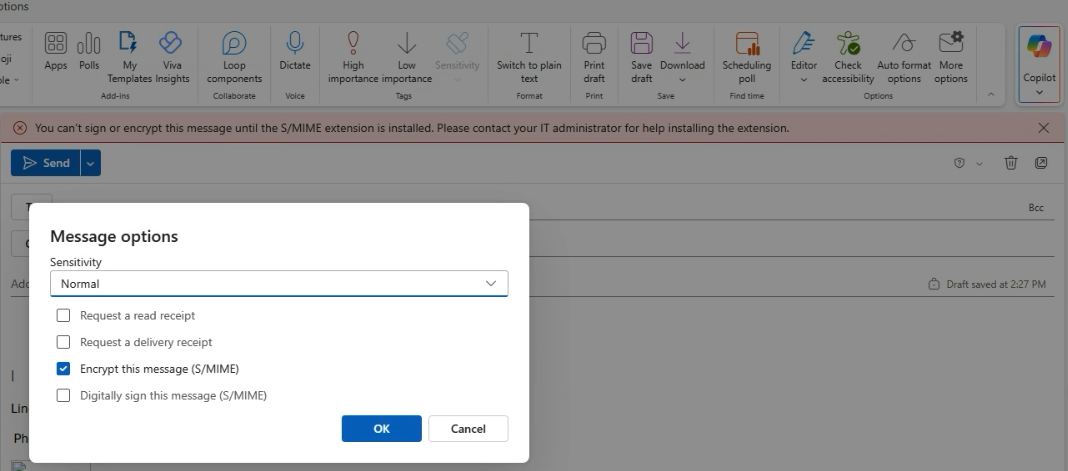
Short and sweet – there are two ways to encrypt emails in Outlook, and only one is the one we’d really want to recommend for maximum useability, but that users have the option to select if they don’t know better:

  1. Default recommendation, and the one we’re used to:
    1. New Message > Options > Encrypt > Encrypt
    1. This encrypts emails on the server level and lets servers authenticate senders and recipients to allow the recipients to actually read the email more readily.
  2. Not recommended because way more work on sender and recipient end to allow recipient to actually read the email
    1. New message > More Options > Encrypt with S/MIME and Digitally sign with S/MIME
    2. Encrypting with S/MIME, if not configured properly (and likely with Microsoft’s help) will error out like in the image above, and will also require the recipient to have configured S/MIME certs on their end in order to actually read the email.

If you run into this, that’s the gist of why we wouldn’t want to recommend option 2 🙂 way more hassle for not a lot of extra payoff unless an org is getting extra serious about their ability to verify the sender/recipient.

Ultrex LTT Partners Bid process (electrical)

🧰 Ultrex IT – Low Voltage Bid Process (Backup Vendor)

Purpose

To streamline how we gather and send information to LTT Partners (Harper Wimble’s team) or other low-voltage vendors for cable run bids—especially when no walkthrough is needed.


1. Overview

Vendor:

  • Company: LTT Partners (Backup Low Voltage Team)
  • Primary Contact: Harper Wimble – harper@lttpartners.com

Goal:
To request bids for low voltage runs (cameras, access control, etc.) without needing an on-site walkthrough by providing complete documentation, photos, and videos.


2. Preparation Before Requesting a Bid

✅ Gather Required Information

Make sure you collect and/or create the following materials:

  • PDF floor plans of the building
    • If available, mark up with:
      • Camera locations
      • Door access control points
      • Any other wire run endpoints
  • Photos and videos
    • Walk through each area where runs will go
    • Show key locations (IDF, ceiling type, entry points, etc.)
  • Picture of IDF (network closet)
    • Show racks, switches, and available ports
  • Note ceiling type (e.g., drop ceiling, drywall, open industrial)
  • Confirm if lift is needed (based on ceiling height or access)
  • Document mounting heights
    • Interior cameras
    • Exterior cameras
  • Identify system type
    • Which camera or access control system is being installed (e.g., UniFi Protect, Verkada, etc.)
  • Doors requiring electrification
    • List which doors will need power for access control
  • Preferred wire path runs (if known)
    • Example: “Follow HVAC chase” or “Run through plenum ceiling above hallways”
  • Switch information
    • Note if there’s an open switch port or if they’ll need to provide one
  • Installation hours
    • Confirm if there are preferred or restricted working hours
  • Drilling requirements
    • Note surfaces like brick, sheetrock, concrete, etc.
  • Device onboarding responsibility
    • Confirm whether Ultrex IT or the vendor handles final setup/configuration

3. Sending the Bid Request

📧 Email Template

To: harper@lttpartners.com

Uninstall Atera agent by powershell

How to Uninstall the Atera Agent via PowerShell Script

Purpose

This article explains how to completely remove the Atera Agent (and any associated Splashtop components) from a Windows computer using a PowerShell script.

This process is typically required when:

  • An agent installation has become corrupted or stuck.
  • A device was previously managed under a different customer.
  • The Atera trial or old deployment needs to be fully cleaned up before reinstalling.

When to Use

Use this procedure before reinstalling the Atera Agent, particularly if:

  • The device shows as “Offline” or “Unmanaged” in the Atera console even though the agent is installed.
  • The machine was renamed or reassigned to a new customer site.
  • Previous uninstall attempts (via Control Panel or MSI uninstall) failed.

Steps to Remove the Atera Agent

1. Reboot and Prepare the System

Before running the script:

  1. Rename the computer if needed (for reassignment or cleanup).
  2. Reboot the device to ensure no agent processes are stuck.

2. Open PowerShell ISE as Administrator

  1. Press Start, type PowerShell ISE, right-click, and choose Run as Administrator.
  2. Create a new blank script window.

3. Copy and Paste the Uninstall Script

Paste the full script from Atera’s documentation (linked below):

👉 Atera Official Script Reference

Or use the version below (verified and compatible for Ultrex use):

Function Get-UninstallCodes ([string]$DisplayName) {
‘HKLM:SOFTWARE\Microsoft\Windows\CurrentVersion\Uninstall’, ‘HKLM:SOFTWARE\WOW6432Node\Microsoft\Windows\CurrentVersion\Uninstall’ | ForEach-Object {
Get-ChildItem -Path $_ -ErrorAction SilentlyContinue | ForEach-Object {
If ( $(Get-ItemProperty -Path $_.PSPath -Name ‘DisplayName’ -ErrorAction SilentlyContinue) -and ($(Get-ItemPropertyValue -Path $_.PSPath -Name ‘DisplayName’ -ErrorAction SilentlyContinue) -eq $DisplayName) ) {
$str = (Get-ItemPropertyValue -Path $_.PSPath -Name ‘UninstallString’)
$UninstallCodes.Add($str.Substring(($str.Length – 37),36)) | Out-Null
}}}}

Function Get-ProductKeys ([string]$ProductName) {
Get-ChildItem -Path ‘HKCR:Installer\Products’ | ForEach-Object {
If ( $(Get-ItemProperty -Path $_.PSPath -Name ‘ProductName’ -ErrorAction SilentlyContinue) -and ($(Get-ItemPropertyValue -Path $_.PSPath -Name ‘ProductName’ -ErrorAction SilentlyContinue) -eq $ProductName) ) {
$ProductKeys.Add($_.PSPath.Substring(($_.PSPath.Length – 32))) | Out-Null
}}}

Function Get-ServiceStatus ([string]$Name) { (Get-Service -Name $Name -ErrorAction SilentlyContinue).Status }
Function Stop-RunningService ([string]$Name) { If ( $(Get-ServiceStatus -Name $Name) -eq “Running” ) { Write-Output “Stopping : ${Name} service” ; Stop-Service -Name $Name -Force }}
Function Remove-StoppedService ([string]$Name) { $s = (Get-ServiceStatus -Name $Name); If ( $s ) { If ( $s -eq “Stopped” ) { Write-Output “Deleting : ${Name} service”; Start-Process “sc.exe” -ArgumentList “delete ${Name}” -Wait } } Else { Write-Output “Not Found: ${Name} service” }}
Function Stop-RunningProcess ([string]$Name) { $p = (Get-Process -Name $_ -ErrorAction SilentlyContinue); If ( $p ) { Write-Output “Stopping : ${Name}.exe” ; $p | Stop-Process -Force } Else { Write-Output “Not Found: ${Name}.exe is not running”}}
Function Remove-Path ([string]$Path) { If ( Test-Path $Path ) { Write-Output “Deleting : ${Path}”; Remove-Item $Path -Recurse -Force } Else { Write-Output “Not Found: ${Path}” }}
Function Get-AllExeFiles ([string]$Path) { If ( Test-Path $Path ) { Get-ChildItem -Path $Path -Filter *.exe -Recurse | ForEach-Object { $ExeFiles.Add($_.BaseName) | Out-Null } }}

New-PSDrive -Name HKCR -PSProvider Registry -Root HKEY_CLASSES_ROOT | Out-Null

$UninstallCodes = New-Object System.Collections.ArrayList
‘AteraAgent’, ‘Splashtop for RMM’, ‘Splashtop Streamer’ | ForEach-Object { Get-UninstallCodes -DisplayName $_ }

$ProductKeys = New-Object System.Collections.ArrayList
‘AteraAgent’, ‘Splashtop for RMM’, ‘Splashtop Streamer’ | ForEach-Object { Get-ProductKeys -ProductName $_ }

$Directories = @(
“${Env:ProgramFiles}\ATERA Networks”,
“${Env:ProgramFiles(x86)}\ATERA Networks”,
“${Env:ProgramFiles}\Splashtop\Splashtop Remote\Server”,
“${Env:ProgramFiles(x86)}\Splashtop\Splashtop Remote\Server”,
“${Env:ProgramFiles}\Splashtop\Splashtop Software Updater”,
“${Env:ProgramFiles(x86)}\Splashtop\Splashtop Software Updater”,
“${Env:ProgramData}\Splashtop\Splashtop Software Updater”
)

$ExeFiles = New-Object System.Collections.ArrayList
“${Env:ProgramFiles}\ATERA Networks” | ForEach-Object { Get-AllExeFiles -Path $_ }

$ServiceList = @(‘AteraAgent’,’SplashtopRemoteService’,’SSUService’)

$RegistryKeys = @(
‘HKLM:SOFTWARE\ATERA Networks’,
‘HKLM:SOFTWARE\Splashtop Inc.’,
‘HKLM:SOFTWARE\WOW6432Node\Splashtop Inc.’
)

$UninstallCodes | ForEach-Object { Write-Output “Uninstall: ${}” ; Start-Process “msiexec.exe” -ArgumentList “/X{${}} /qn” -Wait }

$ServiceList | ForEach-Object { Stop-RunningService -Name $_ }

$ExeFiles.Add(‘reg’) | Out-Null
$ExeFiles | ForEach-Object { Stop-RunningProcess $_ }

$ServiceList | ForEach-Object { Remove-StoppedService -Name $_ }

$ProductKeys | ForEach-Object { Remove-Path -Path “HKCR:Installer\Products\${_}” }

Remove-PSDrive -Name HKCR

$RegistryKeys | ForEach-Object { Remove-Path -Path $_ }

$Directories | ForEach-Object { Remove-Path -Path $_ }

4. Run the Script

  1. Click the Run Script (F5) button.
  2. Wait for it to finish — it may take a few minutes.
  3. Review the output for any errors or missing paths.

5. Reboot the Computer

After the script completes, reboot again.

This ensures all registry keys and service entries are cleared.


6. Reinstall the Atera Agent

Once the machine has restarted:

  • Use the CMD installation method from Atera instead of the .MSI installer. This ensures the device correctly registers to the right customer/site in your Atera dashboard.

Example CMD install:

msiexec /i “AteraAgentSetup.msi” CUSTOMER_ID=123456 /qn

Final Notes

  • Always perform a reboot before and after running the script.
  • Confirm that all Atera and Splashtop folders are gone before reinstalling.
  • For stubborn removals, re-run PowerShell as Admin and execute the script again.

Setting Up RustDesk for Remote Access

Setting Up RustDesk for Remote Access

Purpose

This article shows you how to install and configure RustDesk, an open-source remote access tool. It’s used to remotely control or access client or internal computers for support or management purposes.

When to Use

Use this guide when setting up a new device for remote support via RustDesk — either for internal use (Ultrex techs) or when helping a client establish a connection for remote service.


Overview: What Is RustDesk?

RustDesk is a secure, open-source remote desktop solution that allows remote access and control of another computer. It’s a great alternative to TeamViewer or AnyDesk, providing:

  • Easy remote access for IT support.
  • Secure connections with optional 2FA.
  • Full desktop control from anywhere.

We’ll cover setup on both ends:

  • Destination computer – the system being controlled.
  • Source computer – the system used to connect remotely.

Step 1: Install RustDesk on the Destination Computer

  1. Go to rustdesk.com and click Download.
  2. You’ll be redirected to RustDesk’s GitHub releases page. Under the Windows column, download the file marked .MSI.
  3. Once downloaded, open the file and proceed with installation:
    • Click Next through the prompts.
    • Accept the license agreement.
    • Click Finish when done.
  4. RustDesk will launch automatically. You’ll see your computer’s unique ID on the left-hand side — record this ID, as it will be needed to connect.

Step 2: Configure Security Settings

Set a Permanent Password

  1. Click the three dots next to your computer’s ID and select Settings.
  2. Go to the Security tab.
  3. Click Unlock to enable editing.
  4. Scroll to Password Options → select Use Permanent Password.
  5. Create a strong, unique password (you can use passgen.co to generate one).
  6. Enter it in both fields and click OK.

Enable Two-Factor Authentication (Optional)

  1. Still in the Security tab, check Enable 2FA.
  2. Scan the displayed QR code with an authenticator app (Google Authenticator or Microsoft Authenticator are both fine).
  3. Enter the six-digit code from the app to finalize setup.

Tip: If you’re not already using an authenticator app, Google Authenticator is quick and easy to set up.


Step 3: Install RustDesk on the Source Computer

Repeat the same installation process on the computer you’ll be connecting from.

Once installed:

  1. Open RustDesk.
  2. In the Control Remote Desktop field, enter the destination computer’s unique ID.
  3. Click Connect.
  4. Enter the permanent password set earlier. Optionally check Remember password for future use.
  5. If 2FA is enabled, enter your six-digit authentication code to complete the connection.

Tips for Reliable Remote Access

  • Keep the destination PC awake and online. RustDesk requires it to stay powered on and connected to the internet.
  • Trust devices selectively. Only check “Trust this device” on private computers — never on public or shared systems.
  • Be aware of visibility. Actions performed while connected are visible on the destination’s monitor if it’s on.

Troubleshooting

If RustDesk fails to connect or shows a timeout:

  • Ensure both devices are online.
  • Verify the ID and password are correct.
  • Restart the RustDesk service or the app on both devices.

If issues persist, Ultrex IT retainer clients can contact support for remote troubleshooting assistance.


Recap / Key Takeaways

RustDesk provides a free, secure, and simple way to connect remotely to computers — ideal for both internal management and client support. With optional 2FA and permanent password setup, it balances ease of use with strong security.

Use this setup as a standard procedure when enabling remote access for clients or internal systems.

BIOS Flash

If you have a computer that is unable to load the BIOS and won’t let you continue, you’ll more than likely need to update the BIOS via a USB Drive

Look at the manufacturer’s website (HP, Dell, Asus, etc.) and look for the make and model of the computer you’re working on.

Go to Drivers and Software and hopefully they’ll have a BIOS section.

Select the installer you need and download it

Once downloaded, run the program on any computer (like the one you did the download on) that currently works.

The program should give you the option to create a USB drive.  Make sure you have a blank USB Drive or a drive you’re okay with formatting.  Click start and let the program do its thing.

Once the drive is created, slap the USB drive in the computer that needs the BIOS flash and then power the computer on.  It should automatically initialize and update.

Atera removed from console, need it to come back

If you delete an agent from the console, it can still be running on the client, but not show up in our dashboard. You need to delete a few registry keys then reinstall the agent of that client. This powershell script is also hosted on itstuff.ultrex.com for ease of copy/paste from target device.

Run the following fully in command line (ignore any errors). Then reboot machine, then reinstall Atera Agent.

# Stop Atera service if running

Write-Output “Stopping Atera services…”

Stop-Service -Name “AteraAgent” -Force -ErrorAction SilentlyContinue

Stop-Service -Name “AteraAgentHelper” -Force -ErrorAction SilentlyContinue

# Kill lingering processes

Write-Output “Killing Atera processes…”

Get-Process -Name “AteraAgent*” -ErrorAction SilentlyContinue | Stop-Process -Force

# Uninstall via MSI if registered

Write-Output “Checking for MSI uninstall entry…”

$msi = Get-WmiObject -Class Win32_Product | Where-Object { $_.Name -like “Atera*” }

if ($msi) {

    $msi.Uninstall()

}

# Remove leftover folders

Write-Output “Removing leftover directories…”

$paths = @(

    “C:\Program Files\Atera Networks\AteraAgent”,

    “C:\Program Files (x86)\Atera Networks\AteraAgent”,

    “C:\ProgramData\Atera Networks\AteraAgent”

)

foreach ($path in $paths) {

    if (Test-Path $path) {

        Remove-Item -Path $path -Recurse -Force -ErrorAction SilentlyContinue

    }

}

# Remove registry keys

Write-Output “Cleaning registry entries…”

$regPaths = @(

    “HKLM:\SOFTWARE\ATERA Networks”,

    “HKLM:\SOFTWARE\WOW6432Node\ATERA Networks”,

    “HKLM:\SYSTEM\CurrentControlSet\Services\AteraAgent”,

    “HKLM:\SYSTEM\CurrentControlSet\Services\AteraAgentHelper”

)

foreach ($reg in $regPaths) {

    if (Test-Path $reg) {

        Remove-Item -Path $reg -Recurse -Force -ErrorAction SilentlyContinue

    }

}

Write-Output “Atera agent removal complete. A reboot is recommended.”

« Older posts Newer posts »

© 2026 Ultrex Staff

Theme by Anders NorenUp ↑