How to Help Windows Server 2012 Resolve DNS for Shared PC Hostnames in a Domain
Raised from ticket #2975
If you are experiencing issues accessing shared computers on your domain, follow these steps to troubleshoot and resolve the problem:
Check Network Discovery: Ensure that network discovery is turned on for the affected computers.
Reboot the Computers: Restart the computers that are having connectivity issues.
Access by IP Address: If you can access the computers by their IP address but not by hostname, this indicates a DNS issue.
Verify DNS Resolution: If you cannot access the computers by hostname and Server 2012 is handling DNS for your domain, check if their IP addresses have changed . You can do this by:
Log into the Server
Press Win + R to open the Run dialog.
Type dnsmgmt.msc and press Enter to open the DNS management console.
Navigate to Forward Lookup Zones and select your domain (e.g., AVP.local).
Check that the hostname (A Record) matches the correct IP address.
NOTE: If you need to add a Hostname, Right Click your Domain Forward Lookup Zone (e.g. AVP.local) and click “Add a New A Record” and enter NetBIOS Hostname and current IP Address
On the device handling DHCP, set these hostnames to Static IPs to minimize how often you have to update IP addresses in Server 2012.
Update Hostnames: Consider updating the hostnames in the DNS server to ensure they remain consistent and accessible.
Make sure to run evergreen installer after deletion!
=======
batch file you can run! You’ll just need to download the installer first. and save it like the steps below. Keep this on pcs where the issue keeps coming back. Download the WebView2 Runtime installer from Microsoft. You can get it from this link: https://developer.microsoft.com/en-us/microsoft-edge/webview2/
Look for the “Evergreen Standalone Installer” and download it.
Once it’s downloaded, move the file to this folder on your computer: C:\WebView2Fix\
Make sure the file is named exactly like this: MicrosoftEdgeWebview2Setup.exe
@echo off echo ============================================ echo WebView2 Fix Script – Run as Admin Only echo ============================================ echo.
NET SESSION >nul 2>&1 IF %ERRORLEVEL% NEQ 0 ( echo This script must be run as Administrator. pause exit /b )
Windows on ARM will often get errors with Outlook or Office programs in general with an error similar to this:
Notes found in search GPT about this issue:
I’m sorry to hear you’re encountering issues with installing the Microsoft Edge WebView2 Runtime for Outlook. This problem can arise due to various factors, but the following steps have proven effective for many users: Repair or Reinstall Microsoft Edge WebView2 Runtime: Repair: Press Win + R, type appwiz.cpl, and press Enter to open the Programs and Features window. Locate “Microsoft Edge WebView2 Runtime” in the list. Right-click on it and select “Change,” then choose the “Repair” option. Reinstall: If the repair doesn’t resolve the issue, uninstall “Microsoft Edge WebView2 Runtime” from the same Programs and Features window. Download the latest version from the official Microsoft Edge WebView2 page: Install it and restart your computer. Modify the Windows Registry: Note: Some users have reported that the registry path might differ slightly, such as HKEY_LOCAL_MACHINE\SOFTWARE\WOW6432Node\Microsoft\EdgeUpdate\Clients. Ensure you navigate to the correct path on your system. answers.microsoft.com
Getting a WebView2 error when trying to use New Outlook Having consistant issues with New Outlook on a Surface laptop. When trying to open the program it gives the error:Installation failed. The Microsoft Edge WebView2 Runtime is already installed for the answers.microsoft.com Caution: Editing the registry can have significant implications. Ensure you back up the registry before making any changes. Press Win + R, type regedit, and press Enter to open the Registry Editor. Navigate to HKEY_LOCAL_MACHINE\SOFTWARE\WOW6432Node\Microsoft\EdgeUpdate\Clients. Look for a key named {F3017226-FE2A-4295-8BDF-00C3A9A7E4C5}. Right-click on this key and select “Delete.” Close the Registry Editor. Reinstall the WebView2 Runtime using the installer you downloaded earlier. Check for Windows Updates: Ensure your system is up-to-date. Go to “Settings” > “Update & Security” > “Windows Update” and install any pending updates. Run the Installer as Administrator: Right-click on the WebView2 installer and select “Run as administrator” to ensure it has the necessary permissions to install correctly.
If all else fails, might be time to prep a script using this as the template, making sure to update the installer name in the script to match the installer for ARM devices.
Level 2: Hard Mode – Manual WebView2 Removal & Rebuild (ARM) If repair, uninstall, and registry fixes fail — and C:\Program Files (x86)\Microsoft\EdgeWebView is locked — follow this process to fully remove and rebuild WebView2 on Windows ARM devices (e.g., Surface laptops):
Reboot the Device The folder will be deleted automatically at startup under the SYSTEM context.
Reinstall Microsoft Edge (ARM64) Download from https://www.microsoft.com/edge, run as administrator, and reboot once complete. This restores WebView2, EdgeUpdate, and auto-update functionality.
Remove the Scheduled Task powershell
schtasks /delete /tn “DeleteEdgeWebView” /f
Level 3: Expert Mode – Manual Edge Removal & Rebuild (ARM) Often best for repairing the Edge for ARM Error of “Can’t download – virus scan failed)
🧰 Advanced Method: Force Uninstall Microsoft Edge on Windows 11 ARM Step 1: Remove EdgeUpdate Registry Entries Open PowerShell as Administrator and execute: Windows OS Hub +8 UMA Technology +8 Into Windows +8
powershell Copy Edit Remove-Item “HKLM:\SOFTWARE\Microsoft\EdgeUpdate” -Recurse -Force -ErrorAction SilentlyContinue Remove-Item “HKLM:\SOFTWARE\WOW6432Node\Microsoft\EdgeUpdate” -Recurse -Force -ErrorAction SilentlyContinue This removes the EdgeUpdate entries that can prevent uninstallation.
Step 2: Take Ownership of the Edge Installation Folder In the same PowerShell session, run: Microsoft Answers +7 UMA Technology +7 PowerShell FAQs +7
cmd /c “takeown /f "$edgePath” /r /d y” cmd /c “icacls "$edgePath” /grant administrators:F /t” This grants you the necessary permissions to modify the Edge installation directory.
Step 3: Move the Edge Folder Still in PowerShell, execute: Solve Your Tech +1 UMA Technology +1
powershell Copy Edit Move-Item -Path $edgePath -Destination $tempPath -Force -ErrorAction SilentlyContinue This moves the Edge folder to a temporary location, preparing it for deletion.
Step 4: Schedule Folder Deletion on Reboot To ensure complete removal, schedule the deletion of the temporary folder upon next startup:
powershell Copy Edit schtasks /create /tn “DeleteEdge” /tr “cmd /c rd /s /q "C:\Edge-To-Delete“” /sc onstart /ru SYSTEM This sets up a task that will delete the Edge folder when the system restarts.
Step 5: Reboot Your Device Restart your computer to allow the scheduled task to execute and remove the Edge files.
Step 6: Reinstall Microsoft Edge (ARM64 Version) After rebooting, download the ARM64 version of Microsoft Edge from the official Microsoft Edge website. Run the installer as Administrator to reinstall Edge.
Step 7: Remove the Scheduled Task Once Edge is reinstalled, clean up by deleting the scheduled task:
powershell Copy Edit schtasks /delete /tn “DeleteEdge” /f ⚠️ Important Considerations System Stability: Microsoft Edge is integrated into Windows 11, and removing it might affect certain system functionalities. Proceed with caution.
Windows Updates: Future Windows updates may reinstall Microsoft Edge automatically.
Alternative Browsers: Ensure you have another browser installed and set as default before removing Edge. Solve Your Tech
If you need assistance with setting a different browser as your default or have further questions, feel free to ask!
Resolution found here: https://www.reddit.com/r/HyperV/comments/1he54pv/comment/m92ko75/?utm_source=share&utm_medium=web3x&utm_name=web3xcss&utm_term=1&utm_content=share_button&rdt=43004
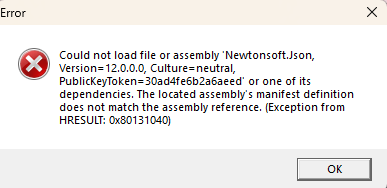
If you run into this error when trying to Quick Create in Hyper V:
“Could not load file or assembly ‘Newtonsoft.Json, Version=12.0.0.0,
Culture=neutral, PublicKeyToken=30ad4fe6b2a6aeed’ or one of its
dependencies. The located assembly’s manifest definition does not
match the assembly reference. (Exception from HRESULT:
0x80131040)”
Then the workaround is an easy one.
============
u/overlockfr
It’s caused by a file that somehow got updated in the Hyper-V install.
Here’s how to fix it, until Hyper-V gets updated properly.
Create a file called VMCreate.exe.config with the content below, and then move it to C:\Program Files\Hyper-V
For windows machines running Windows 11 24H2 version. There are instances where RDP works on the first login and then freezes on subsequent logins. The following adjustment on the Host machine the user is connecting to fixes this issue.
Go to Gpedit.msc then take the following path
Local Computer Policy> Computer Configuration > Administrative Templates > Windows Components > Remote Desktop Services > Remote Desktop Session Host > Connections > Select network detection on the server – set to Enabled, Turn off Connect Time Detect and Continuous Network Detect
Make sure to hit apply and restart the device to ensure it takes.
Here’s a cleaned-up, polished version of your article—formatted professionally for your company’s Knowledge Base while keeping it practical and technical:
📘 Mapping Network Drives via Group Policy in Windows Server 2022
Overview
This guide explains how to automatically map shared network folders as drives using Group Policy Preferences (GPP) on Windows Server 2022. It also covers the roles of Organizational Units (OUs) and Security Groups, along with best practices for scalable, flexible management.
🔧 Key Components & Requirements
Before proceeding, ensure the following:
Windows Server 2022 domain environment
Domain-joined client systems
Users and computers are located in Organizational Units (OUs) (not default containers)
Shared folders with proper NTFS and share permissions
🧩 Understanding OUs vs. Security Groups
Concept
Description
Organizational Units (OUs)
Logical containers for users, computers, and other OUs. They support GPO linkage and delegation of administrative rights.
Security Groups
Membership-based collections used for granting permissions (NTFS, shares) and GPP item-level targeting.
Key Differences:
A user or computer can reside in only one OU at a time.
Users can belong to multiple security groups simultaneously.
OUs apply policies broadly and help delegate control.
Groups grant granular access control and can span across OUs.
⚠️ Important: Default containers like Users and Computersdo not support GPOs. Move all accounts into proper OUs for Group Policies to apply.
🏗️ Active Directory Structure Best Practices
a. Create Organizational Units
Method 1 – ADUC GUI:
Open Active Directory Users and Computers (ADUC).
Right-click the domain → New → Organizational Unit.
Name and optionally protect the OU from accidental deletion.
✅ Remove this item when it is no longer applied – automatically unmaps drives when users leave a group.
🔁 Apply once and do not reapply – useful for one-time setups.
This allows one GPO to deploy multiple drive mappings, each targeted to different security groups, across any OU.
🔗 Linking and Applying the GPO
Link the GPO to the desired OU(s) or domain root.
On clients, run:
gpupdate /force
or simply reboot.
Users who:
Have their account within the linked OU, and
Belong to one of the targeted Security Groups
will automatically receive the appropriate mapped drives.
🧰 Maintenance & Troubleshooting
Verify GPO scope:
gpresult /h report.html
or use
Get-GPOReport
Adjust mappings by changing security group membership, not by moving users between OUs.
Keep GPOs modular—avoid editing the Default Domain Policy.
Use Item-Level Targeting to minimize GPO clutter and boost performance.
📋 Summary Table
Task
Tool / Method
Notes
Create OU
ADUC / PowerShell
New-ADOrganizationalUnit
Move Accounts
ADUC / PowerShell
Move-ADObject
Create Security Group
ADUC
Add users, define scope
Link Drive-Mapping GPO
GPMC
User Config → Preferences → Drive Maps
Configure Mapped Drive
GPP + Targeting
Set UNC, drive letter, group conditions
Enable Cleanup Options
Within preference item
Use “Remove this item…” / “Apply once…”
Apply / Test Policy
Command line
gpupdate / gpresult
Maintain Setup
ADUC / PowerShell
Adjust memberships, review policies
💡 Final Thoughts
A user belongs to one OU, but can be part of many groups. Using Item-Level Targeting with Security Groups enables flexible, modular, and scalable GPO management across OUs.
This approach:
Simplifies administration
Reduces GPO sprawl
Keeps drive mappings logical and maintainable
Tip: Combine OUs for structure and Groups for control. That balance keeps your environment clean, efficient, and easy to scale.
Would you like me to format it for Markdown, Confluence, or SharePoint export? I can adjust the headings and table syntax accordingly.
How to take over a server when you don’t know the password: Put in disk for server 2022 (USB/DVD is fine, as long as you can boot from it) Boot from install media Next Repair your computer Troubleshoot Command prompt Find out what your bootable drive is, might be C drive, might be D- just pick them, then run Dir Once you find the right volume, browse into windows directory Cd windows Cd system32 Rename utilman.exe utilman.old Copy cmd.exe utilman.exe Dir cmd.exe Dir utilman.exe To confirm sizes match Cd.. Cd.. bcdedit /set {bootmgr} timeout 15 bcdedit /set displaybootmenu yes Close cmd window, reboot machine using GUI Upon reboot, use F8 and boot into safe mode (OR ELSE SFC) Click accessibility button to bring up command prompt Now run: Net user administrator DEAD1599@@ /domain (Don’t use domain if not a domain machine) Log in with new password to confirm it Reboot into normal mode and log in with new password