To add a user to the Hyper-V Administrators group, you must already have administrative privileges on the host machine. This process allows standard users to manage virtual machines without giving them full system administrator access.
(Replace “UserName” with the actual account name or “Domain\UserName” for domain accounts).
Option 2: Use Command Prompt
Run Command Prompt as an Administrator and use this syntax:
cmd
net localgroup “Hyper-V Administrators” “UserName” /add
Note: Group names are localized; if your Windows installation is not in English, use net localgroup to find the exact name of the Hyper-V group on your system.
Option 3: Use Computer Management (Graphical)
This is the most common method for Windows 10, 11, and Windows Server users.
Resolution found here: https://www.reddit.com/r/HyperV/comments/1he54pv/comment/m92ko75/?utm_source=share&utm_medium=web3x&utm_name=web3xcss&utm_term=1&utm_content=share_button&rdt=43004
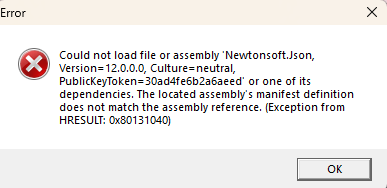
If you run into this error when trying to Quick Create in Hyper V:
“Could not load file or assembly ‘Newtonsoft.Json, Version=12.0.0.0,
Culture=neutral, PublicKeyToken=30ad4fe6b2a6aeed’ or one of its
dependencies. The located assembly’s manifest definition does not
match the assembly reference. (Exception from HRESULT:
0x80131040)”
Then the workaround is an easy one.
============
u/overlockfr
It’s caused by a file that somehow got updated in the Hyper-V install.
Here’s how to fix it, until Hyper-V gets updated properly.
Create a file called VMCreate.exe.config with the content below, and then move it to C:\Program Files\Hyper-V
Snapshots, which are known as checkpoints in Hyper-V, come in handy when you need to retain the last properly running state of a VM before deploying new software or installing an update. However, you have to be careful while deleting snapshots otherwise, you might lose important data.
In this post, we explain the mechanism of Hyper-V checkpoints. We will cover when to use these checkpoints and show how to delete snapshots from the Hyper-V Manager interface and by using PowerShell.
NAKIVO for Hyper-V Backup
Agentless, application-aware backups for Hyper-V. Anti-ransomware protection, instant VM boot from backup, other virtual/physical platform support and more.
Before we go into detail about how Hyper-V checkpoints work, let me clear up any confusion related to the terms snapshots and checkpoints.
Snapshots and checkpoints represent the same capability of saving the state of a VM at a particular point in time. This state can be reverted to in the future if an issue occurs with the VM. Microsoft refers to the feature of saving the state of a VM as snapshots for releases before Windows Server 2012 R2. In subsequent releases, Microsoft uses the term checkpoints. In addition, snapshots is the term used in VMware environments. In this post, we are using both terms interchangeably as the covered mechanism and procedures apply to both snapshots and checkpoints. So, how do checkpoints/snapshots work?
How Hyper-V checkpoints are saved
Hyper-V VM data is saved in the form of a .vhdx file. When a checkpoint is created, the .vhdx file becomes a read-only file. New modifications applied to the VM are saved in a differencing virtual hard disk. This differencing virtual hard disk is saved in the form of a .avhdx file in the same folder as that containing the .vhdx file.
You can create a chain of checkpoints. Each checkpoint represents the state of the VM at a specific point in time. Each checkpoint is represented by an .avhdx file.
The mechanism of Hyper-V checkpoints is efficient with storage utilization. However, the performance of virtual disk reading operations is significantly reduced. The reason is that reading files would require checking the whole chain of checkpoints (.avhdx files) until the VM’s .vhdx file is reached.
In the screenshot below, you can see one parent .vhdx virtual disk and two .avhdx disks after creating two Hyper-V checkpoints for a VM.
According to this mechanism, deleting a .avhdx file does not delete the checkpoint. Instead, this kind of deletion breaks the chain and leads to data loss.
To delete a checkpoint without losing data, the .avhdx file should be merged with another (parent) .avhdx file (or .vhdx file) in the chain. If this checkpoint is the only checkpoint for the VM, the .avhdx file is merged with the .vhdx file, and the .vhdx file becomes writable again.
In the next section, we will show how to delete snapshots (checkpoints) from the Hyper-V Manager interface without losing data.
Delete Snapshots by Using the Hyper-V Manager Interface
Hyper-V Manager is a free GUI tool for managing Hyper-V hosts and VMs. It can be used to provision VMs, allocate RAM, create snapshots or delete them.
Right-click the checkpoint to be deleted from the Checkpoints pane. Select Delete Checkpoint…
In the screenshot below, you can see a parent .vhdx virtual disk and an .avhdx snapshot file after deleting the second Hyper-V checkpoint.
Delete Snapshots by Using PowerShell
To perform bulk actions on Hyper-V VMs, Windows PowerShell is more efficient than the Hyper-V Manager GUI as you can use commands to delete multiple snapshots at once. Besides, some actions, such as deleting a checkpoint that has no delete option in the GUI, can only be accomplished via PowerShell.
A checkpoint that cannot be deleted from the Hyper-V Manager is called a lingering checkpoint. Lingering checkpoints happen when a VM backup job fails.
When a VM backup job begins using a backup solution, the VM is placed into read-only mode. The new data submitted by VM users is saved to a special type of checkpoint called a recovery checkpoint. When the backup job completes successfully, the recovery checkpoint’s .avhdx file is merged with the VM .vhdx file, and the checkpoint is automatically deleted. However, if the backup job fails, the recovery checkpoint is not deleted automatically and remains as a lingering checkpoint.
Get the checkpoint exact name with the command Get-VMSnapshot. Provide the VMName when prompted.
Run the command:Get-VM -Name <VMName> | Get-VMSnapShot -Name <CheckpointName> | Remove-VMSnapshot
Verify that the checkpoint has been successfully deleted with the command:Get-VMSnapshot
Final Thoughts
Creating checkpoints is a good practice for the sake of testing and creating an acceptance environment. However, keeping checkpoints is not recommended in a production environment. Checkpoints adversely impact the Hyper-V performance of reading operations.
Deleting checkpoints’ files from the disk directly leads to data loss. Checkpoints should be deleted from the Hyper-V Manager. The PowerShell can be used as well to delete them specially if they have no delete option in the Hyper-V Manager GUI.
Adopting a backup and replication solution is crucial for your data and application protection.