Category: Uncategorized (Page 1 of 2)

Diagnosing Scanning Issues

Diagnosing and Fixing Windows Firewall/Network Profile Issues Blocking SMB

A device on the network (scanner, printer, external system) can’t reach a Windows machine’s shared folder over SMB (port 445). The credentials are correct, the share exists, but the inbound connection silently fails. Most often, the Windows machine’s network profile is set to Public instead of Private, which disables the SMB-In firewall rule by default.

This guide walks through rapid diagnosis via PowerShell and shows how to repair it efficiently.


One-Pass Diagnostic (run this first)

Copy and paste this entire script to get a complete picture:

Write-Host "=== SMB Connectivity Diagnosis ===" -ForegroundColor Cyan
Write-Host "`n1. Network Profile" -ForegroundColor Yellow
Get-NetConnectionProfile | Select InterfaceAlias, NetworkCategory

Write-Host "`n2. SMB Shares on this machine" -ForegroundColor Yellow
Get-SmbShare | Select Name, Path, Description

Write-Host "`n3. SMB-In Firewall Rule State" -ForegroundColor Yellow
Get-NetFirewallRule -DisplayGroup "File and Printer Sharing" |
    Where-Object { $_.DisplayName -eq "File and Printer Sharing (SMB-In)" } |
    Select DisplayName, Enabled, Profile

Write-Host "`n4. Wi-Fi Signal and Driver (if applicable)" -ForegroundColor Yellow
netsh wlan show interfaces | Select-String "Signal|RSSI|Channel|DriverVersion" -ErrorAction SilentlyContinue
Get-NetAdapter -Name "Wi-Fi" -ErrorAction SilentlyContinue | Select Name, DriverVersion, DriverDate

Write-Host "`n5. Known Network Profiles (check for duplicates)" -ForegroundColor Yellow
Get-ChildItem "HKLM:\SOFTWARE\Microsoft\Windows NT\CurrentVersion\NetworkList\Profiles" -ErrorAction SilentlyContinue |
    ForEach-Object {
        $p = Get-ItemProperty $_.PSPath
        [PSCustomObject]@{
            Name     = $p.ProfileName
            Category = switch ($p.Category) {0{'Public'}1{'Private'}2{'Domain'}}
        }
    } | Sort-Object Name | Format-Table -AutoSize

This single command will tell you your network profile, active shares, firewall rule state, Wi-Fi quality, driver version, and any duplicate network profiles. Run it and look at the output — most issues are visible immediately.


Quick Reference: Common Repairs

Profile is Public, needs to be Private:

Set-NetConnectionProfile -InterfaceAlias "Wi-Fi" -NetworkCategory Private

SMB-In is disabled for Public, need to enable it (scoped to LocalSubnet):

Get-NetFirewallRule -DisplayGroup "File and Printer Sharing" | Where-Object { $_.DisplayName -eq "File and Printer Sharing (SMB-In)" -and $_.Profile -match "Public" } | Set-NetFirewallRule -Enabled True -RemoteAddress LocalSubnet

Test auth from a remote machine (the real test):

net use \\192.168.1.188\SCANS /user:Scanning Scanning12
net use
net use \\192.168.1.188\SCANS /delete

Disable Wi-Fi power management (if the adapter is powering down):

Disable-NetAdapterPowerManagement -Name "Wi-Fi"

Verify the fix worked:

Get-NetConnectionProfile | Select InterfaceAlias, NetworkCategory
Get-NetFirewallRule -DisplayGroup "File and Printer Sharing" | Where-Object { $_.DisplayName -eq "File and Printer Sharing (SMB-In)" } | Select DisplayName, Enabled, Profile

Quick Triage (60 seconds)

Start here to determine if this is a firewall/profile problem or something else.

1. Confirm the share exists and the basic path works

List all SMB shares on this machine:

Get-SmbShare | Select Name, Path, Description

What to look for:

  • Is your target share listed? (e.g., SCANS, C$, FileShare)
  • What local path does it point to? (e.g., C:\SCANS)

If not found: The share doesn’t exist. Create it first before proceeding. This diagnostic won’t help a missing share.

2. Test credentials against the share from a remote machine

If possible, run this from another machine on the same network (not from the target itself). Replace 192.168.1.188 with the target IP and “SCANS” with your share name:

net use \\192.168.1.188\SCANS /user:Scanning Scanning12
net use
net use \\192.168.1.188\SCANS /delete

What to look for:

  • “The command completed successfully” → Auth works. The problem is firewall/inbound rules on the target.
  • Error 1326 → Bad username or password. Fix credentials and re-test.
  • Error 53 / 64 → Network unreachable or path not found. Check IP, routing, and share name spelling.
  • Error 5 → Auth worked, but permission denied. Check share NTFS permissions.

Key point: If net use succeeds from another machine but the remote device (scanner) still can’t connect, the issue is inbound firewall rules on your target machine — proceed to step 3 below.


Diagnosis: Network Profile and Firewall Rules

If you’ve confirmed credentials and share existence, the culprit is almost always the network profile category (Public vs Private) and the SMB-In inbound firewall rule.

3. Check the NIC’s network profile

Get-NetConnectionProfile | Select InterfaceAlias, NetworkCategory

What to look for:

  • NetworkCategory: PublicThis is the problem. SMB-In is disabled for Public by default.
  • NetworkCategory: Private → Correct for a trusted LAN. Firewall should allow SMB. Proceed to step 4.
  • NetworkCategory: Domain → Domain-joined machine. Profile rules apply per-domain policy.

If Public: Note the InterfaceAlias (usually Wi-Fi or Ethernet). You’ll need it for the fix.

4. Check the SMB-In firewall rule state

Get-NetFirewallRule -DisplayGroup "File and Printer Sharing" |
    Where-Object { $_.Direction -eq "Inbound" } |
    Select DisplayName, Enabled, Profile, Action

What to look for:

  • Find the row File and Printer Sharing (SMB-In)
  • Check the Enabled and Profile columns for your NIC’s profile (Public, Private, or Domain)
  • If Enabled: False for the Public/Private profile your NIC is on, SMB-In is blocked — that’s your answer

Example of disabled SMB-In on Public:

DisplayName                        Enabled  Profile  Action
-----------                        -------  -------  ------
File and Printer Sharing (SMB-In)   False    Public   Allow
File and Printer Sharing (SMB-In)    True    Private  Allow

If your NIC is on Public and SMB-In shows False for Public, you’ve found the root cause.

5. Verify the target machine can be reached on port 445

Run this from the remote machine trying to connect (scanner, printer, another computer):

Test-NetConnection -ComputerName 192.168.1.188 -Port 445

What to look for:

  • TcpTestSucceeded: True → Port is reachable. Confirms network connectivity and the SMB port is listening.
  • TcpTestSucceeded: False → Port blocked. Either the firewall rule is denying (step 4), the machine is offline, or network routing is broken.

Additional Context: Check for duplicate profiles and reconnect churn

If you’re seeing intermittent issues or the profile keeps changing, check for accumulated duplicate network profiles:

Get-ChildItem "HKLM:\SOFTWARE\Microsoft\Windows NT\CurrentVersion\NetworkList\Profiles" |
    ForEach-Object {
        $p = Get-ItemProperty $_.PSPath
        [PSCustomObject]@{
            Name                = $p.ProfileName
            Category            = switch ($p.Category) {0{'Public'}1{'Private'}2{'Domain'}}
            DateCreated         = [DateTime]::FromFileTime([UInt64]$p.DateCreated[0])
            DateLastConnected   = [DateTime]::FromFileTime([UInt64]$p.DateLastConnected[0])
        }
    } | Format-Table -AutoSize

What to look for:

  • Multiple entries for the same network name (e.g., “Office WiFi”, “Office WiFi 2”, “Office WiFi 3”)
  • Duplicate profiles = Windows re-identified the network multiple times, creating a new profile each time (usually due to Wi-Fi reconnects)
  • The most recent DateLastConnected is the one currently in use
  • If duplicates are classified Public, each one is a potential liability

Why this matters: Frequent Wi-Fi disconnects can cause Windows to create new profiles that default to Public. Even if you fix the current one to Private, a re-identification creates a new Public profile next time.


Repair: Setting the Profile and Enabling SMB-In

Once you’ve identified the issue (usually Public profile + SMB-In disabled), fix it in order of least to most invasive.

Fix 1: Change the profile to Private (recommended)

Get the exact interface alias first:

Get-NetConnectionProfile | Select InterfaceAlias, NetworkCategory

Set it to Private (replace “Wi-Fi” with your InterfaceAlias if different):

Set-NetConnectionProfile -InterfaceAlias "Wi-Fi" -NetworkCategory Private

Verify the change:

Get-NetConnectionProfile | Select InterfaceAlias, NetworkCategory

Expected result:

InterfaceAlias  NetworkCategory
-----------     ---------------
Wi-Fi           Private

This immediately activates all the inbound rules that are already enabled for Private, including SMB-In. For a machine on a trusted internal LAN, Private is the semantically correct setting.

Test: From the remote machine, try the connection again:

net use \\192.168.1.188\SCANS /user:Scanning Scanning12

Fix 2: Enable SMB-In for the Public profile (if the profile must stay Public)

If for some reason the profile must remain Public, explicitly enable the SMB-In rule for Public and scope it to your local subnet:

Get-NetFirewallRule -DisplayGroup "File and Printer Sharing" |
    Where-Object { $_.DisplayName -eq "File and Printer Sharing (SMB-In)" -and $_.Profile -match "Public" } |
    Set-NetFirewallRule -Enabled True -RemoteAddress LocalSubnet

Verify:

Get-NetFirewallRule -DisplayGroup "File and Printer Sharing" |
    Where-Object { $_.DisplayName -eq "File and Printer Sharing (SMB-In)" } |
    Select DisplayName, Enabled, Profile, @{N='RemoteAddress';E={($_ | Get-NetFirewallAddressFilter).RemoteAddress}}

Expected result:

DisplayName                       Enabled  Profile  RemoteAddress
-----------                       -------  -------  ---------
File and Printer Sharing (SMB-In)   True    Public   LocalSubnet
File and Printer Sharing (SMB-In)   True    Private  LocalSubnet

The LocalSubnet scope limits SMB to local-segment IPs only, preventing exposure if the device lands on an untrusted network.


Preventive Diagnosis: Identify root causes of profile instability

If this issue recurs, the problem is usually network profile churn — Windows re-identifying the network and creating new profiles. Investigate these:

Check Wi-Fi signal and AP quality

netsh wlan show interfaces

Look for:

  • Signal: 70% or higher → Good. Low signal is a common cause of reconnects.
  • Channel → Check if it’s congested (2.4 GHz channels 1/6/11 are standard; 5 GHz has more space).
  • RSSI: -60 dBm or better → Solid. Anything worse is weak.

If signal is poor: The problem is RF. Move the access point or relocate the device closer.

Check for driver issues

Get-NetAdapter -Name "Wi-Fi" | Select Name, DriverVersion, DriverDate

Look for:

  • DriverDate more than a year old? Update the driver from the NIC vendor (Intel, Qualcomm, Realtek, etc.) directly — don’t rely on Windows Update.

Check power management (on laptops especially)

Get-NetAdapterPowerManagement -Name "Wi-Fi"

Look for:

  • SelectiveSuspend: Enabled or DeviceSleepOnDisconnect: Enabled → These can cause disconnects to save power. Disable them on a desktop or stationary device.

If these are enabled, disable them:

Disable-NetAdapterPowerManagement -Name "Wi-Fi"

Check for duplicate network profiles (indicates reconnect churn)

See the registry query in the “Additional Context” section above. Multiple profiles for the same network name is a red flag for instability.

If duplicates exist: Back up the registry key, then remove stale duplicates (keep only the most recently connected one). Each reconnect event creates a new candidate for being classified Public, so cleaning them up reduces surface area.


Complete diagnostic script (one-liner)

Here’s a single script that runs all the key diagnostics and formats them for quick review:

Write-Host "=== SMB Connectivity Diagnosis ===" -ForegroundColor Cyan
Write-Host "`n1. Network Profile" -ForegroundColor Yellow
Get-NetConnectionProfile | Select InterfaceAlias, NetworkCategory

Write-Host "`n2. SMB Shares on this machine" -ForegroundColor Yellow
Get-SmbShare | Select Name, Path, Description

Write-Host "`n3. SMB-In Firewall Rule State" -ForegroundColor Yellow
Get-NetFirewallRule -DisplayGroup "File and Printer Sharing" |
    Where-Object { $_.DisplayName -eq "File and Printer Sharing (SMB-In)" } |
    Select DisplayName, Enabled, Profile

Write-Host "`n4. Wi-Fi Signal and Driver (if applicable)" -ForegroundColor Yellow
netsh wlan show interfaces | Select-String "Signal|RSSI|Channel|DriverVersion" -ErrorAction SilentlyContinue
Get-NetAdapter -Name "Wi-Fi" -ErrorAction SilentlyContinue | Select Name, DriverVersion, DriverDate

Write-Host "`n5. Known Network Profiles (check for duplicates)" -ForegroundColor Yellow
Get-ChildItem "HKLM:\SOFTWARE\Microsoft\Windows NT\CurrentVersion\NetworkList\Profiles" -ErrorAction SilentlyContinue |
    ForEach-Object {
        $p = Get-ItemProperty $_.PSPath
        [PSCustomObject]@{
            Name     = $p.ProfileName
            Category = switch ($p.Category) {0{'Public'}1{'Private'}2{'Domain'}}
        }
    } | Sort-Object Name | Format-Table -AutoSize

Run this when a connectivity issue comes in, and it gives you a full picture in one pass.


Troubleshooting matrix

SymptomDiagnosis CommandLikely CauseFix
Remote device can’t connect, no error codeGet-NetConnectionProfileNetwork profile is PublicSet to Private
Remote device gets generic “connection error”Check SMB-In rule with Get-NetFirewallRuleSMB-In disabled on active profileEnable SMB-In or switch to Private
Port 445 shows closed from remoteTest-NetConnection -Port 445Firewall blocking or service not listeningEnable rule, or Test-NetConnection localhost 445 to confirm SMB is up
Auth succeeds locally but fails remotelynet use from remote machineLikely a firewall rule keying off profile, not share/authConfirm profile and SMB-In rule state
Problem happens intermittentlyGet-ChildItem .../NetworkList/ProfilesDuplicate profiles from Wi-Fi reconnects; newer profile is PublicClean duplicates; investigate RF stability
Problem returns weeks laternetsh wlan show interfaces + driver checkUnstable Wi-Fi or driver issue causing reconnectsUpdate driver, optimize Wi-Fi channel/placement, or move to wired

Quick reference: Common PowerShell repairs

Profile is Public, needs to be Private:

Set-NetConnectionProfile -InterfaceAlias "Wi-Fi" -NetworkCategory Private

SMB-In is disabled for Public, need to enable it:

Get-NetFirewallRule -DisplayGroup "File and Printer Sharing" |
    Where-Object { $_.DisplayName -eq "File and Printer Sharing (SMB-In)" -and $_.Profile -match "Public" } |
    Set-NetFirewallRule -Enabled True -RemoteAddress LocalSubnet

Test auth from remote (safest test):

net use \\<target-ip>\<share-name> /user:<username> <password>
net use \\<target-ip>\<share-name> /delete

Disable Wi-Fi power management (if adapter is powering down):

Disable-NetAdapterPowerManagement -Name "Wi-Fi"

When to escalate

If after these steps the issue persists, check:

  • Third-party firewall/endpoint protection (Sophos, SentinelOne, ZeroTrust) — these can override Windows Firewall. Check their console for 445 rules.
  • Network/VLAN isolation — confirm both machines are on the same network segment (DHCP scope, VLAN, or subnet).
  • SMB protocol version mismatch — older devices may only speak SMBv1, which is disabled on modern Windows for security. Check device firmware.
  • DNS/hostname resolution — if the remote device is resolving a hostname instead of an IP, confirm it’s reaching the right target.

Using Web sign in with TAP

Passwordless Login to Entra-Joined Devices Using a Temporary Access Pass (TAP)

TL;DR

Run this command on an Entra-joined Windows device (elevated Command Prompt), reboot, enable TAP in the Entra admin center, issue a passcode, and your user is one globe-icon-click away from a passwordless sign-in:

reg add HKLM\SOFTWARE\Microsoft\PolicyManager\current\device\Authentication /v EnableWebSignIn /t REG_DWORD /d 1 /f


Handing a user a short-lived passcode that gets them straight to the Windows desktop — no password, no MFA prompt, no helpdesk back-and-forth — is one of the cleanest workflows Microsoft has shipped in years. The trick is pairing a Temporary Access Pass (TAP) from Microsoft Entra ID with the Web Sign-in credential provider in Windows.

This walkthrough covers the whole flow: flipping on Web Sign-in with a single registry command, enabling the TAP policy in Entra, issuing the passcode, and logging in on the device.


What You’ll Need

  • A Microsoft Entra joined device (this does not work on Hybrid Joined or AD-only machines)
  • Windows 11 22H2 with KB5030310 or later (Windows 10 1809+ works for Web Sign-in but Windows 11 is strongly preferred)
  • Microsoft Entra ID P1 license or higher for the user
  • One of these admin roles to issue the TAP: Global Administrator, Privileged Authentication Administrator, or Authentication Administrator
  • Authentication Policy Administrator role to configure the TAP policy itself

Step 1: Enable Web Sign-in on the Device

Web Sign-in is the credential provider that puts the little globe icon on the Windows lock screen. Without it, the device has nowhere to accept a TAP code at sign-in time.

Open an elevated Command Prompt (Run as administrator) on the target device and run:

reg add HKLM\SOFTWARE\Microsoft\PolicyManager\current\device\Authentication /v EnableWebSignIn /t REG_DWORD /d 1 /f

That’s it. What this does:

  • HKLM\SOFTWARE\Microsoft\PolicyManager\current\device\Authentication is the policy location Windows reads at sign-in
  • EnableWebSignIn is the value name that toggles the Web Sign-in credential provider
  • REG_DWORD /d 1 sets it to enabled (use 0 to disable later)
  • /f is force, no confirmation prompt

Reboot the device for the change to take effect. After it comes back up, you’ll see a new sign-in option on the lock screen — a small globe icon under “Sign-in options.”

Doing this at scale? The registry command is great for testing, recovery, or a single device. For fleet-wide deployment, push the equivalent setting through Intune: Devices → Configuration → Create → Settings catalog → Authentication → Enable Web Sign In → Enabled. Same outcome, but managed centrally and survives device wipes.


Step 2: Enable the Temporary Access Pass Policy in Entra

TAP is off by default in the tenant. Turn it on:

  1. Go to the Microsoft Entra admin center at entra.microsoft.com
  2. Navigate to Protection → Authentication methods → Policies
  3. Click Temporary Access Pass
  4. Switch Enable to On
  5. Under Target, choose All users or scope to a specific group (recommended for pilots)
  6. Click the Configure tab and set:
    • Minimum lifetime: 1 hour
    • Maximum lifetime: 8 hours (this is the hard ceiling Microsoft allows)
    • Default lifetime: 1 hour
    • One-time use: No if the device will reboot during setup, Yes for tighter security
    • Length: 8 characters minimum
  7. Click Save

Replication can take a few minutes. If a TAP prompt doesn’t appear right away, give it 5–10 minutes.


Step 3: Issue a TAP to the User

  1. In the Entra admin center, go to Identity → Users → All users
  2. Find and click the user
  3. Open Authentication methods in the left menu
  4. Click + Add authentication method
  5. From the dropdown, choose Temporary Access Pass
  6. Set the activation time, lifetime, and one-time use preference
  7. Click Add

Entra will display the passcode exactly once. Copy it now — once you close the window, it’s gone. Hand it to the user through a secure channel (in person, a phone call, or a verified secure messaging tool — not plain email).


Step 4: Sign In to the Device With the TAP

On the Windows lock screen:

  1. Click Sign-in options below the password field
  2. Click the globe icon (Web Sign-in)
  3. Click Sign in
  4. Enter the user’s UPN (e.g., jane.doe@contoso.com) and click Next
  5. When prompted, enter the Temporary Access Pass code
  6. Windows authenticates against Entra and signs the user in to the desktop

No password. No MFA prompt. The user is in.


Gotchas Worth Knowing

  • Entra Joined only. Web Sign-in + TAP doesn’t work on Hybrid Joined or domain-joined devices. On those, the user has to authenticate with a password, smart card, or FIDO2 key first, and TAP can only be used to register Windows Hello afterward.
  • Internet required. Web Sign-in needs an active connection. Offline sign-in falls back to cached credentials.
  • Web Sign-in becomes the default credential provider after it’s used, which can confuse users on subsequent sign-ins. If that’s an issue, push an Intune policy to set Password (or Windows Hello) as the default credential provider: Settings catalog → Administrative Templates → System → Logon → Assign a default credential provider.
  • Conditional Access still applies. If your CA policies require compliant devices or specific locations, TAP sign-in respects those rules.
  • Federated tenants: if FederatedIdpMfaBehavior is set to enforceMfaByFederatedIdp, the user gets redirected to the federated IdP instead of seeing a TAP prompt. Set it to acceptIfMfaDoneByFederatedIdp if you want TAP to be accepted.

Verifying macros on an Excel document

How to Inspect a Macro-Enabled Excel File Before You Trust It

A practical guide for anyone who’s ever hovered over “Enable Content” and wondered if they should.


You receive an .xlsm file from a vendor, a colleague, or a download. It asks you to enable macros. Before you click that button, there’s a better question to ask: what does this macro actually do?

This guide walks through a repeatable process for inspecting macro-enabled Office files — without running them first.


Why This Matters

Macros are Visual Basic for Applications (VBA) programs embedded in Office documents. They can automate legitimate tasks like building Gantt charts or generating reports, but they can also execute system commands, download files from the internet, or exfiltrate data. The problem is that Office gives you no way to tell the difference before you enable them.

Making things worse: files can be password-protected, which locks the VBA editor inside Office and prevents you from reading the code through normal means. This is sometimes legitimate (vendors protecting IP), sometimes suspicious.

The good news is that password protection only blocks the Office UI — it doesn’t protect the underlying binary.


What You’ll Need

olevba is the primary tool. It’s part of the oletools Python package, developed by Philippe Lagadec, and it reads VBA source code directly from the file binary, bypassing password protection entirely.

Windows

Open a command prompt and run pip install oletools. That’s it.

Mac — Read This First

Mac requires a couple of extra steps. macOS ships with Python 2 (or no Python at all on newer versions), and running pip install oletools will either fail or try to install into a system location Apple doesn’t want you touching.

Step 1: Install Python 3 via Homebrew

If you don’t have Homebrew installed yet, open Terminal and run this command:

/bin/bash -c “$(curl -fsSL https://raw.githubusercontent.com/Homebrew/install/HEAD/install.sh)”

Then install Python 3 with brew install python3 and verify with python3 –version.

Step 2: Create a virtual environment

macOS will block pip install at the system level with an externally-managed-environment error. The fix is to install into a virtual environment instead — an isolated folder that doesn’t touch system Python at all.

Create the environment once with python3 -m venv oletools-env, then activate it with source oletools-env/bin/activate. Your prompt will change to show (oletools-env). Now run pip install oletools.

When you’re done, run deactivate to exit the environment. Next time you want to use olevba, just run source oletools-env/bin/activate first.


Step 1: Run the Basic Scan

Run olevba your_file.xlsm replacing the filename with your actual file. This extracts all VBA modules and produces a summary table at the bottom flagging suspicious keywords. It looks something like this:

Type: AutoExec — Keyword: Workbook_Open — Runs when the Excel Workbook is opened

Type: Suspicious — Keyword: Shell — May run an executable file or system command

Type: Suspicious — Keyword: CreateObject — May create an OLE object

Type: IOC — Keyword: https://example.com — URL

Don’t panic at this table. Every flag needs to be read in context — a Shell call that opens a saved PDF is very different from one that executes a downloaded payload.


Step 2: Read the Actual Code

The summary table tells you what keywords exist. The code tells you what they do. Scroll up from the summary and read through each module.

Here’s what to look for:

AutoExec Triggers

These run automatically without any user interaction. The function is called Workbook_Open and it executes the moment macros are enabled. Pay close attention to Workbook_Open, Auto_Open, and Document_Open — these are the entry points. Start reading here.

Shell and Command Execution

This is the most dangerous class of behavior. A legitimate use opens a known application like Windows Explorer with a file path. A suspicious one passes an encoded string to PowerShell — something like Shell “powershell -enc ” & encodedCommand. Encoded PowerShell is a significant red flag. It means the author is deliberately hiding what’s being executed.

Network Activity

Code that creates a WinHttpRequest object and calls a URL isn’t automatically malicious — license validation, version checks, and telemetry are common. The question is: what URL, and what data is being sent? Check whether any sensitive data like usernames, file contents, or environment variables is included in the request.

Obfuscation

Legitimate code rarely needs to hide itself. Watch for long chains of Chr() calls building strings character by character, Base64-encoded strings being decoded at runtime, and variables with meaningless names holding fragments of a URL or command. For example, a string of Chr() calls decoding to “powershell” is a serious warning sign. Run olevba –decode to attempt automatic deobfuscation.


Step 3: Understand VBA Stomping

olevba sometimes flags VBA Stomping — a condition where the stored source code and the compiled P-code differ. This matters because Office can execute either version, and they may not do the same thing. When detected, the summary will flag it as suspicious with the message “VBA source code and P-code are different.”

This has two common explanations:

  1. Vendor IP protection — commercial software vendors sometimes strip or obfuscate the source while keeping the compiled P-code intact. The macro works, but you can’t easily read it.
  2. Deliberate evasion — malware authors use this to show scanners one thing while actually executing another.

Context matters here. A stomped file from a known vendor with a plausible business reason is very different from a stomped file that arrived via email from an unknown sender.


Step 4: Check for the Real Red Flags

After reading the code, here are the things that should genuinely concern you, regardless of context:

FindingWhy It’s Concerning
Encoded PowerShell (-enc, -encodedCommand)Actively hiding executed commands
Downloads to %TEMP% then executesClassic dropper behavior
Reads Office credentials or saved passwordsData theft
Sends data to an unexpected external URLExfiltration
CreateObject(“Scripting.FileSystemObject”) writing filesPersistent malware installation
Multiple layers of deobfuscationEvasion of security tools

And here are things that look suspicious but usually aren’t:

FindingLikely Explanation
Shell opening a known applicationOpening exported files, launching browser
CreateObject(“WinHttp…”)License validation, update checks
Environ(“computername”)License tying, telemetry
Mac-specific popen / libc.dylib callsCross-platform compatibility code
VBA Stomping on a commercial productVendor IP protection

Step 5: For High-Stakes Files, Go Further

If the file is from an untrusted source or contains something you still can’t explain after reading the code, use these additional steps:

Run in an isolated environment. A virtual machine with no network access and no access to your real files is the safest way to observe runtime behavior. Tools like Any.run or Cuckoo Sandbox can automate this.

Rename and extract. .xlsm files are ZIP archives. Change the extension to .zip, extract, and look at xl/vbaProject.bin alongside the XML files in xl/. You can sometimes find hardcoded strings, URLs, or file paths that aren’t obvious in the VBA source.

Search the hash. Run the file through VirusTotal. If it’s a known malicious file or a known legitimate commercial product, you’ll often find it there.


A Complete Example Workflow

Windows: Run pip install oletools, then olevba suspicious_file.xlsm to scan. Add –decode to the command if you see encoded strings. Pipe to a text file with olevba suspicious_file.xlsm > analysis.txt to save the output for sharing.

Mac: Activate your environment first with source oletools-env/bin/activate, then run the same olevba commands above. The same commands work on .docm and .pptm files too.


The Decision Framework

After completing the analysis, the decision comes down to three questions:

  1. Can I explain every suspicious flag? If yes, and the explanations are plausible given the source of the file, enable with confidence.
  2. Is there anything I can’t explain? If yes, don’t enable until you can. Reach out to the vendor, check community forums, or run it in isolation first.
  3. Does the source match the behavior? A license validation call to shop.knownvendor.com from a file you downloaded from that vendor’s website is fine. The same call in a file that arrived unsolicited from an unknown email address is not.

Summary

Enabling macros without inspection is a habit worth breaking. The tools to do this properly are free, install in seconds, and bypass password protection that would otherwise stop you. A ten-minute review is usually enough to either confirm a file is safe or surface something that warrants a closer look.

The goal isn’t to become a malware analyst — it’s to develop enough familiarity with what legitimate macro code looks like that you can recognize when something doesn’t fit.


Tools referenced: oletools by Philippe Lagadec — free, open source, actively maintained.


Categories: Security, Cybersecurity, Productivity, Microsoft Office, How-To Guides

Tags: olevba, oletools, VBA macros, Excel security, macro analysis, xlsm, malware analysis, phishing, office documents, VBA stomping, Python, Homebrew, virtual environment, venv, macOS setup, Windows security, file inspection, enable macros, password protected files, WinHTTP, CreateObject, AutoExec, obfuscation, base64, PowerShell, VirusTotal, sandboxing, threat analysis, IT security, enterprise security

Issuing CBA Certificates for New Users in Microsoft Entra ID

You’ve already set up Certificate-Based Authentication (CBA) in your tenant — your Root CA is uploaded, the authentication method is enabled, and username bindings are configured. Now you need to issue certificates for additional users. This guide covers generating, packaging, and deploying user certificates on both macOS and Windows, plus automating deployment for Windows Entra enrollment.


Prerequisites

  • CBA is enabled in your Entra ID tenant (see the companion article: Setting Up CBA for a New Tenant)
  • Your Root CA files (rootCA.key and rootCA.crt) are accessible
  • OpenSSL is installed on your machine
  • The new user’s account already exists in Entra ID and you know their UPN (e.g., jane@yourdomain.com)

Step 1: Generate the User’s Private Key and CSR

Every user gets their own key pair and certificate. The critical requirement is including the user’s UPN in the Subject Alternative Name using the Microsoft UPN OID.

On macOS / Linux

bash

openssl genrsa -out jane-cba.key 2048

openssl req -new -key jane-cba.key \
  -out jane-cba.csr \
  -subj "/CN=jane@yourdomain.com" \
  -addext "subjectAltName=otherName:1.3.6.1.4.1.311.20.2.3;UTF8:jane@yourdomain.com"

On Windows (PowerShell or Git Bash)

bash

openssl genrsa -out jane-cba.key 2048

openssl req -new -key jane-cba.key -out jane-cba.csr -subj "/CN=jane@yourdomain.com" -addext "subjectAltName=otherName:1.3.6.1.4.1.311.20.2.3;UTF8:jane@yourdomain.com"

Replace jane@yourdomain.com with the user’s actual UPN in Entra ID. The UPN must match exactly — including case — for the username binding to work.


Step 2: Sign the Certificate with Your Root CA

bash

openssl x509 -req -in jane-cba.csr \
  -CA rootCA.crt -CAkey rootCA.key -CAcreateserial \
  -out jane-cba.crt -days 365 -sha256 \
  -copy_extensions copyall

The -copy_extensions copyall flag is essential — it copies the SAN from the CSR into the signed certificate. Without it, the SAN is silently dropped and CBA authentication will fail.


Step 3: Bundle into a .pfx File

On macOS

If you’re running OpenSSL 3.x (most modern Macs), use the -legacy flag so macOS Keychain can read the file:

bash

openssl pkcs12 -export -out jane-cba.pfx \
  -inkey jane-cba.key \
  -in jane-cba.crt \
  -certfile rootCA.crt \
  -legacy

On Windows

bash

openssl pkcs12 -export -out jane-cba.pfx -inkey jane-cba.key -in jane-cba.crt -certfile rootCA.crt

You’ll be prompted for an export password. For manual installs, pick something secure. For automated deployments, you’ll embed this password in your deployment script, so be aware of that tradeoff.

Tip: When prompted interactively, avoid special characters like @, !, # in the password — shells can interpret them unexpectedly. Stick to alphanumeric passwords to avoid “MAC verification failed” headaches.


Step 4: Import the Certificate on the User’s Machine

On macOS

Import both the user certificate and the root CA:

bash

security import jane-cba.pfx -k ~/Library/Keychains/login.keychain-db -P "YourPassword"
security import rootCA.cer -k ~/Library/Keychains/login.keychain-db

If the root CA was already imported on this machine (e.g., for another user), the second command will note it’s a duplicate, which is harmless.

Troubleshooting: “MAC verification failed during PKCS12 import”

This means the .pfx was created with OpenSSL 3.x’s newer encryption format. Recreate it with the -legacy flag (see Step 3).

On Windows — Manual Install

GUI method:

  1. Double-click the .pfx file
  2. Select Current User as the store location
  3. Enter the export password
  4. Accept the defaults and complete the wizard

Command line (run as Administrator):

powershell

certutil -addstore Root rootCA.cer
certutil -importpfx jane-cba.pfx

You’ll be prompted for the .pfx password.

On Windows — Automated via autounattend.xml

If you’re deploying Windows via USB with an unattended install, you can import the certificate automatically during setup.

USB folder structure:

ESD-USB:\
├── autounattend.xml
└── Certs\
    ├── rootCA.cer
    └── jane-cba.pfx

Add this to your autounattend.xml inside the appropriate settings pass (e.g., oobeSystem or specialize):

xml

<RunSynchronousCommand wcm:action="add">
    <Order>1</Order>
    <Path>powershell -ExecutionPolicy Bypass -Command "$d=(Get-Volume -FileSystemLabel 'ESD-USB').DriveLetter; certutil -addstore Root ${d}:\Certs\rootCA.cer; certutil -importpfx -p 'YourPassword' ${d}:\Certs\jane-cba.pfx"</Path>
    <Description>Import CBA Certificates</Description>
</RunSynchronousCommand>

This command dynamically finds the USB drive by its volume label (ESD-USB), so it works regardless of which drive letter Windows assigns.

Security note: The .pfx password is stored in plaintext in the XML. Treat the USB as a sensitive asset, and consider wiping or rotating the certificate after deployment.


Step 5: Test the Login

  1. Fully quit the browser (Cmd+Q on macOS, or close all windows on Windows)
  2. Open the browser and go to https://login.microsoftonline.com
  3. Enter the user’s email address
  4. Choose “Use a certificate or smart card”
  5. Select the certificate from the picker dialog
  6. On macOS, enter the Mac login password when the Keychain prompt appears — click Always Allow to avoid being asked again

Step 6: Set CBA as the Default Sign-In Method

After a successful first login with the certificate, the user can set CBA as their default authentication method:

  1. Go to https://mysignins.microsoft.com/security-info
  2. Click “Change default sign-in method”
  3. Select Certificate-based authentication
  4. Save

Note: You cannot change another user’s default sign-in method from the Entra admin center. Each user must set their own default from the My Security Info portal.


Scripting Bulk User Certificate Generation

If you need to issue certificates for many users at once, here’s a bash script that automates the process:

bash

#!/bin/bash

# List of user UPNs
USERS=(
  "jane@yourdomain.com"
  "john@yourdomain.com"
  "alex@yourdomain.com"
)

PFX_PASSWORD="TempDeploy2024"

for UPN in "${USERS[@]}"; do
  USERNAME=$(echo "$UPN" | cut -d'@' -f1)
  echo "Generating certificate for $UPN..."

  # Generate key
  openssl genrsa -out "${USERNAME}-cba.key" 2048 2>/dev/null

  # Generate CSR with SAN
  openssl req -new \
    -key "${USERNAME}-cba.key" \
    -out "${USERNAME}-cba.csr" \
    -subj "/CN=${UPN}" \
    -addext "subjectAltName=otherName:1.3.6.1.4.1.311.20.2.3;UTF8:${UPN}" \
    2>/dev/null

  # Sign with Root CA
  openssl x509 -req \
    -in "${USERNAME}-cba.csr" \
    -CA rootCA.crt -CAkey rootCA.key -CAcreateserial \
    -out "${USERNAME}-cba.crt" -days 365 -sha256 \
    -copy_extensions copyall \
    2>/dev/null

  # Bundle PFX (with -legacy for macOS compatibility)
  openssl pkcs12 -export \
    -out "${USERNAME}-cba.pfx" \
    -inkey "${USERNAME}-cba.key" \
    -in "${USERNAME}-cba.crt" \
    -certfile rootCA.crt \
    -legacy \
    -password "pass:${PFX_PASSWORD}" \
    2>/dev/null

  echo "  Created ${USERNAME}-cba.pfx"

  # Clean up intermediate files
  rm -f "${USERNAME}-cba.key" "${USERNAME}-cba.csr" "${USERNAME}-cba.crt"
done

echo "Done. All .pfx files ready for deployment."

Windows equivalent (PowerShell)

powershell

$users = @(
    "jane@yourdomain.com",
    "john@yourdomain.com",
    "alex@yourdomain.com"
)

$pfxPassword = "TempDeploy2024"

foreach ($upn in $users) {
    $username = $upn.Split("@")[0]
    Write-Host "Generating certificate for $upn..."

    openssl genrsa -out "$username-cba.key" 2048 2>$null

    openssl req -new `
        -key "$username-cba.key" `
        -out "$username-cba.csr" `
        -subj "/CN=$upn" `
        -addext "subjectAltName=otherName:1.3.6.1.4.1.311.20.2.3;UTF8:$upn"

    openssl x509 -req `
        -in "$username-cba.csr" `
        -CA rootCA.crt -CAkey rootCA.key -CAcreateserial `
        -out "$username-cba.crt" -days 365 -sha256 `
        -copy_extensions copyall

    openssl pkcs12 -export `
        -out "$username-cba.pfx" `
        -inkey "$username-cba.key" `
        -in "$username-cba.crt" `
        -certfile rootCA.crt `
        -password "pass:$pfxPassword"

    Write-Host "  Created $username-cba.pfx"

    Remove-Item "$username-cba.key", "$username-cba.csr", "$username-cba.crt" -ErrorAction SilentlyContinue
}

Write-Host "Done. All .pfx files ready for deployment."

Deploying Certificates via Intune (SCEP/PKCS)

For larger organizations, manually distributing .pfx files doesn’t scale. Microsoft Intune supports automated certificate deployment through SCEP and PKCS certificate profiles. The high-level process is:

  1. Set up a certificate connector — Install the Microsoft Intune Certificate Connector on a Windows Server that has access to your CA
  2. Create a Trusted Certificate profile — Deploy your root CA certificate to devices
  3. Create a PKCS or SCEP certificate profile — Configure Intune to automatically issue and deploy user certificates to enrolled devices

This is a more complex setup but eliminates the need to manually handle .pfx files for each user. Refer to Microsoft’s documentation on Intune certificate connectors for detailed steps.


Revoking a User’s Certificate

If a user leaves the organization or their certificate is compromised, you have several options:

  • Disable the user account in Entra ID — this prevents sign-in regardless of the certificate
  • Delete the certificate from the user’s machine
  • Set up CRL validation in the CBA configuration and publish a Certificate Revocation List through your CA

For immediate revocation without CRL infrastructure, disabling the user account is the fastest approach.


Quick Reference: Commands at a Glance

TaskCommand
Generate keyopenssl genrsa -out user.key 2048
Create CSR with SANopenssl req -new -key user.key -out user.csr -subj "/CN=user@domain.com" -addext "subjectAltName=otherName:1.3.6.1.4.1.311.20.2.3;UTF8:user@domain.com"
Sign certificateopenssl x509 -req -in user.csr -CA rootCA.crt -CAkey rootCA.key -CAcreateserial -out user.crt -days 365 -sha256 -copy_extensions copyall
Create PFX (macOS)openssl pkcs12 -export -out user.pfx -inkey user.key -in user.crt -certfile rootCA.crt -legacy
Create PFX (Windows)openssl pkcs12 -export -out user.pfx -inkey user.key -in user.crt -certfile rootCA.crt
Import on macOSsecurity import user.pfx -k ~/Library/Keychains/login.keychain-db -P "password"
Import on Windowscertutil -importpfx user.pfx

Setting Up Certificate-Based Authentication (CBA) in Microsoft Entra ID — From Scratch

Certificate-Based Authentication (CBA) lets users sign in to Microsoft 365 and Azure services using an X.509 certificate instead of a password. It’s phishing-resistant, passwordless, and pairs beautifully with smart cards and USB security keys. This guide walks you through the entire process of enabling CBA in a brand-new Entra ID tenant, from creating your own Certificate Authority to a successful first login.


Prerequisites

  • A Microsoft Entra ID (Azure AD) tenant with at least a P1 license
  • Global Administrator or Authentication Policy Administrator role
  • OpenSSL installed on your machine (comes pre-installed on macOS and most Linux distros; on Windows, install via Git for Windows or OpenSSL for Windows)
  • A user account to test with

Step 1: Create Your Root Certificate Authority

You need a Certificate Authority (CA) to sign user certificates. For production environments you’d use Active Directory Certificate Services or a third-party CA, but a self-signed root CA works perfectly for smaller organizations.

On macOS / Linux

Open Terminal and run:

openssl genrsa -out rootCA.key 4096
openssl req -x509 -new -key rootCA.key -sha256 -days 1825 -out rootCA.crt -subj "/CN=YourOrg Root CA"

On Windows

Open PowerShell or Git Bash and run:

openssl genrsa -out rootCA.key 4096
openssl req -x509 -new -key rootCA.key -sha256 -days 1825 -out rootCA.crt -subj "/CN=YourOrg Root CA"

This creates two files:

  • rootCA.key — Your CA’s private key. Guard this carefully. Anyone with this file can issue trusted certificates for your tenant.
  • rootCA.crt — Your CA’s public certificate. This gets uploaded to Entra ID.

Step 2: Convert the Root CA to .cer Format

Entra ID expects a .cer file for upload. Convert your root certificate:

openssl x509 -in rootCA.crt -out rootCA.cer -outform DER

If you run into issues with DER format during upload, try PEM instead:

openssl x509 -in rootCA.crt -out rootCA.cer -outform PEM

Step 3: Upload the Root CA to Entra ID

  1. Sign in to the Microsoft Entra admin center
  2. Navigate to Security → Certificate authorities
  3. Click Upload
  4. Upload your rootCA.cer file
  5. Toggle “Is root CA” to Yes
  6. Click Save

You should now see your CA listed with its thumbprint and expiration date.


Step 4: Enable Certificate-Based Authentication

  1. In the Entra admin center, go to Security → Authentication methods → Policies
  2. Find Certificate-based authentication and click on it
  3. On the Enable and Target tab:
    • Toggle the method to Enabled
    • Under Target, set it to All users or select a specific group
  4. Click Save

Step 5: Configure Username Binding

This is the step that trips most people up. You need to tell Entra ID how to match a certificate to a user account.

  1. Still in the CBA configuration, click the Configure tab
  2. Scroll down to Username binding
  3. You should see default rules for PrincipalName, RFC822Name, and SKI

The PrincipalName binding maps the certificate’s Subject Alternative Name (SAN) UPN field to the user’s userPrincipalName in Entra. This is the binding we’ll use.

Important: The PrincipalName binding looks for the Microsoft UPN OID (1.3.6.1.4.1.311.20.2.3) in the certificate’s SAN extension — not the Subject CN field. Your certificates must include this SAN, or authentication will fail with “No value in the certificate, as requested by tenant policy, is able to validate the user claim.”

Optional: CRL Validation

On the Configure tab you’ll also see Certificate revocation list (CRL) validation. For initial setup, leave “Require CRL validation” unchecked. You can enable it later once you have a CRL distribution point configured for your CA.


Step 6: Generate a User Certificate

Now create a certificate for your first user. The critical piece is including the UPN in the Subject Alternative Name using the Microsoft UPN OID.

On macOS / Linux

openssl genrsa -out user-cba.key 2048

openssl req -new -key user-cba.key \
  -out user-cba.csr \
  -subj "/CN=user@yourdomain.com" \
  -addext "subjectAltName=otherName:1.3.6.1.4.1.311.20.2.3;UTF8:user@yourdomain.com"

openssl x509 -req -in user-cba.csr \
  -CA rootCA.crt -CAkey rootCA.key -CAcreateserial \
  -out user-cba.crt -days 365 -sha256 \
  -copy_extensions copyall

On Windows

openssl genrsa -out user-cba.key 2048

openssl req -new -key user-cba.key -out user-cba.csr -subj "/CN=user@yourdomain.com" -addext "subjectAltName=otherName:1.3.6.1.4.1.311.20.2.3;UTF8:user@yourdomain.com"

openssl x509 -req -in user-cba.csr -CA rootCA.crt -CAkey rootCA.key -CAcreateserial -out user-cba.crt -days 365 -sha256 -copy_extensions copyall

Replace user@yourdomain.com with the user’s actual UPN in Entra ID.


Step 7: Bundle into a .pfx File

Combine the certificate and private key into a PKCS#12 (.pfx) file. This is the portable format you’ll import onto the user’s machine.

On macOS

macOS Keychain requires the legacy PKCS#12 format. If you’re on OpenSSL 3.x (check with openssl version), add the -legacy flag:

openssl pkcs12 -export -out user-cba.pfx \
  -inkey user-cba.key \
  -in user-cba.crt \
  -certfile rootCA.crt \
  -legacy

On Windows

openssl pkcs12 -export -out user-cba.pfx -inkey user-cba.key -in user-cba.crt -certfile rootCA.crt

You’ll be prompted to set an export password. Remember it — you’ll need it during import.


Step 8: Import the Certificate

On macOS

security import user-cba.pfx -k ~/Library/Keychains/login.keychain-db -P "YourPassword"
security import rootCA.cer -k ~/Library/Keychains/login.keychain-db

If the security import command fails with “MAC verification failed during PKCS12 import,” you need to recreate the .pfx with the -legacy flag (see Step 7).

On Windows

Option A — GUI:

  1. Double-click the .pfx file
  2. The Certificate Import Wizard opens
  3. Choose Current User and click Next
  4. Enter the export password
  5. Leave defaults and click through to finish

Option B — Command line (run as Administrator):

certutil -addstore Root rootCA.cer
certutil -importpfx user-cba.pfx

Step 9: Test the Login

  1. Fully quit your browser (Cmd+Q on Mac, or close all windows on Windows)
  2. Reopen the browser and navigate to https://login.microsoftonline.com
  3. Enter the user’s email address
  4. When prompted, choose “Use a certificate or smart card”
  5. Your OS will present a certificate picker — select the correct certificate
  6. On macOS, you’ll be prompted for your Mac login password (Keychain password) — enter it and click Always Allow

If everything is configured correctly, you’ll be signed in.


Troubleshooting

“No certificate detected”

The certificate isn’t installed in your OS certificate store, or your browser needs to be restarted. Make sure both the user .pfx and root CA .cer are imported.

“We couldn’t sign you in with a certificate”

The certificate was found and sent, but Entra rejected it. Check the Sign-in logs in Entra admin center for the specific error code.

Error 1001009: “No value in the certificate… is able to validate the user claim”

Your certificate doesn’t have the UPN in the SAN field. Regenerate the certificate with the -addext "subjectAltName=otherName:1.3.6.1.4.1.311.20.2.3;UTF8:user@domain.com" flag and use -copy_extensions copyall when signing.

“MAC verification failed during PKCS12 import” (macOS)

OpenSSL 3.x uses newer encryption that macOS Keychain doesn’t support. Recreate the .pfx with the -legacy flag.


Security Best Practices

  • Protect your Root CA key. Store rootCA.key offline or in a hardware security module. Anyone with this key can issue certificates trusted by your tenant.
  • Set reasonable certificate lifetimes. 365 days for user certificates is a good balance between security and convenience.
  • Enable CRL validation once you have a revocation infrastructure in place, so you can revoke compromised certificates.
  • Consider Multi-Factor strength. In the CBA configuration, you can set the authentication strength to Multi-factor if CBA should satisfy your MFA requirements on its own.

Automating Certificate Deployment via USB (Windows)

If you’re deploying certificates as part of a Windows unattended install, you can automate the import. Place rootCA.cer and user-cba.pfx in a Certs folder on your USB drive, then add the following to your autounattend.xml:

<RunSynchronousCommand wcm:action="add">
    <Order>1</Order>
    <Path>powershell -ExecutionPolicy Bypass -Command "$d=(Get-Volume -FileSystemLabel 'ESD-USB').DriveLetter; certutil -addstore Root ${d}:\Certs\rootCA.cer; certutil -importpfx -p 'YourPassword' ${d}:\Certs\user-cba.pfx"</Path>
    <Description>Import CBA Certificates</Description>
</RunSynchronousCommand>

This automatically finds the USB by volume label and imports both certificates during Windows setup.


What’s Next?

Now that your tenant is set up for CBA, adding new users is straightforward — you just generate a new certificate for each user using the same Root CA. See the companion article: Issuing CBA Certificates for New Users.

How to set up Splashtop for RMM on any Debian Based Linux Distro

How to Run the Splashtop Windows Viewer Client on Linux

This is shamelessly stolen from the following website, and I’d prefer you go there for the data, since they put in the work. I’ve only copied it here in case it’s ever not available there, I want a backup.

https://help.swif.ai/en/articles/12625363-how-to-run-the-splashtop-windows-viewer-client-on-linux

This guide explains how to run the Splashtop RMM Windows Viewer client app on a Linux machine so that administrators can remotely access Mac or Windows devices running the Splashtop Streamer.

Prerequisites
Linux Distribution: Ubuntu 24.04 (tested)
Also tested on Linux Mint as of 3-30-26

Wine Version: 9.16 or higher (Wine 10.0 recommended)

Fonts: Microsoft TrueType Core Fonts (required for proper rendering)

Step 1: Install Wine and Microsoft Fonts
First, add the Wine repository and install the stable version of Wine along with the Microsoft TrueType fonts package.

wget -O – https://dl.winehq.org/wine-builds/winehq.key | sudo gpg –dearmor -o /etc/apt/keyrings/winehq-archive.key –

sudo wget -NP /etc/apt/sources.list.d/ https://dl.winehq.org/wine-builds/ubuntu/dists/noble/winehq-noble.sources

sudo apt update && sudo apt install –install-recommends winehq-stable ttf-mscorefonts-installer
💡 Tip:
Verify your Wine installation with:
​wine –version
Ensure it shows wine-9.16 or later.

Step 2: Download and Install Splashtop RMM
Log in to your Swif.ai portal.

Download the Splashtop RMM Windows Viewer installer (e.g. Splashtop_RMM_Win_INSTALLER_v3.7.6.0.exe).

Run the installer using Wine:

wine ~/Downloads/Splashtop_RMM_Win_INSTALLER_v3.7.6.0.exe
This will install the Splashtop RMM Viewer client under:
​~/.wine/drive_c/Program Files (x86)/Splashtop/Splashtop Remote/Client for RMM/

Step 3: Register the Desktop Shortcut and MIME Handler
To allow the Linux desktop to recognize Splashtop RMM links from your browser (e.g., when launching from the Swif RMM portal), create and run the following registration script.

Create a new file called rmm-register.sh in your home directory.

Paste the following content:

#!/bin/bash
# Registers the Splashtop RMM Viewer client to open remote sessions via Wine.

file_path=$HOME/.local/share/applications/splashtop-viewer.desktop

cat << EOF > “$file_path”
[Desktop Entry]
Encoding=UTF-8
Name=Splashtop RMM
Exec=wine “$HOME/.wine/drive_c/Program Files (x86)/Splashtop/Splashtop Remote/Client for RMM/clientoobe.exe” -a %u
Type=Application
StartupNotify=true
Terminal=false
MimeType=x-scheme-handler/st-rmm;
EOF
Save and run the script as your normal user (no sudo needed):

bash ~/rmm-register.sh
This registers the Splashtop RMM protocol handler (st-rmm://) so that Linux can automatically open remote desktop sessions launched from the Swif.ai portal.

Step 4: Connect to Remote Devices
Once registered:

Open the Swif.ai RMM or device management portal.

Launch a remote session from any managed Mac or Windows device running the Splashtop Streamer.

The Splashtop RMM Viewer client will open on your Linux machine via Wine and connect as expected.

Troubleshooting
Issue

Possible Cause

Solution

Splashtop Viewer client doesn’t launch

Missing MIME registration

Re-run the rmm-register.sh script

Fonts or UI appear broken

Missing TTF fonts

Reinstall ttf-mscorefonts-installer

Error running Wine

Incompatible version

Upgrade Wine to 9.16 or later

Streamer connection fails

Firewall or network restriction

Verify port access for Splashtop services

Summary
You can now use the Splashtop RMM Viewer client on Linux to access remote Mac and Windows devices directly through the Swif.ai portal.

Although this configuration is not officially supported by Swif.ai, it works reliably when Wine is properly installed and registered as shown above.

Sharepoint excel shortcut guide

If someone shared a SharePoint Excel file with you — through a link, a Teams message, or an email — you might find yourself navigating through your browser every time you need to open it. This guide shows you how to create a desktop shortcut that opens the file directly in the Excel desktop app, with full editing and co-authoring support.

Before you start

Make sure you have:

  1. Microsoft Excel installed on your computer (Microsoft 365 or Office 2016/2019)
  2. Access to the shared SharePoint file — you should already be able to open it in your browseR

This guide is for Windows. The shortcut approach works best when you have the Excel desktop app installed — not just Excel Online in the browser.


Step 1: Find your Excel installation path

Before creating the shortcut, confirm where Excel is installed on your machine.

Locate EXCEL.EXE on your computer

  1. Open File Explorerand navigate to:C:\Program Files\Microsoft Office\root\Office16\
  2. Look for EXCEL.EXEin that folder.
  3. If it’s not there, try:C:\Program Files (x86)\Microsoft Office\root\Office16

Alternatively, search for Excel in the Start menu, right-click it, and choose Open file location to find the exact path.

Step 2: Get the direct SharePoint file URL

This is the most important step. You need the direct file path — not a sharing link. Sharing links (which look like sharepoint.com/:x:/s/…) don’t reliably open in Excel desktop and may open read-only.

Open the file and copy its direct path

  1. Open the shared file in your browser using whatever link you were given.
  2. In Excel Online, clickFilein the top-left corner.
  3. At the bottom of the menu, click“Open in Desktop”to launch the file in the Excel desktop app.
  4. Once open in Excel desktop, click File → Info.
  5. You will see the SharePoint path listed at the top of the Info page. Click Copy Path.

The path should look something like this:

https://yourcompany.sharepoint.com/sites/YourSite/Shared%20Documents/Folder/YourFile.xlsx

If the path ends with ?web=1, remove that part before using it in your shortcut. That parameter forces the file to open in the browser.

Step 3: Create the desktop shortcut

Build the shortcut with the Excel path and file URL

  1. Right-click an empty area of yourDesktop.
  2. ChooseNew → Shortcut.
  3. In the location field, enter the following — replacing the URL with the one you copied in Step 2:

“C:\Program Files\Microsoft Office\root\Office16\EXCEL.EXE” “https://yourcompany.sharepoint.com/sites/YourSite/Shared%20Documents/Folder/YourFile.xlsx”

  1. ClickNext, give the shortcut a friendly name (e.g.2026 Budget), then clickFinish.

Create Shortcut dialog on the naming screen, ready to click Finish

The second screen of the Create Shortcut wizard — give it a clear name and click Finish.

Both the Excel path and the SharePoint URL must each be wrapped in their own set of quotation marks, with a space between them. Missing quotes are the most common cause of this not working.

Step 4: Test it

Double-click your new shortcut. Excel should launch and open the file directly — no browser, no “Open in Desktop App” prompt. The file should open in edit mode with AutoSave enabled in the top-left corner.

If AutoSave is toggled on in the top-left of Excel, you’re in full co-authoring mode. Any colleagues who open the file at the same time will see your changes in real time.


Troubleshooting

The file opens as read-only

This usually means a sharing link was used instead of the direct file path. Go back to Step 2 and make sure you’re copying the path from File → Info inside the Excel desktop app — not from the browser address bar. If a yellow “Read-Only” banner appears, click Edit Workbook on that banner to unlock it for that session.

Excel can’t connect to the URL

The URL copied from the browser address bar may contain ?web=1 or be in a _layouts/15/Doc.aspx format — both are browser-only URLs that Excel cannot open directly. Use the path from File → Info inside Excel desktop instead.

The file opens in the browser instead of Excel

Make sure both paths in the shortcut target are surrounded by their own quotation marks. A missing quote will cause Windows to misread the command and fall back to opening the URL in your default browser.

Excel isn’t at the Office16 path

Press Win + S, type Excel, right-click the result, and choose Open file location to find the exact path to EXCEL.EXE on your machine.


Co-authoring: working on the file with others

Once the file is stored on SharePoint and everyone opens it using the direct path (like the shortcut you just created), co-authoring happens automatically. You’ll see a colored cursor for each person editing simultaneously, and changes sync in real time — no manual saving needed.

For co-authoring to work smoothly, make sure:

  1. Everyone opens the file from SharePoint — not from a locally downloaded copy saved to their PC.
  2. AutoSave is turned on in the top-left corner of Excel.
  3. Everyone has edit permission to the file in SharePoint, not just view access.

Quick recap

  • ✓Find your Excel path — usually C:\Program Files\Microsoft Office\root\Office16\EXCEL.EXE
  • ✓Open the file in Excel desktop and copy the direct path from File → Info
  • ✓Remove?web=1from the end of the URL if present
  • ✓Create a new shortcut on your desktop with both paths in their own quotes
  • ✓Double-click to open — AutoSave on means co-authoring is live

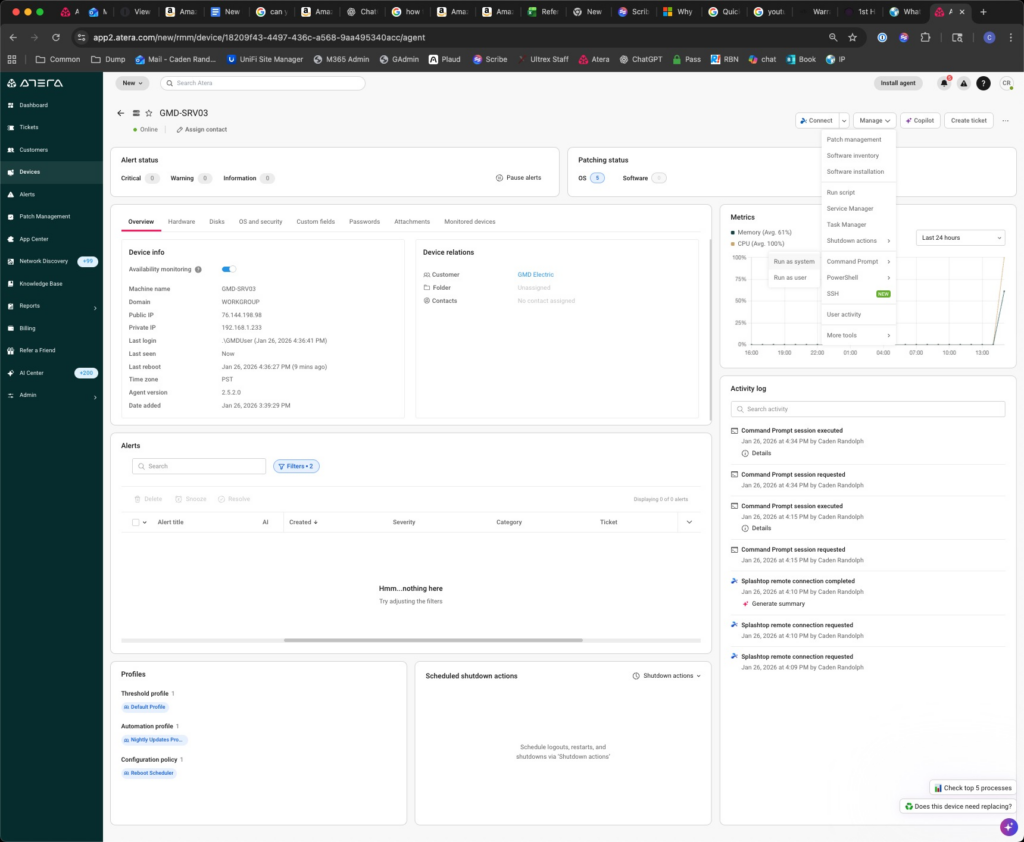
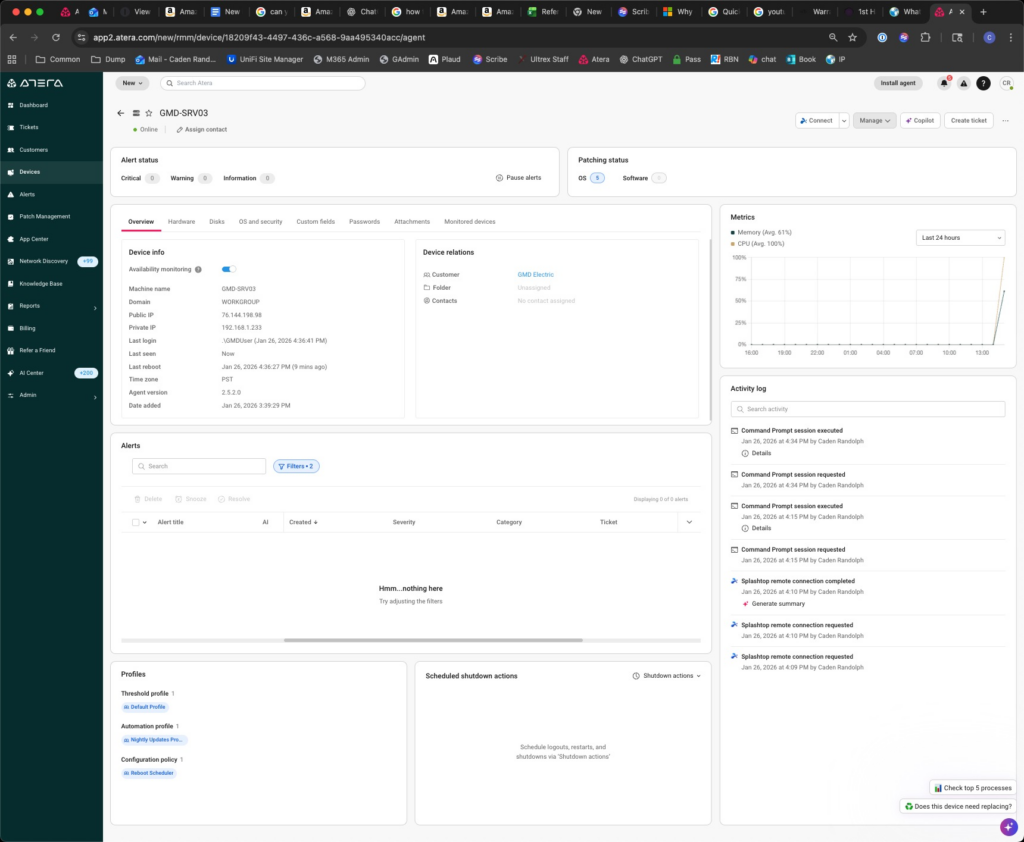
Renaming Device with command prompt in Atera

If you want to rename a device in Atera without opening the device through cmd

click Manage dropdown

Click run as System command prompt

Type: wmic computersystem where name=”%COMPUTERNAME%” call rename name=”NEWCOMPUTERNAME”

Hit return

Type in the console shutdown /r /t 0

Hit return

Reload Atera after the computer has restarted the computer should be renamed

Resolving iPhone Sign-In Failures for Outlook & Teams After Tenant Migration

Resolving iPhone Sign-In Failures for Outlook & Teams After Tenant Migration

Purpose of This Article

  1. What this article aims to show you:
    This guide explains how to resolve an issue where an iPhone refuses to sign into Outlook or Microsoft Teams after a Microsoft 365 tenant-to-tenant migration, even after reinstalling apps or resetting passwords.
  2. When to use this information:
    Use this process any time a migrated user’s iPhone cannot authenticate to Outlook/Teams, especially when:
    • Credentials are correct but apps repeatedly fail to sign in
    • The old tenant’s identity is still cached on the device
    • Standard app reinstalls do not fix the issue
      This problem occurs because iOS stores stubborn Microsoft account caches that persist across reinstalls.

Step-by-Step Resolution Procedure

1. Use Microsoft Edge’s Hidden Reset Function (Most Effective Step)

This clears deeply embedded Microsoft account tokens that Outlook/Teams cannot remove themselves.

  1. Install Microsoft Edge from the App Store (temporary use only).
  2. Open Edge and in the URL bar enter: edge://signin-internals
  3. Tap RemoveAllAccounts.
  4. A red confirmation pop-up will appear—this is expected.
  5. Close Edge completely.
  6. Reinstall Outlook and Teams after completing all steps below.

Why this matters:
Edge exposes internal MSAL (Microsoft Authentication Library) caches that other Office apps cannot purge. Clearing this nearly always resolves post-migration authentication issues on iOS.


2. Remove Old Work Accounts from iOS System Settings

Even if the old work account isn’t showing in Outlook, iOS may still be storing it at the system level.

  1. Go to Settings → Mail → Accounts and delete any old work accounts.
  2. Also check under:
    • Settings → Passwords & Accounts (older iOS versions)
    • Settings → Apple ID → iCloud → Safari → temporarily disable Safari sync
  3. Go to Settings → Safari → Clear History and Website Data.

This flushes stored autofill credentials and account references that cause the sign-in loop.


3. Remove Old Accounts From Any Office App

If the user has Word/Excel/OneDrive installed, they may still hold the old tenant account.

  1. Open any Office app (Word, Excel, OneDrive, etc.).
  2. Tap the user’s profile icon (top left).
  3. Go to Settings → Storage Accounts.
  4. Swipe left on any old or incorrect accounts → Delete.

This removes the identity from Microsoft’s app-wide shared credential store.


4. Fully Reinstall the Apps After Clearing Credentials

Once the caches and accounts have been removed:

  1. Delete Outlook and Teams.
  2. Restart the iPhone (important reset of system caches).
  3. Reinstall the apps fresh from the App Store.
  4. Sign in with new tenant credentials.

At this point, authentication should succeed without referencing the old tenant.


Recap / Final Notes

This issue happens frequently after Microsoft 365 tenant migrations because iOS retains hidden Microsoft identity caches that aren’t cleared during normal reinstall procedures. Using Edge’s internal account purge, combined with removing accounts from iOS settings and Office app storage, ensures all legacy tenant tokens are removed.

Once all caches are cleared and the apps reinstalled, the user should be able to log into Outlook and Teams normally using their new tenant credentials.

If this process fails (rare), escalate internally before re-engaging Microsoft support—this procedure resolves the majority of cases.

« Older posts

© 2026 Ultrex Staff

Theme by Anders NorenUp ↑