Author: Jim Smith (Page 10 of 11)

Entra and Intune Research Notes

Entra and Intune Research Notes


What I need to know:

What do I gain security wise on MS365 premium and how do I make it happen?

Entra vs intune, and what does the oobe do instead of enrollment?

ALL 24H2

———————————————————————

T1- no network connection, default key.

Logged in as local user

Went to work or school account page, used main button, then main box

Logged in, then rebooted computer

Device is now enrolled in ENTRA, and after a few extra minutes, intune as well

DOES show up in defender portal

Does not allow you to log in to machine as company user

Edge does Sync auto- no login needed

Start menu is updated to company

Onedrive not auto logged in, but I signed in

Activation is still not active – relies on device key, not taking from MS365 license

So very clearly this method gives the company control, but it’s still your device, your users, and your

Windows licensing

RESULT :

This is likely the best option for BYOB Organizations

———————————————————————

T2- no network connection, default key

Went to join to work or school, main connect button, and then clicked option to join Entra bottom of that

box.

Initially login is still main user (local account)

Adding onedrive- first login still required PW/MFA

Left allow my org to manage this device checked

After this: edge has my account, no login required.

Word/office is logged in auto

Windows not showing active, including still running pro

Restart and sign in as Jim@Ultrex.com on login page

Signing in as Jim@Ultrex- start menu still personal mode

Rebooted- went back to local user as default

Logged in with company email again

Had to go to activation page, then click to log in again- now device shows proper on all activation settings

In Intone and Entra dashboards- these two machines (oobe and this) appear fully equal on that front

After a power down and turn back on, activation has popped out again and wants me to sign back in on

the activation page

Device IS on the defender premium page

Further reboots still default to local user

Logged in as Jim@Ultrex then deleted local user

Still logs in as now deleted user by default.

T oo Messy- Don’t like this option

RESULT :

If someone has an existing user, and doesn’t want to start over with a new user profile, they can join Entra

and Intune, and just leave their current user. When they want to log into the device as an email, they’ll

need to reload/lose the current user profile

———————————————————————

T3- Still on OOBE. Untouched post-install

Runs oobebypassnro and login with a local offline user

Plug machine into network post loading in

MS store- company portal

Log in, and leave “let company manage this device checked)

Device shows up in Entra Dashboard

Search box is company

Edge is logged in, no auth needed, bookmarks ext etc all there

Device now shows up in intune as well. BEFORE onedrive login (maybe 5 minutes)

Onedrive signs in, auth required

Still local user

Sign out

OOBEd again, going back to OOBE enviro

Can’t re-enroll the device, fails on OOBE so would need wiped and reloaded at this point

Based on later findings, I could have deleted from the panel for Entra and Intune, and Joined again.

Even without that- DID show up in Defender portal for security- doesn’t need email login for security

———————————————————————

T4- Logging in with MS365 account from main oobe page (installed pro in the first place)

Very first login, start menu is Ultrex tied (company logo search etc)

Initial one drive sign in needed no pw

Edge was pre logged into my account

Edge was signed into outlook.com from my very first opening. No MFA, No anything

RESULT :

No surprise- if you can do OOBE on pro in the first place, the world is an infinitely better place

———————————————————————

T8 – windows 24H2 Home installed fresh

Local user, 11 Home

Accounts/COnnect to work account, main option

Log in as me

Device is enrolled in Entra

Device shows up in intune

T ook offline, used 3v66t key and upgraded to pro

Gave back network conection

OOBE/Sysprep can’t generalize

Ran Normal OOBE

Set up for work or school, but can’t because the device is already enrolled

Can go into intune and Entra and delete the device from both dashboards, then click try again

no sooner than 60 seconds later

Onedrive automatic (No auth needed), edge sync auto, start menu company

Device shows in Intune and Entra perfectly

Defender not showing up? (see note below)

ACTIVATION STATUS: PERFECTION DAMMIT

This works!

RESULT :

If someone has a machine on home, you can join it to Entra and Intune, and then only upgrade

to pro if they need it for some other reason, and if they do need to upgrade to pro, you’ll have to

go delete the device from intune and entra dashbpoards. If you do that, then all works well

———————————————————————

T9

Windows 11 Home

DIDN’T join to company Entra or Intune before upgrading

Just local user, logged in, upgraded using 3v66t code (like a new purchase)

Gave back network connection

Can’t generalize

Just ran main sysprep

On next bootup, chose set up for work or school, works perfect, logs in as email, and is

company controlled

Signing in to onedrive is fully auto- no pw or MFA needed

Search box is company info

Edge is synced auto

Device shows in Intune and Entra perfectly

Defender not showing up (see note below)

ACTIVATION STATUS: PERFECTION DAMMIT

Note from MS:

Windows 11 Home devices that have been upgraded to one of the below supported editions

might require you to run the following command before onboarding:

DISM /online /Add-Capability /CapabilityName:Microsoft.Windows.Sense.Client~~~~

. For more information about edition upgrades and features, see Features)

Was able to confirm that in OS’s upgraded from home, you can run this command, it had a 50%

success rate across 4 identical VM’s. (literally clones of each other). Even on the ones where it

ran, it did not bring them into defender management. SO our new default is use Entra and

Intune if that’s what’s wanted- and you can leave it on HOME. But if you want pro, just freaking

install Pro in the first place. I’ve also now updated an ISO of 24H2 so it will ALWAYS ask for the

key, AND let you not put a key, and still select what version of windows to install clean (even if

one is saved in the EFI or BIOS). From now on, we use that one, please update your ventoy

soon as possible.

Final Notes:

Company portal app is enrolling device in entra/intune

Entra and intune can both be done with windows home

Entra is access to stuff based on identity

Intune is device management

Defender portal is weak, and not worth much- but only comes on clean, initial W11 Pro installs.
Enrolling Devices in Entra with Local Admin Privileges

Enrolling Devices in Entra with Local Admin Privileges

Important Considerations 

  • Security: Ensure that only trusted users are added to the local administrators group to maintain device security. 
  • Audit: Regularly audit the membership of the local administrators group to ensure compliance with your organization’s policies. 
  • Documentation: Keep documentation of all changes made to user privileges for accountability and troubleshooting purposes.
    Common things that need Configured in Entra for Device Admin Privileges:
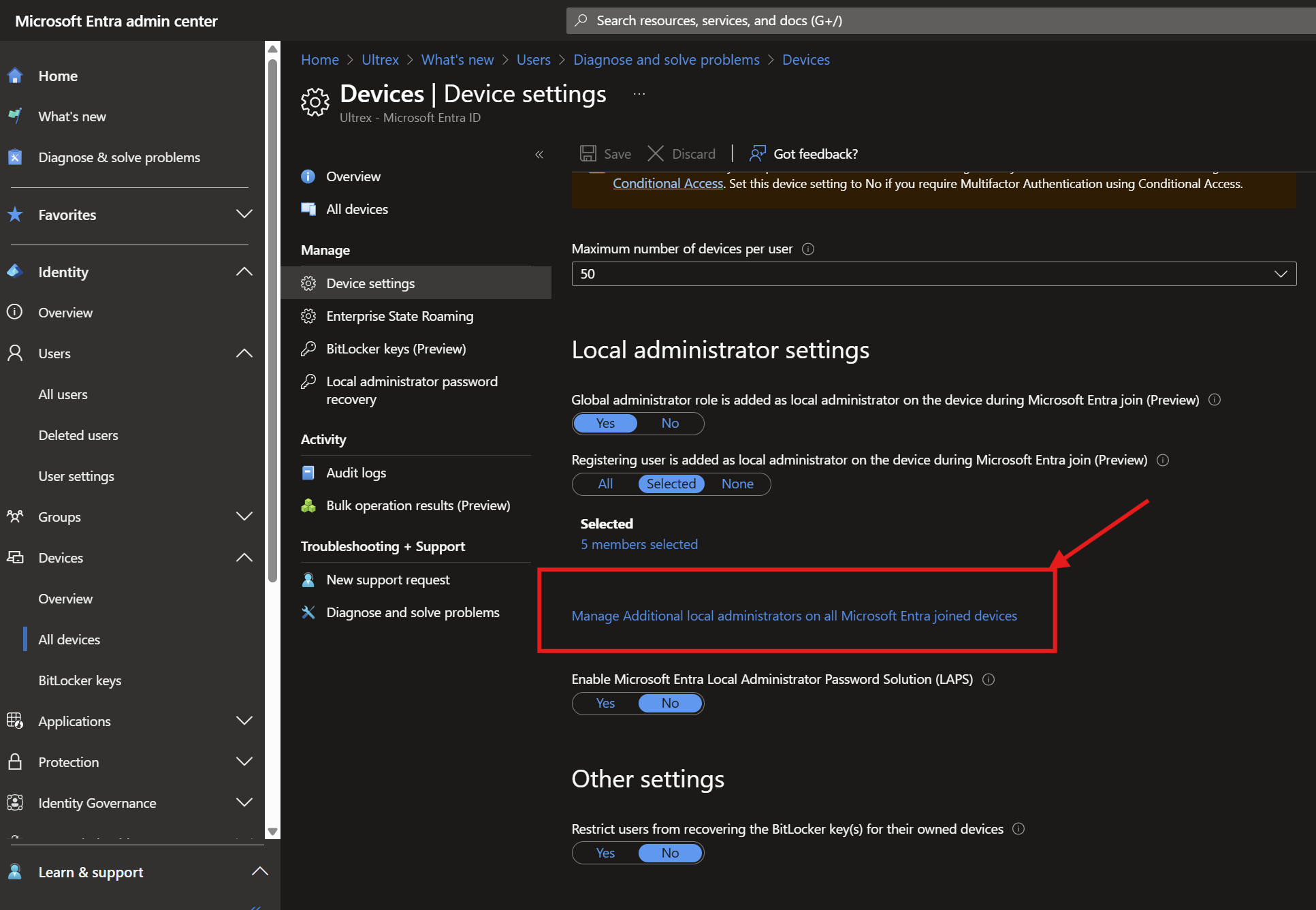
    1. You can specify if global admins are allowed to be local device admins AT ENROLLMENT ONLY.
    2. You can and should specify if permitted Entra users are added as local admin AT ENROLLMENT ONLY. Add selected users.
    3. You can and should also add those same users from previous step the the next line – “Manage Additional local administrators on all Microsoft Entra joined devices.” That’s the key one to achieve the goal of key users having device admin privileges whether or not they have been signed into the device already.

Entra Admin:

To enroll a user as a local device admin upon device enrollment in Microsoft Entra (formerly Azure AD), follow these steps:

1.    Sign in to the Microsoft Entra Admin Center:

a.    Go to the Microsoft Entra Admin Center.

b.    Sign in with an account that has at least the Privileged Role Administrator role.

2.    Navigate to Device Settings:

a.    In the left-hand menu, select Identity Devices All devices > Device settings.

3.    Manage Additional Local Administrators:

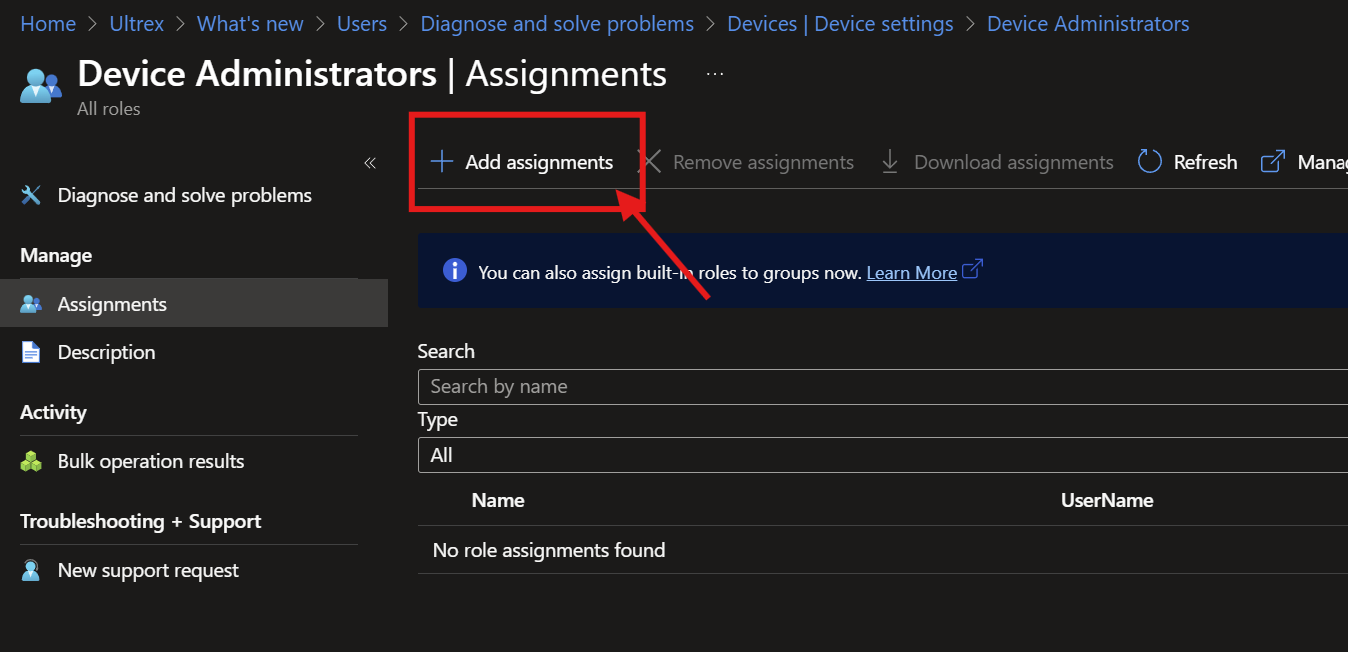
a.    Under Manage Additional local administrators on all Microsoft Entra joined devices, click Add assignments.

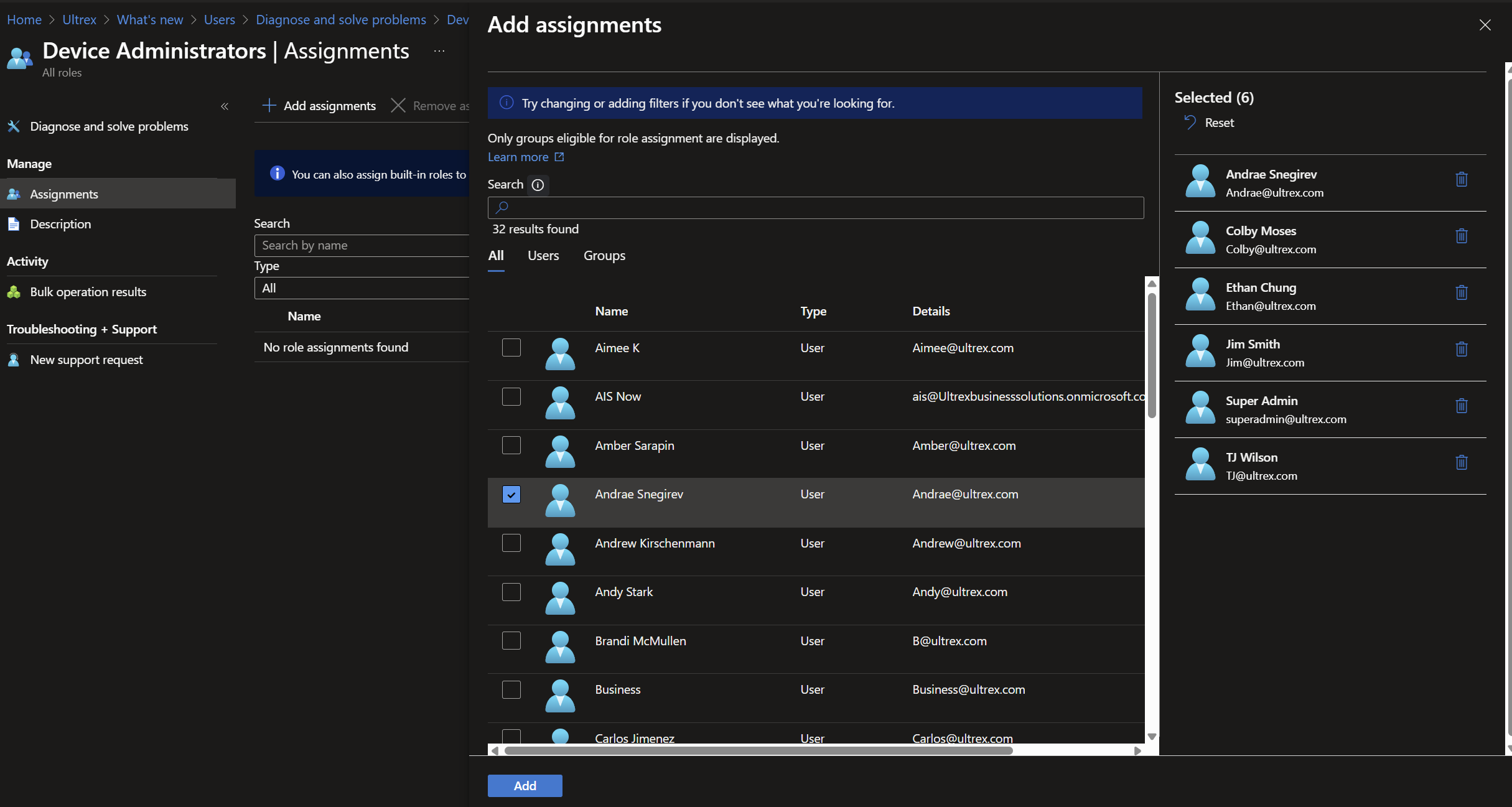
b.    Select the users or groups you want to add as local administrators and click Add.

c. Tests that verified this (based on CFM #3292)

    I enrolled the laptop with an admin user (we’ll call this Admin 1; we’ll use ours for this often).

    Signed into the laptop as a separate profile from Admin user with another account (Admin 2), which also had full admin permissions on the device according to Entra.

    Signed into Non-Admin 1’s account which is NOT permitted admin rights over any PC, and could not perform admin level tasks.

    From Non-Admin 1’s profile, tried installing a program and permitted installation using Admin 2’s authority successfully.

   This one’s the kicker – without having signed into the PC with Admin 3’s account, but having given it local admin permissions for all devices through Entra as above without being a full Microsoft Global Admin like Ultrex’s user, I was able to permit removal of that same program from Non-Admin 1’s profile successfully.

4.    Use Intune for More Granular Control:

a.    If you need more granular control, you can use Intune to manage local admin rights.

b.    Sign in to the Intune Admin Center.

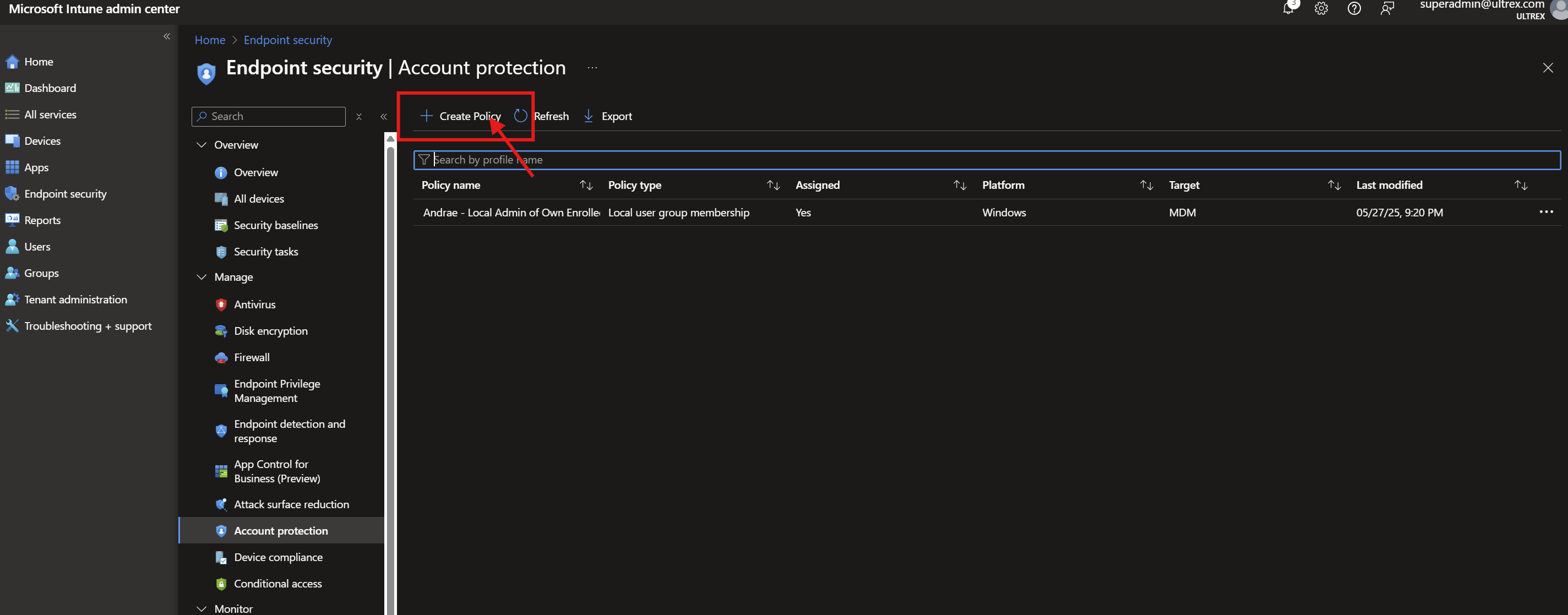
c.     Go to Endpoint Security > Account protection.

d.    Click Create Policy and select Platform: Windows 10 and later and Profile: Local user group membership.

e.    Configure the policy to add the desired users or groups to the local administrators group.

5.    Assign the Policy:

a.    Assign the policy to the relevant devices or user groups.

Important Notes for Assigning Policies:

In Microsoft Intune, policies are assigned to groups rather than directly to individual users or devices. However, you can achieve per-user or per-device targeting by creating a group that contains only the specific user or device you wish to target.

🎯 Assigning a Policy to a Single User or Device

  1. Create a Group for the User or Device:
    • For a User:
      • Navigate to the Microsoft Entra admin center.
      • Go to Groups > New group.
      • Choose Security as the group type.
      • Provide a name (e.g., “Single User Group”) and description.
      • Add the specific user to this group.
    • For a Device:
      • Similarly, create a new security group.
      • Add the specific device to this group.
  2. Assign the Policy to the Group:
    • In the Intune admin center, navigate to the policy you wish to assign.
    • Go to the Assignments section and click “Edit“.
    • Under Included groups, add the group you created.
    • Save the changes.

By creating a group with only the desired user or device, the policy effectively targets just that entity.

🔍 Additional Considerations

  • User vs. Device Groups:
    • Assign policies to user groups when settings should follow the user across multiple devices.
    • Assign to device groups when settings should apply regardless of who is using the device.
  • Using Filters:
  • Policy Sets:
    • For deploying multiple policies and applications together, consider creating a Policy Set. This groups various configurations into a single assignment for streamlined deployment.

Command Line

Check Users currently listed in the local admin group

Steps: 

  1. Open Command Prompt as Administrator: 
  1. Right-click on the Start menu and select “Command Prompt (Admin)” or “Windows PowerShell (Admin)”. 
  1. Run the Command: 
  1. Enter the following command
net localgroup administrators

Remove AzureAD User from Admin Group

Steps: 

  1. Open Command Prompt as Administrator: 
  1. Right-click on the Start menu and select “Command Prompt (Admin)” or “Windows PowerShell (Admin)”. 
  1. Run the Command: 
  1. Enter the following command, replacing user@domain.com with the actual email address of the AzureAD user: 
net localgroup administrators /delete "AzureAD\user@domain.com" 
  1. Restart the Device: 
  1. Restart the device to apply the changes. 

Add AzureAD User to Admin Group Through Command Line 

Steps: 

  1. Open Command Prompt as Administrator: 
  1. Right-click on the Start menu and select “Command Prompt (Admin)” or “Windows PowerShell (Admin)”. 
  1. Run the Command: 
  1. Enter the following command, replacing user@domain.com with the actual email address of the AzureAD user: 
net localgroup administrators /add "AzureAD\user@domain.com" 
  1. Restart the Device: 
  1. Restart the device to apply the changes. 

Graphical Interface:

To remove an Azure AD user from the local administrators group on a Windows machine, follow these steps:

1.    Open Computer Management:

a.    Press Windows + X and select Computer Management.

b.    Alternatively, you can press Windows + R, type compmgmt.msc, and press Enter.

2.    Navigate to Local Users and Groups:

a.    In the Computer Management window, expand Local Users and Groups.

b.    Click on Groups.

3.    Open Administrators Group:

a.    Double-click on Administrators to open the group properties.

4.    Remove the Azure AD User:

a.    In the Administrators Properties window, you will see a list of members.

b.    Select the Azure AD user you want to remove and click Remove.

c.     Confirm the removal if prompted.

5.    Restart the Computer (if necessary):

a.    Some changes might require a restart to take effect

Device Cap Reached

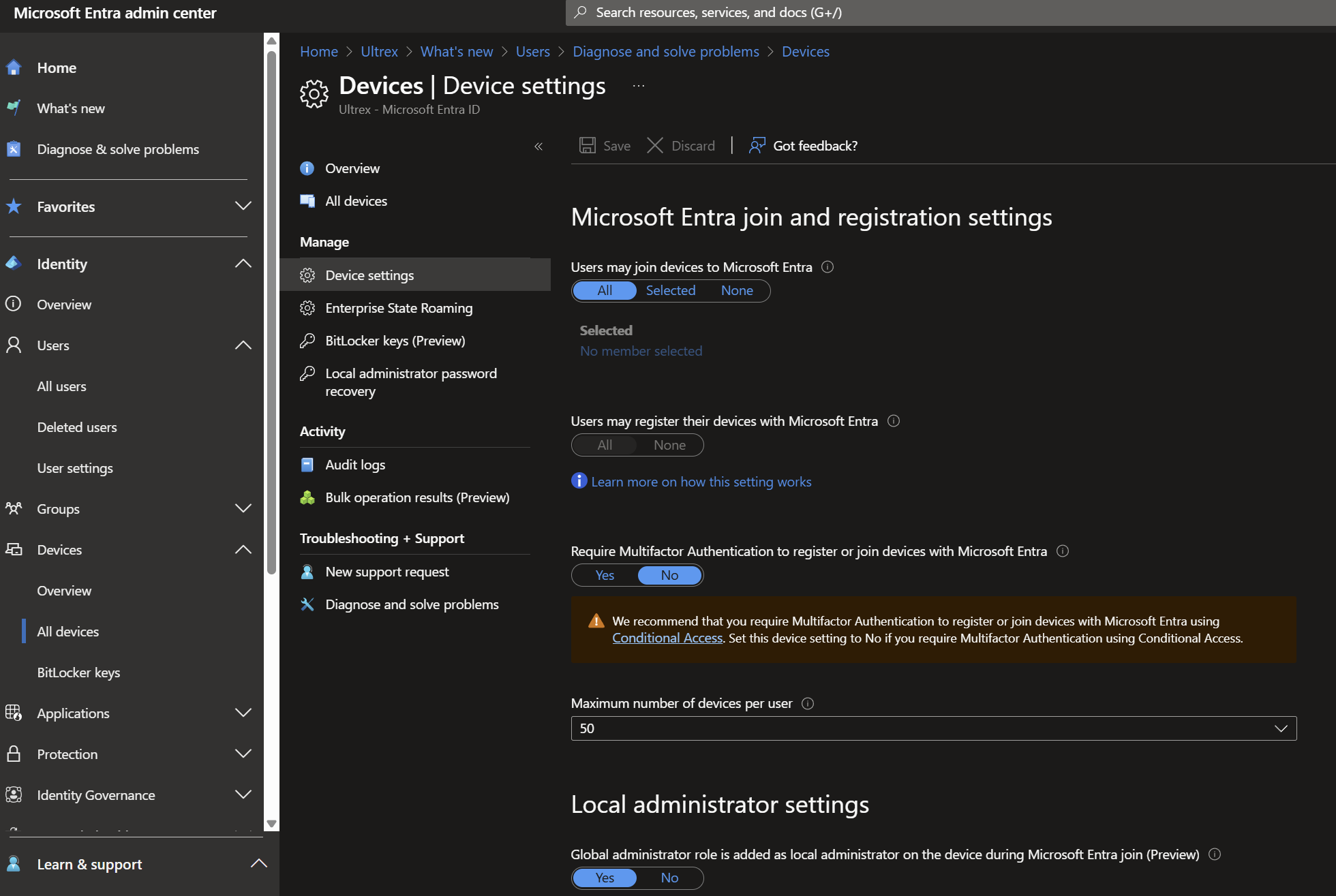
Occasionally, you will reach your device cap when entra joining devices. There are TWO places to check this- intune.microsoft.com and entra.microsoft.com.

Intune will tell you device limit per user is 5 by default, and you can modify it to 15. theres also options for DEM accounts. I tried with no success.

The alternative- Entra settings allow you to change the device cap to unlimited. Yeehaw

Use Entra

SWCD and SonicWall Cloud App Security portal for SonicWall quarantined or flagged emails – How to get there and what to do

SWCD and SonicWall Cloud App Security portal for SonicWall quarantined or flagged emails – How to get there and what to do

Raised from ticket #3381

Steps provided by WesternNRG

If you receive a notification about a quarantined email, follow these steps to determine if it is safe to release:

  1. Check the sender’s email address carefully. Ensure it matches the expected domain.
  2. Verify if you were expecting an email from that sender.
  3. Access the CAS Admin Portal to review the quarantined email:
    • Log in to the CAS Admin Portal.
    • Navigate to Quarantine > Quarantine Items.
    • Find the email in question and click on the subject header.
    • Review the Security Stack on the right side to see the analysis of the email.
    • Check for any flagged attachments and their details.
  4. If an attachment is flagged as potentially malicious, do not release the email immediately.
  5. Consider downloading the attachment to an isolated computer with strong antivirus software to scan it for threats.
  6. Based on the scan results, decide whether to release the email or not.

Always exercise caution when dealing with quarantined emails, especially if they contain attachments. If in doubt, consult your IT support team for further assistance.

SonicWall Whitelisting IP Address in Firewall

Hello Jim,

I spoke with Andrae and during the call we discussed the allow rule needed to be created. He mentioned it would be a penetration test-like event from the internet needing inbound access, but despite there being no inbound access rules existing for CISA he mentioned there was never any reports of the tests not working in the past.

We created address objects for the CISA IPs listed and then added them to a group. We then created an inbound access rule to allow those IPs in the group access any zone with any port/service. There was no NAT policy created since it doesn’t seem like they need access to a specific device at a specific private IP.

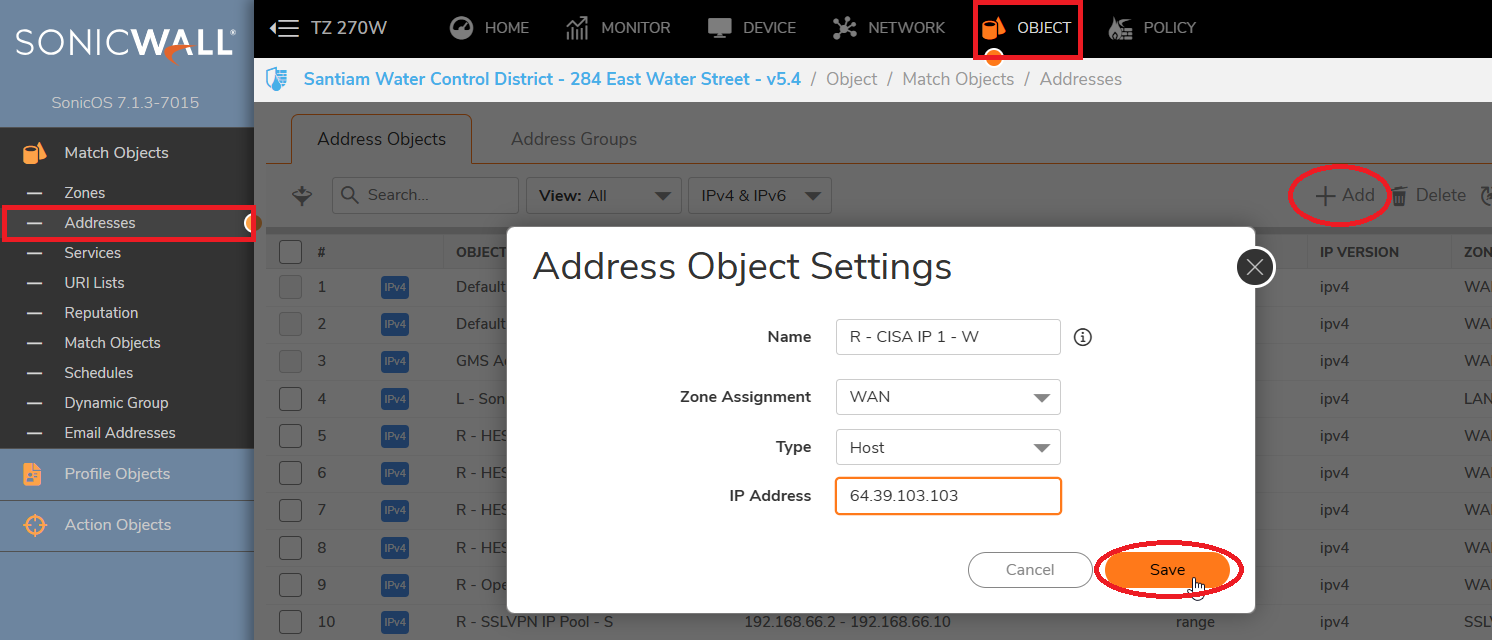
To create these address objects, in the top menu select Object

      On the left menu select Addresses

      Click Add towards the right side of the Addresses menu

      Put a unique name, because the IPs are on the internet select WAN zone, for the first IP select Host because it’s a /32 (255.255.255.255)

            For the other IPs, since they are a /29 and /28 network we chose Network and put the corresponding subnet masks under the network IP.

      Click Save

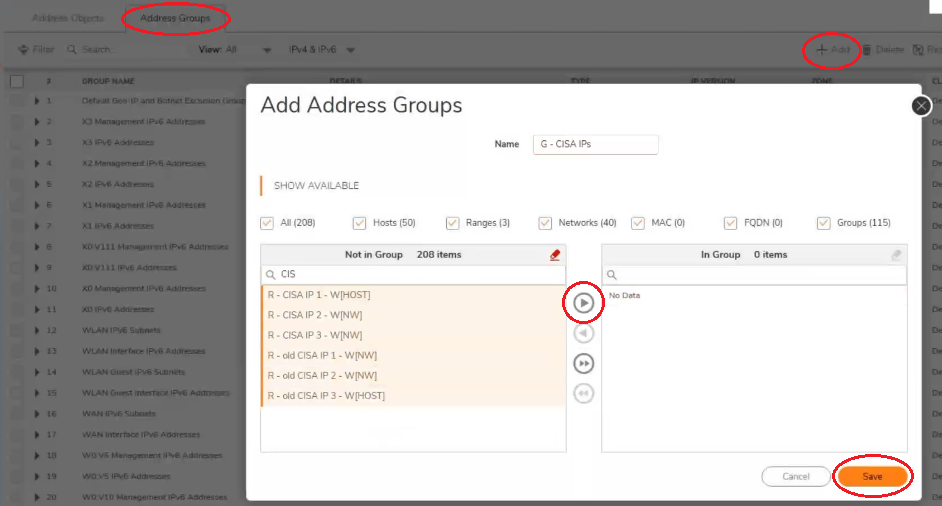
To create an address group, or add new objects to an existing group, click Address Groups at the top left of the Adress Object menu

      To create a group Click Add, to edit an existing group search for the group name, hover over it and click the Pencil icon to edit

      Search for the address objects you want to add on the left side by the unique name

      Select each address object by clicking on each or holding down left click while dragging the cursor over the group of Address objects you wish to select

      Click the right facing arrow in the middle to move the selected objects into the group

      Click Save

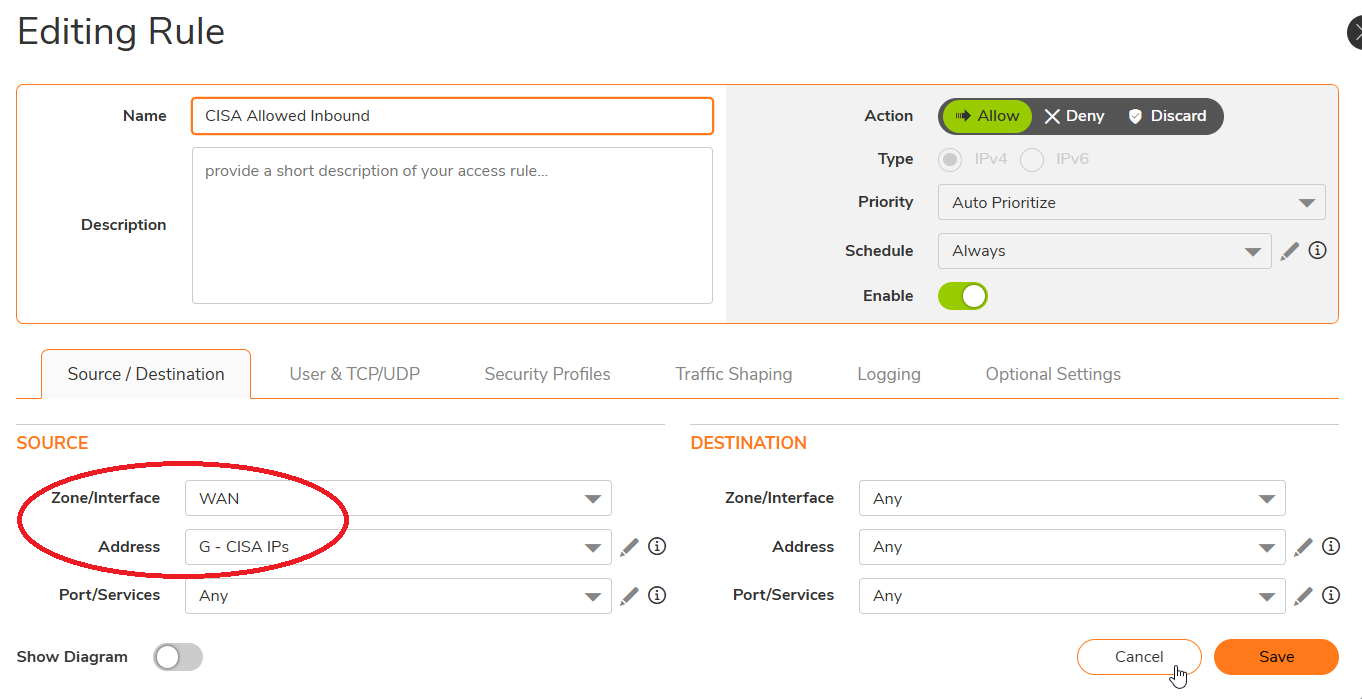
To create access rules, on the top menu navigate to Policy and on the left side menu select Access Rules

      Click the +Add option on the bottom left to bring up the screen below.

      Since we created an inbound access rule from the internet, we selected WAN for the Source Zone

      For the Source Address we selected the group we created which contains the address objects we created.

            This locks the rule down to only allow traffic with a source IP from the IP pool in the “G – CISA IPs” group

      We left the Destination as Any to allow them open access to the network.

As discussed, I’ll close this ticket for you now but if you have any questions in the future feel free to reach out anytime.

Thank you and have a great rest of your day!

Kind Regards,

Josh Littaua    
Western NRG, Inc.  Total Internet Security
(805) 658-0800 |  Fax: (805) 465-8480
j.littaua@westernnrg.com www.WesternNRG.com

CFM MFA Letter

Subject: From your Friends at Ultrex – Multi-Factor Authentication (MFA) Setup for Account Security

Hey there CFM Team 🙂 this is Andrae with Ultrex IT!

As we help you all transition to Microsoft accounts in the coming months (today for many of you), to ensure we are maintaining the highest standards of data protection and complying with HIPAA requirements, we are fully implementing multi-factor authentication (MFA) for all user accounts.

Why MFA Is Important

As a reminder, MFA adds an essential layer of security by requiring not just a password but also a verification code generated by an app on your phone. This helps prevent unauthorized access, even if someone has your login credentials.

Default MFA App: Google Authenticator

We ask users to install the Google Authenticator app if you don’t already have it (looks like a multi-colored asterisk), A colorful logo with a white background

AI-generated content may be incorrect. as it offers a secure and user-friendly option without requiring a Google account. Here are a few key points:

No Google account needed: You can use it without signing in or linking your Google profile. Please do NOT sign in with your CFM email address within the Authenticator app.

Minimal permissions: The app only requests camera access to scan QR codes when setting up MFA. It does not allow us (Ultrex or CFM) to access to your phone’s camera or data. If you’d still prefer to not allow camera access, we can help you get the complex setup key typed in instead 🙂

No work access to your phone: Installing this app does not give us (Neither CFM nor Ultrex) any control over or visibility into your device.

Optional Account Syncing

If you would like to sign in to the app with a Google account, doing so will allow the codes you set up to sync with your account. Please only do this with a personal gmail account- many items use MFA in the modern age, and we don’t want to one day have you locked out of personal items if you work status changes. Signing in is helpful if your phone is lost, damaged, or replaced—signing back in with the same Google account will allow your authentication codes to carry over to the new device.

If you choose not to sign in and something happens to your device, just let your supervisor know your code isn’t working and we’ll assist in setting up a fresh code for your account.

Questions or Concerns?

We understand that some users may be hesitant about installing work-related apps on personal phones. While Google Authenticator is the default choice, there are other secure MFA options available. If you have any questions or would like to explore alternatives, please reach out to Deb so we can make a plan that works for you while keeping your account secure. 🙂

Checking Domain Function level and upgrading if needed

Windows Server 2022 Datacenter: WX4NM-KYWYW-QJJR4-XV3QB-6VM33

Windows Server 2022 Standard: VDYBN-27WPP-V4HQT-9VMD4-VMK7H

1- 

Run the following PowerShell command (in elevated mode) to verify :

Get-ADObject (Get-ADRootDSE).schemaNamingContext -Property objectVersion

Compare to:

AD version

Windows Server 2000

13

Windows Server 2003

30

Windows Server 2003 R2

31

Windows Server 2008

44

Windows Server 2008 R2

47

Windows Server 2012

56

Windows Server 2012 R2

69

Windows Server 2016

87

Windows Server 2019

88

Windows Server 2022

88

CMD 

Open command prompt (elevated rights) on Domain controller and

navigate to source directory of Windows Server ISO. In my case the

location was d:\support\adprep\adprep.exe.

cd..

cd..

cd DVD (assuming you copied the DVD contents to a folder on the C drive called DVD

cd support

cd adprep

Run the command adprep.exe /forestprep

Run adprep.exe /domainprep

Google Workspace Data Export Tool vs Google Takeout (For Admins)

Google Workspace Data Export Tool vs Google Takeout (For Admins)

🛠️ Google Workspace Data Export Tool (For Admins)

This tool allows super administrators to export data for the entire organization or specific users.

🧠 Summary

  • Use the Data Export Tool for organization-wide data exports or when a user is not available / doesn’t make sense to change their password and prevent their account access while we export.
  • Use Google Takeout when users are available and need to export their own data.

✅ Prerequisites for Admin Data Export

  • You must be a super administrator.
  • The admin account must be at least 30 days old.
  • 2-Step Verification must be enabled for the admin account.
  • The organization must have fewer than 1,000 users.

📋 Steps to Export Data

  1. Sign in to the Google Admin console.
  2. Navigate to Data > Data Export.
  3. Click Start Export.
  4. You’ll receive an email confirming the export has started.
  5. After approximately 48 hours, you’ll receive another email with a link to download the data from a Google Cloud Storage bucket or can navigate back to the Data Export list and download the results.
  6. https://admin.google.com/ac/customertakeout

⚠️ Important Considerations

  • The export process can take up to 14 days, depending on the amount of data.
  • The exported data is available for 30 days in the Cloud Storage bucket.
  • Ensure you download the data before it is automatically deleted.

👤 Google Takeout (For Individual Users)

Google Takeout allows users to export their own data from various Google services.

✅ Prerequisites for Google Takeout

  • The user must have access to their Google account.
  • Admins can control if/which services are available for export via the Admin Console.

📋 Steps to Export Data

  1. Visit Google Takeout takeout.google.com and sign into the account you need data from
  2. Select the Google services you want to export data from.
  3. Click Next Step.
  4. Choose the delivery method (e.g., download link via email, add to Drive, Dropbox, etc.).
  5. Select the export frequency, file type, and size.
  6. Click Create Export.
  7. You’ll receive an email in the user’s inbox when your export is ready.

⚠️ Important Considerations

  • The time it takes to prepare the export depends on the amount of data; it can range from minutes to days.
  • Download links are available for 7 days.
  • Some services may have limitations on the number of exports per day.

Wiping and Reloading Intel Macs

Wiping and Reloading Old Intel Macs

1)        Restart PC, and hold CMD + R to enter Recovery Mode.

2)        Enter Disk Utility > Select Primary Drive Partition > Erase > Rename, select macOS Extended, Journaled > Erase

3)        Exit Disk Utility

4)        Select “Reinstall macOS ____”

5)        If not given the option to reinstall most up to date macOS or says “Cannot contact servers”, restart PC and let it enter Internet Recovery to reinstall OS X

6)        Once OS X is installed, you need to get the base OS installers from here and create bootable media to add the installer to the Applications folder and update from there.

7)        For finding the installers

a.        https://support.apple.com/en-us/102662

8)        Directions to create bootable media with the installer

a.        https://support.apple.com/en-us/101578

Export Customer Vault from 1Pass

If you’ve got a customer we need to export all passwords we are storing for them, you’ll need to do a vault export.

Because of accountability, in the case of a customer off-boarding, we should make a new master/admin/global admin account for the new IT, and give them a default name and password. Let them set up their own MFA. 

But if we need to export all that we do have, you’ll need to use the desktop app of 1password 7. 1password 8 does not have export functionality per vault, but rather only our entire account (All vaults). As of the writing of this support article on 1-4-25.

Once you install 1pass 7 on a machine, then you can log in and do an export into CSV of all items in the vault directly. This can then be encrypted email (MAKE SURE) and sent to the new IT or customer. Change the default setting of “common items” to be “all items” and it’ll then export even MFA token strings that people who know what they’re doing can import to their tool of choice.

This will also export all secure notes we save in there. This makes 1pass the best way to give a single export and it’ll include notes saved within the vault as well.

When we would ever send this, it’s incredibly important that we mention that this is an unencrypted file, so we recommend keeping it secure, as accessing it would compromise all accounts instantly.

« Older posts Newer posts »

© 2026 Ultrex Staff

Theme by Anders NorenUp ↑