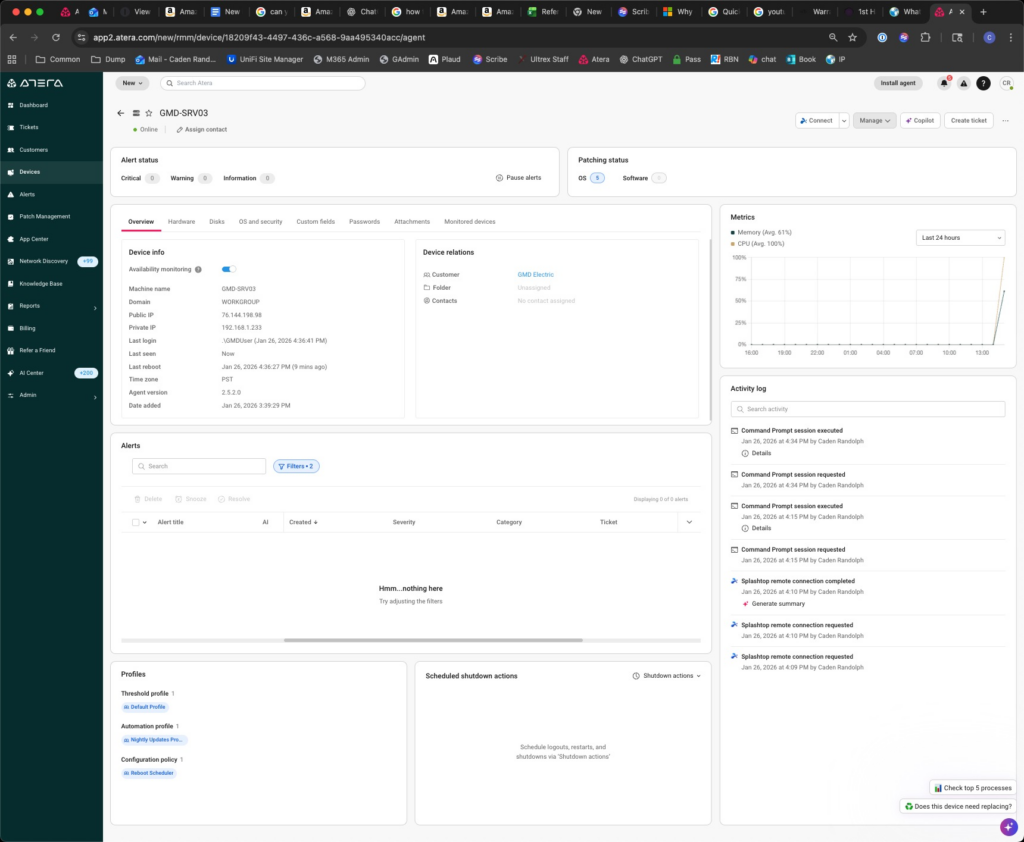
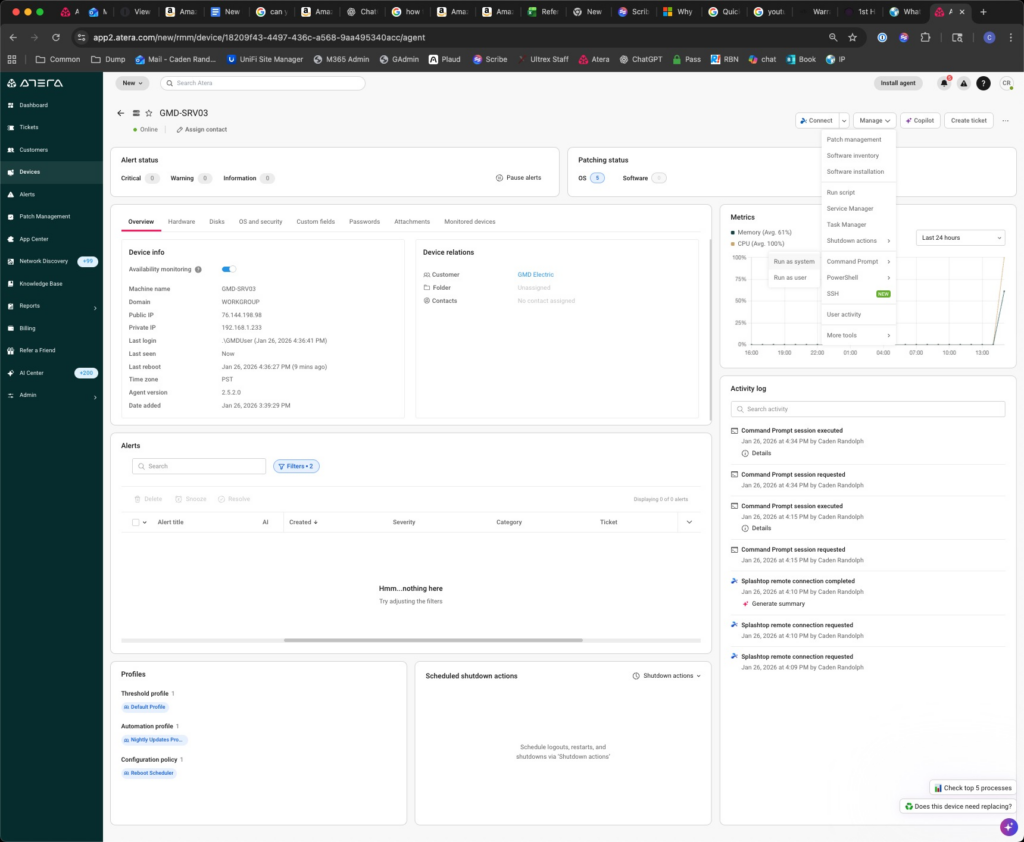
Cove backups may fail or complete with errors indicating that files (often SQL-related or tax software database/temp files) are “in use by another process.”
This is most commonly seen with accounting/tax applications (e.g., Accounting CS), where background database activity interferes with snapshot-based backups.
Symptoms
You may see the following in Cove:
Backup completes with errors
Repeated failures on specific files
Error message similar to:
“The process cannot access the file because it is being used by another process”
If Cove Backup fails to backup System State because of Windows Cryptographic Service errors and Volume Shadow Copy service with the following errors or similar:
System State\ASR Writer\BCD\?\Volume{7ac063a6-0000-0000-0000-100000000000}\Boot\<VSSFileGroup>
System State\System Writer\System Files\C:\ProgramData\Microsoft\Crypto\<VSSFileGroup>\SystemKeys
System State\System Writer\System Files\C:\ProgramData\Microsoft\Crypto\<VSSFileGroup>\SystemKeys
Then the Windows Cryptographic Service needs restarted using the following powershell script or commands to allow the next backup to complete:
More about the Cryptographic Service according to Gemini:
The Windows Cryptographic Services (CryptSvc) manages certificates, digital signatures, and system integrity in Windows. When a backup fails during Volume Shadow Copy (VSS), it is often because the VSS System Writer (which relies on CryptSvc) lacks the proper security rights or service permissions to query vital system files.
To add a user to the Hyper-V Administrators group, you must already have administrative privileges on the host machine. This process allows standard users to manage virtual machines without giving them full system administrator access.
(Replace “UserName” with the actual account name or “Domain\UserName” for domain accounts).
Option 2: Use Command Prompt
Run Command Prompt as an Administrator and use this syntax:
cmd
net localgroup “Hyper-V Administrators” “UserName” /add
Note: Group names are localized; if your Windows installation is not in English, use net localgroup to find the exact name of the Hyper-V group on your system.
Option 3: Use Computer Management (Graphical)
This is the most common method for Windows 10, 11, and Windows Server users.
If you paste this into admin powershell, it disables copilot inside of MS365 installed apps. Doesn’t change apps online, or the ability to use other AI’s, even copilot website, BUT it does block the copilot add on items in all installed office apps (Being used for PCA here shortly)
That’s what you run on a machine once it’s been prepped, software installed etc, to bring it back to oobe (so the next reboot can ask about account setup etc.
Specifically helpful if you prepped a machine, but had to upgrade from home to pro.
· Right-click on “Command Prompt” and select “Run as Administrator”.
Disable hibernation: powercfg.exe /hibernate off
Disable all sleep states (including standby): powercfg -change -standby-timeout-ac 0
powercfg -change -standby-timeout-dc 0
PowerShell
2. Open an elevated PowerShell window:
· Search for “PowerShell” in the Start menu.
· Right-click on “Windows PowerShell” and select “Run as Administrator”.
3. Disable hibernation: PowerShell Powercfg -Hibernate Off
4.
5. Disable all sleep states (including standby): PowerShell Powercfg -Change -Standby-Timeout-AC 0
6. Powercfg -Change -Standby-Timeout-DC 0
7.
Key Points:
· AC vs. DC: The “-ac” and “-dc” options in the powercfg command distinguish between when the computer is plugged in (AC power) and when it’s running on battery (DC power).
· Permanent change: These commands will permanently disable sleep and hibernation until you re-enable them.
· Elevated permissions: You need to run Command Prompt or PowerShell as an administrator for these commands to work.
To Re-Enable Sleep and Hibernation
· To re-enable hibernation, use:
· powercfg.exe /hibernate on (Command Prompt)
· Powercfg -Hibernate On (PowerShell)
· To set specific timeouts for sleep modes, use the powercfg command with the desired timeouts in seconds.
Let me know if you’d like help customizing your timeout settings!