Category: Atera

Renaming Device with command prompt in Atera

If you want to rename a device in Atera without opening the device through cmd

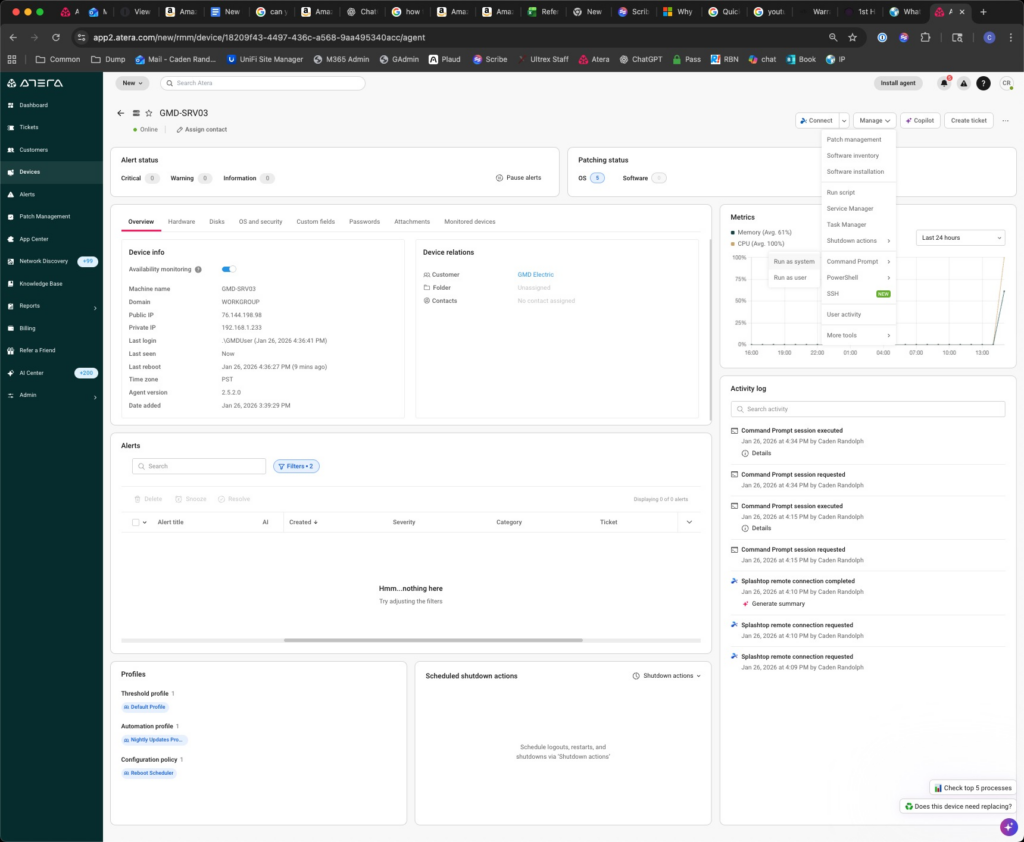
click Manage dropdown

Click run as System command prompt

Type: wmic computersystem where name=”%COMPUTERNAME%” call rename name=”NEWCOMPUTERNAME”

Hit return

Type in the console shutdown /r /t 0

Hit return

Reload Atera after the computer has restarted the computer should be renamed

How to uninstall the Atera agent by Powershell Script

How to uninstall the Atera agent by Powershell Script 

https://support.atera.com/hc/en-us/articles/5849002658844-How-do-I-remove-the-Atera-Agent-after-my-trial-has-expired

Regarding your query, what I would recommend, after you rename the PC, make sure to reboot it.  

After that, I would recommend to run the following script using PowerShell ISE as admin, locally :  

https://support.atera.com/hc/en-us/articles/5849002658844-How-do-I-remove-the-Atera-Agent-after-my-trial-has-expired

Once the script is finished, reboot the device again. In order for the registry keys to be removed / updated, reboot would be needed.  

After this, I would recommend using the CMD installation method instead of .MSI in order to install Atera Agent and assign it to the right customer. 

Function Get-UninstallCodes ([string]$DisplayName) { 

‘HKLM:SOFTWARE\Microsoft\Windows\CurrentVersion\Uninstall’, ‘HKLM:SOFTWARE\WOW6432Node\Microsoft\Windows\CurrentVersion\Uninstall’ | ForEach-Object { 

Get-ChildItem -Path $_ -ErrorAction SilentlyContinue | ForEach-Object { 

If ( $(Get-ItemProperty -Path $_.PSPath -Name ‘DisplayName’ -ErrorAction SilentlyContinue) -and ($(Get-ItemPropertyValue -Path $_.PSPath -Name ‘DisplayName’ -ErrorAction SilentlyContinue) -eq $DisplayName) ) { 

$str = (Get-ItemPropertyValue -Path $_.PSPath -Name ‘UninstallString’) 

$UninstallCodes.Add($str.Substring(($str.Length – 37),36)) | Out-Null 

Function Get-ProductKeys ([string]$ProductName) { 

Get-ChildItem -Path ‘HKCR:Installer\Products’ | ForEach-Object { 

If ( $(Get-ItemProperty -Path $_.PSPath -Name ‘ProductName’ -ErrorAction SilentlyContinue) -and ($(Get-ItemPropertyValue -Path $_.PSPath -Name ‘ProductName’ -ErrorAction SilentlyContinue) -eq $ProductName) ) { 

$ProductKeys.Add($_.PSPath.Substring(($_.PSPath.Length – 32))) | Out-Null 

Function Get-ServiceStatus ([string]$Name) { (Get-Service -Name $Name -ErrorAction SilentlyContinue).Status } 

Function Stop-RunningService ([string]$Name) { 

If ( $(Get-ServiceStatus -Name $Name) -eq “Running” ) { Write-Output “Stopping : ${Name} service” ; Stop-Service -Name $Name -Force } 

Function Remove-StoppedService ([string]$Name) { 

$s = (Get-ServiceStatus -Name $Name) 

If ( $s ) { 

If ( $s -eq “Stopped” ) { 

Write-Output “Deleting : ${Name} service” 

Start-Process “sc.exe” -ArgumentList “delete ${Name}” -Wait 

} Else { Write-Output “Not Found: ${Name} service” } 

Function Stop-RunningProcess ([string]$Name) { 

$p = (Get-Process -Name $_ -ErrorAction SilentlyContinue) 

If ( $p ) { Write-Output “Stopping : ${Name}.exe” ; $p | Stop-Process -Force } 

Else { Write-Output “Not Found: ${Name}.exe is not running”} 

Function Remove-Path ([string]$Path) { 

If ( Test-Path $Path ) { 

Write-Output “Deleting : ${Path}” 

Remove-Item $Path -Recurse -Force 

} Else { Write-Output “Not Found: ${Path}” } 

Function Get-AllExeFiles ([string]$Path) { 

If ( Test-Path $Path ) { 

Get-ChildItem -Path $Path -Filter *.exe -Recurse | ForEach-Object { $ExeFiles.Add($_.BaseName) | Out-Null } 

# Mount HKEY_CLASSES_ROOT registry hive 

New-PSDrive -Name HKCR -PSProvider Registry -Root HKEY_CLASSES_ROOT | Out-Null 

####### 

# START: Information gathering 

####### 

# Get MSI package codes from the uninstall key 

$UninstallCodes = New-Object System.Collections.ArrayList 

‘AteraAgent’, ‘Splashtop for RMM’, ‘Splashtop Streamer’ | ForEach-Object { Get-UninstallCodes -DisplayName $_ } 

# Get product keys from the list of installed products 

$ProductKeys = New-Object System.Collections.ArrayList 

‘AteraAgent’, ‘Splashtop for RMM’, ‘Splashtop Streamer’ | ForEach-Object { Get-ProductKeys -ProductName $_ } 

# Define all the directories we’ll need to cleanup at the end of this script 

$Directories = @( 

“${Env:ProgramFiles}\ATERA Networks”, 

“${Env:ProgramFiles(x86)}\ATERA Networks”, 

“${Env:ProgramFiles}\Splashtop\Splashtop Remote\Server”, 

“${Env:ProgramFiles(x86)}\Splashtop\Splashtop Remote\Server”, 

“${Env:ProgramFiles}\Splashtop\Splashtop Software Updater”, 

“${Env:ProgramFiles(x86)}\Splashtop\Splashtop Software Updater”, 

“${Env:ProgramData}\Splashtop\Splashtop Software Updater” 

# Get all possible relevant exe files so we can make sure they’re closed later on 

$ExeFiles = New-Object System.Collections.ArrayList 

“${Env:ProgramFiles}\ATERA Networks” | ForEach-Object { Get-AllExeFiles -Path $_ } 

# Define a list of services we need to stop and delete (if necessary) 

$ServiceList = @( 

‘AteraAgent’, 

‘SplashtopRemoteService’, 

‘SSUService’ 

# Define a list of registry keys we’ll delete 

$RegistryKeys = @( 

‘HKLM:SOFTWARE\ATERA Networks’, 

‘HKLM:SOFTWARE\Splashtop Inc.’, 

‘HKLM:SOFTWARE\WOW6432Node\Splashtop Inc.’ 

####### 

# END: Information gathering 

####### 

# Uninstall each MSI package code in $UninstallCodes 

$UninstallCodes | ForEach-Object { Write-Output “Uninstall: ${_}” ; Start-Process “msiexec.exe” -ArgumentList “/X{${_}} /qn” -Wait } 

# Stop services if they’re still running 

$ServiceList | ForEach-Object { Stop-RunningService -Name $_ } 

# Terminate all relevant processes that may still be running 

$ExeFiles.Add(‘reg’) | Out-Null 

$ExeFiles | ForEach-Object { Stop-RunningProcess $_ } 

# Delete services if they’re still present 

$ServiceList | ForEach-Object { Remove-StoppedService -Name $_ } 

# Delete products from MSI installer registry 

$ProductKeys | ForEach-Object { Remove-Path -Path “HKCR:Installer\Products\${_}” } 

# Unmount HKEY_CLASSES_ROOT registry hive 

Remove-PSDrive -Name HKCR 

# Delete registry keys 

$RegistryKeys | ForEach-Object { Remove-Path -Path $_ } 

# Delete remaining directories 

#Write-Host “Waiting for file locks to be freed” ; Start-Sleep -Seconds 4 

$Directories | ForEach-Object { Remove-Path -Path $_ } 

Uninstall Atera agent by powershell

How to Uninstall the Atera Agent via PowerShell Script

Purpose

This article explains how to completely remove the Atera Agent (and any associated Splashtop components) from a Windows computer using a PowerShell script.

This process is typically required when:

  • An agent installation has become corrupted or stuck.
  • A device was previously managed under a different customer.
  • The Atera trial or old deployment needs to be fully cleaned up before reinstalling.

When to Use

Use this procedure before reinstalling the Atera Agent, particularly if:

  • The device shows as “Offline” or “Unmanaged” in the Atera console even though the agent is installed.
  • The machine was renamed or reassigned to a new customer site.
  • Previous uninstall attempts (via Control Panel or MSI uninstall) failed.

Steps to Remove the Atera Agent

1. Reboot and Prepare the System

Before running the script:

  1. Rename the computer if needed (for reassignment or cleanup).
  2. Reboot the device to ensure no agent processes are stuck.

2. Open PowerShell ISE as Administrator

  1. Press Start, type PowerShell ISE, right-click, and choose Run as Administrator.
  2. Create a new blank script window.

3. Copy and Paste the Uninstall Script

Paste the full script from Atera’s documentation (linked below):

👉 Atera Official Script Reference

Or use the version below (verified and compatible for Ultrex use):

Function Get-UninstallCodes ([string]$DisplayName) {
‘HKLM:SOFTWARE\Microsoft\Windows\CurrentVersion\Uninstall’, ‘HKLM:SOFTWARE\WOW6432Node\Microsoft\Windows\CurrentVersion\Uninstall’ | ForEach-Object {
Get-ChildItem -Path $_ -ErrorAction SilentlyContinue | ForEach-Object {
If ( $(Get-ItemProperty -Path $_.PSPath -Name ‘DisplayName’ -ErrorAction SilentlyContinue) -and ($(Get-ItemPropertyValue -Path $_.PSPath -Name ‘DisplayName’ -ErrorAction SilentlyContinue) -eq $DisplayName) ) {
$str = (Get-ItemPropertyValue -Path $_.PSPath -Name ‘UninstallString’)
$UninstallCodes.Add($str.Substring(($str.Length – 37),36)) | Out-Null
}}}}

Function Get-ProductKeys ([string]$ProductName) {
Get-ChildItem -Path ‘HKCR:Installer\Products’ | ForEach-Object {
If ( $(Get-ItemProperty -Path $_.PSPath -Name ‘ProductName’ -ErrorAction SilentlyContinue) -and ($(Get-ItemPropertyValue -Path $_.PSPath -Name ‘ProductName’ -ErrorAction SilentlyContinue) -eq $ProductName) ) {
$ProductKeys.Add($_.PSPath.Substring(($_.PSPath.Length – 32))) | Out-Null
}}}

Function Get-ServiceStatus ([string]$Name) { (Get-Service -Name $Name -ErrorAction SilentlyContinue).Status }
Function Stop-RunningService ([string]$Name) { If ( $(Get-ServiceStatus -Name $Name) -eq “Running” ) { Write-Output “Stopping : ${Name} service” ; Stop-Service -Name $Name -Force }}
Function Remove-StoppedService ([string]$Name) { $s = (Get-ServiceStatus -Name $Name); If ( $s ) { If ( $s -eq “Stopped” ) { Write-Output “Deleting : ${Name} service”; Start-Process “sc.exe” -ArgumentList “delete ${Name}” -Wait } } Else { Write-Output “Not Found: ${Name} service” }}
Function Stop-RunningProcess ([string]$Name) { $p = (Get-Process -Name $_ -ErrorAction SilentlyContinue); If ( $p ) { Write-Output “Stopping : ${Name}.exe” ; $p | Stop-Process -Force } Else { Write-Output “Not Found: ${Name}.exe is not running”}}
Function Remove-Path ([string]$Path) { If ( Test-Path $Path ) { Write-Output “Deleting : ${Path}”; Remove-Item $Path -Recurse -Force } Else { Write-Output “Not Found: ${Path}” }}
Function Get-AllExeFiles ([string]$Path) { If ( Test-Path $Path ) { Get-ChildItem -Path $Path -Filter *.exe -Recurse | ForEach-Object { $ExeFiles.Add($_.BaseName) | Out-Null } }}

New-PSDrive -Name HKCR -PSProvider Registry -Root HKEY_CLASSES_ROOT | Out-Null

$UninstallCodes = New-Object System.Collections.ArrayList
‘AteraAgent’, ‘Splashtop for RMM’, ‘Splashtop Streamer’ | ForEach-Object { Get-UninstallCodes -DisplayName $_ }

$ProductKeys = New-Object System.Collections.ArrayList
‘AteraAgent’, ‘Splashtop for RMM’, ‘Splashtop Streamer’ | ForEach-Object { Get-ProductKeys -ProductName $_ }

$Directories = @(
“${Env:ProgramFiles}\ATERA Networks”,
“${Env:ProgramFiles(x86)}\ATERA Networks”,
“${Env:ProgramFiles}\Splashtop\Splashtop Remote\Server”,
“${Env:ProgramFiles(x86)}\Splashtop\Splashtop Remote\Server”,
“${Env:ProgramFiles}\Splashtop\Splashtop Software Updater”,
“${Env:ProgramFiles(x86)}\Splashtop\Splashtop Software Updater”,
“${Env:ProgramData}\Splashtop\Splashtop Software Updater”
)

$ExeFiles = New-Object System.Collections.ArrayList
“${Env:ProgramFiles}\ATERA Networks” | ForEach-Object { Get-AllExeFiles -Path $_ }

$ServiceList = @(‘AteraAgent’,’SplashtopRemoteService’,’SSUService’)

$RegistryKeys = @(
‘HKLM:SOFTWARE\ATERA Networks’,
‘HKLM:SOFTWARE\Splashtop Inc.’,
‘HKLM:SOFTWARE\WOW6432Node\Splashtop Inc.’
)

$UninstallCodes | ForEach-Object { Write-Output “Uninstall: ${}” ; Start-Process “msiexec.exe” -ArgumentList “/X{${}} /qn” -Wait }

$ServiceList | ForEach-Object { Stop-RunningService -Name $_ }

$ExeFiles.Add(‘reg’) | Out-Null
$ExeFiles | ForEach-Object { Stop-RunningProcess $_ }

$ServiceList | ForEach-Object { Remove-StoppedService -Name $_ }

$ProductKeys | ForEach-Object { Remove-Path -Path “HKCR:Installer\Products\${_}” }

Remove-PSDrive -Name HKCR

$RegistryKeys | ForEach-Object { Remove-Path -Path $_ }

$Directories | ForEach-Object { Remove-Path -Path $_ }

4. Run the Script

  1. Click the Run Script (F5) button.
  2. Wait for it to finish — it may take a few minutes.
  3. Review the output for any errors or missing paths.

5. Reboot the Computer

After the script completes, reboot again.

This ensures all registry keys and service entries are cleared.


6. Reinstall the Atera Agent

Once the machine has restarted:

  • Use the CMD installation method from Atera instead of the .MSI installer. This ensures the device correctly registers to the right customer/site in your Atera dashboard.

Example CMD install:

msiexec /i “AteraAgentSetup.msi” CUSTOMER_ID=123456 /qn

Final Notes

  • Always perform a reboot before and after running the script.
  • Confirm that all Atera and Splashtop folders are gone before reinstalling.
  • For stubborn removals, re-run PowerShell as Admin and execute the script again.

Atera removed from console, need it to come back

If you delete an agent from the console, it can still be running on the client, but not show up in our dashboard. You need to delete a few registry keys then reinstall the agent of that client. This powershell script is also hosted on itstuff.ultrex.com for ease of copy/paste from target device.

Run the following fully in command line (ignore any errors). Then reboot machine, then reinstall Atera Agent.

# Stop Atera service if running

Write-Output “Stopping Atera services…”

Stop-Service -Name “AteraAgent” -Force -ErrorAction SilentlyContinue

Stop-Service -Name “AteraAgentHelper” -Force -ErrorAction SilentlyContinue

# Kill lingering processes

Write-Output “Killing Atera processes…”

Get-Process -Name “AteraAgent*” -ErrorAction SilentlyContinue | Stop-Process -Force

# Uninstall via MSI if registered

Write-Output “Checking for MSI uninstall entry…”

$msi = Get-WmiObject -Class Win32_Product | Where-Object { $_.Name -like “Atera*” }

if ($msi) {

    $msi.Uninstall()

}

# Remove leftover folders

Write-Output “Removing leftover directories…”

$paths = @(

    “C:\Program Files\Atera Networks\AteraAgent”,

    “C:\Program Files (x86)\Atera Networks\AteraAgent”,

    “C:\ProgramData\Atera Networks\AteraAgent”

)

foreach ($path in $paths) {

    if (Test-Path $path) {

        Remove-Item -Path $path -Recurse -Force -ErrorAction SilentlyContinue

    }

}

# Remove registry keys

Write-Output “Cleaning registry entries…”

$regPaths = @(

    “HKLM:\SOFTWARE\ATERA Networks”,

    “HKLM:\SOFTWARE\WOW6432Node\ATERA Networks”,

    “HKLM:\SYSTEM\CurrentControlSet\Services\AteraAgent”,

    “HKLM:\SYSTEM\CurrentControlSet\Services\AteraAgentHelper”

)

foreach ($reg in $regPaths) {

    if (Test-Path $reg) {

        Remove-Item -Path $reg -Recurse -Force -ErrorAction SilentlyContinue

    }

}

Write-Output “Atera agent removal complete. A reboot is recommended.”

© 2026 Ultrex Staff

Theme by Anders NorenUp ↑