Category: Installation Guides (Page 3 of 3)

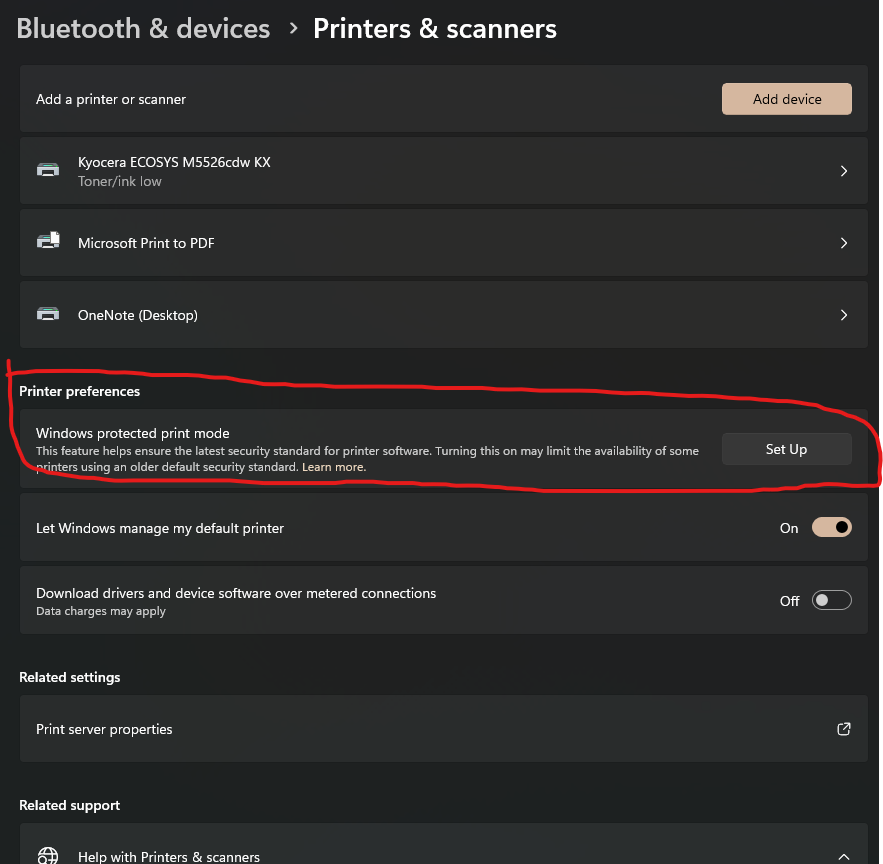
Windows Protected Print Mode: Disable to Fix Print Drivers not Installing by TCP/IP

Microsoft has made an update in Windows 11 in an update. Windows 11 version 24H2.

Windows Protected Print Mode (WPP) is a driver‑free, security‑focused printing mode in Windows that relies solely on the modern IPP (Internet Printing Protocol) stack and Mopria‑certified printers—eliminating third‑party drivers.

This eliminates the ability to use print drivers that don’t use IPP and makes TCP/IP unavailable completely. 

Microsoft as started to enable this by default on some newer PC’s.

If you have any print drivers that fail to install check here

Settings>Bluetooth and Devices>Printers and Scanners. Make sure it’s off.

Turn Off Auto Device Encryption in Windows 11

Turn Off Auto Device Encryption in Windows 11

For windows 24H2 Installs

https://www.windowslatest.com/2024/05/08/microsoft-confirms-windows-11-24h2-turns-on-device-encryption-by-default

During installation, you can disable Device Encryption using a Registry hack:

  1. Press Shift + F10 to open the Command Prompt window. Type regedit and press Enter to launch Registry Editor.
  2. Navigate to the HKEY_LOCAL_MACHINE\SYSTEM\CurrentControlSet\Control\BitLocker subkey.
  3. Right-click the empty side and select the New > Dword (32-bit) Value option from the context menu.
  4. Name the value “PreventDeviceEncryption”.
  5. Set the value date to 1 and click on the OK button.
  6. Close the Registry Editor.

Mapping Network Drives via Group Policy in Server 2022

Here’s a cleaned-up, polished version of your article—formatted professionally for your company’s Knowledge Base while keeping it practical and technical:


📘 Mapping Network Drives via Group Policy in Windows Server 2022

Overview

This guide explains how to automatically map shared network folders as drives using Group Policy Preferences (GPP) on Windows Server 2022. It also covers the roles of Organizational Units (OUs) and Security Groups, along with best practices for scalable, flexible management.


🔧 Key Components & Requirements

Before proceeding, ensure the following:

  • Windows Server 2022 domain environment
  • Domain-joined client systems
  • Users and computers are located in Organizational Units (OUs) (not default containers)
  • Shared folders with proper NTFS and share permissions

🧩 Understanding OUs vs. Security Groups

ConceptDescription
Organizational Units (OUs)Logical containers for users, computers, and other OUs. They support GPO linkage and delegation of administrative rights.
Security GroupsMembership-based collections used for granting permissions (NTFS, shares) and GPP item-level targeting.

Key Differences:

  • A user or computer can reside in only one OU at a time.
  • Users can belong to multiple security groups simultaneously.
  • OUs apply policies broadly and help delegate control.
  • Groups grant granular access control and can span across OUs.

⚠️ Important: Default containers like Users and Computers do not support GPOs. Move all accounts into proper OUs for Group Policies to apply.


🏗️ Active Directory Structure Best Practices

a. Create Organizational Units

Method 1 – ADUC GUI:

  1. Open Active Directory Users and Computers (ADUC).
  2. Right-click the domain → New → Organizational Unit.
  3. Name and optionally protect the OU from accidental deletion.

Method 2 – PowerShell:

New-ADOrganizationalUnit -Name "Sales" -Path "DC=contoso,DC=com"

b. Move Users and Computers to OUs

Via ADUC:
Select and drag users/computers into the desired OU.

Via PowerShell:

Get-ADUser jdoe | Move-ADObject -TargetPath "OU=Sales,DC=contoso,DC=com"

c. Create Security Groups

In ADUC:
Inside an OU → New → Group
Choose:

  • Type: Security
  • Scope: Global / Domain Local / Universal

Add user members as needed.

Users can belong to multiple groups for layered permissions and access control.


🗂️ Creating and Linking the Drive-Mapping GPO

  1. Open Group Policy Management Console (GPMC).
  2. Right-click the target OU or domain root
    Create a GPO in this domain and Link it here…
  3. Name it (e.g., Drive Maps – Universal).
  4. Right-click the new GPO → Edit.
  5. Navigate to:
    User Configuration → Preferences → Windows Settings → Drive Maps

⚙️ Configuring Drive Mapping (with Item-Level Targeting)

  1. Right-click Drive MapsNew → Mapped Drive
  2. On the General tab:
  • Action: Create or Update
  • Location: UNC path (e.g., \\Server\Share)
  • Drive Letter: Choose desired letter
  • Label: (Optional) Friendly name
  1. On the Common tab:
  • Check Run in logged-on user’s security context
  • Enable Item-level targeting → Click Targeting…
  • Add Security Group condition(s)

Optional enhancements:

  • Remove this item when it is no longer applied – automatically unmaps drives when users leave a group.
  • 🔁 Apply once and do not reapply – useful for one-time setups.

This allows one GPO to deploy multiple drive mappings, each targeted to different security groups, across any OU.


🔗 Linking and Applying the GPO

  1. Link the GPO to the desired OU(s) or domain root.
  2. On clients, run:
   gpupdate /force

or simply reboot.

Users who:

  • Have their account within the linked OU, and
  • Belong to one of the targeted Security Groups

will automatically receive the appropriate mapped drives.


🧰 Maintenance & Troubleshooting

  • Verify GPO scope:
  gpresult /h report.html

or use

  Get-GPOReport
  • Adjust mappings by changing security group membership, not by moving users between OUs.
  • Keep GPOs modular—avoid editing the Default Domain Policy.
  • Use Item-Level Targeting to minimize GPO clutter and boost performance.

📋 Summary Table

TaskTool / MethodNotes
Create OUADUC / PowerShellNew-ADOrganizationalUnit
Move AccountsADUC / PowerShellMove-ADObject
Create Security GroupADUCAdd users, define scope
Link Drive-Mapping GPOGPMCUser Config → Preferences → Drive Maps
Configure Mapped DriveGPP + TargetingSet UNC, drive letter, group conditions
Enable Cleanup OptionsWithin preference itemUse “Remove this item…” / “Apply once…”
Apply / Test PolicyCommand linegpupdate / gpresult
Maintain SetupADUC / PowerShellAdjust memberships, review policies

💡 Final Thoughts

A user belongs to one OU, but can be part of many groups.
Using Item-Level Targeting with Security Groups enables flexible, modular, and scalable GPO management across OUs.

This approach:

  • Simplifies administration
  • Reduces GPO sprawl
  • Keeps drive mappings logical and maintainable

Tip: Combine OUs for structure and Groups for control. That balance keeps your environment clean, efficient, and easy to scale.


Would you like me to format it for Markdown, Confluence, or SharePoint export? I can adjust the headings and table syntax accordingly.

Upgrade Domain Controller System Level

5/1/24, 9:32 PM Upgrade Domain Controller from Server 2016 to Server 2022 | Configuration Manager ManishBangia

U U a a

Upgrade Domain Controller from

Server 2016 to Server 2022

by Manish | SCCM

In this post we will be upgrade existing Domain controller Windows Server

2016 to Server 2022 which is also known as in-place upgrade. For

Windows Server 2022 upgrade, there are few pre-requisites to be met

because we need to have latest schema applied on DC and also have to

use adprep /forestprep and adprep /domainprep commands.

Table Of Contents

Windows Server 2022 Upgrade path

In-place upgrade from Windows Server 2012 R2

to Windows Server 2022

In-place upgrade from Windows Server 2016 to

Windows Server 2022

In-place upgrade from Windows Server 2019 to

Windows Server 2022

Download Windows Server

In-place Upgrade Process

Verification steps

Conclusion

2

We need to run Adprep /forestprep once in the forest, while adprep

/domainprep needs to be run on each domain where we are trying to

_

vignette 1/17

5/1/24, 9:32 PM Upgrade Domain Controller from Server 2016 to Server 2022 | Configuration Manager ManishBangia

upgrade from Server 2016.

th

Windows Server 2022 release date is 18 Aug, 2021 with Mainstream

th th

End date specified as 13 Oct 2026 and Extended End date as 14

Oct 2031.

Windows Server 2022 Upgrade path

Not every Windows server can be upgraded to server 2022 directly. There

are specific upgrade paths we need to follow. There is a nice article on

Microsoft page which explains it, however it doesn’t show Windows Server

2022 server details as they still need to update it (at the time of writing this

blog).

As Windows Server 2022 Schema version is exactly same as Server

2019, I am assuming the path mentioned in the image should work for In-

place upgrade from Server 2012 R2 as well (haven’t tested yet). Following

are the servers which can be upgraded:

In-place upgrade from Windows Server 2012 R2 to

Windows Server 2022

2

_

vignette 2/17

5/1/24, 9:32 PM Upgrade Domain Controller from Server 2016 to Server 2022 | Configuration Manager ManishBangia

We can upgrade. Server can directly be upgraded from Windows Server

  1. This is only valid for Windows Server 2012 R2 (not for Windows

Server 2012). Hence, we can skip version 2016,2019. (Note: I still need

to test this behaviour yet). However, we need to upgrade the schema

before upgrade.

The steps mentioned in this article, should be applicable for Server 2012

R2 as well.

In-place upgrade from Windows Server 2016 to

Windows Server 2022

We can upgrade. Server can directly be upgraded to Windows server

2022, hence we can skip 2019 version. For this version also, we need to

upgrade the schema on Windows Server.

In-place upgrade from Windows Server 2019 to

Windows Server 2022

We can upgrade. This is one of the easiest upgrade method as we don’t

have to upgrade the schema.

Download Windows Server

Windows Server 2022 can be downloaded through Windows Server

Evaluations. Windows Server 2022 iso has also been made available on

Visual Studio Subscription

Once downloaded, either extract the content of ISO locally or mount the

ISO.

In-place Upgrade Process

If you try to run in-place upgrade process without running adprep tool you

will get following error as shown in the image:

Active Directory on this domain controller does not contain Windows

Server 2022 ADPREP /FORESTPREP updates.

2

_

vignette 3/17

5/1/24, 9:32 PM Upgrade Domain Controller from Server 2016 to Server 2022 | Configuration Manager ManishBangia

Verify Current AD Schema

Run the following PowerShell command (in elevated mode) to verify :

Get-ADObject (Get-ADRootDSE).schemaNamingContext –

Property objectVersion

2

We can see objectVersion is 87, this schema version is associated with

“Windows Server 2016”, here is more information on various schema

numbers:

_

vignette 4/17

5/1/24, 9:32 PM Upgrade Domain Controller from Server 2016 to Server 2022 | Configuration Manager ManishBangia

AD version objectVersion

Windows Server 2000 13

Windows Server 2003 30

Windows Server 2003 R2 31

Windows Server 2008 44

Windows Server 2008 R2 47

Windows Server 2012 56

Windows Server 2012 R2 69

Windows Server 2016 87

Windows Server 2019 88

Windows Server 2022 88

We can see that Schema version 88 is same for both Servers 2019 &

  1. Hence, that’s the reason we don’t need to upgrade the schema in

case of in-place upgrade from Windows Server 2019 version.

Open command prompt (elevated rights) on Domain controller and

navigate to source directory of Windows Server ISO. In my case the

location was d:\support\adprep\adprep.exe.

2

_

vignette 5/17

5/1/24, 9:32 PM Upgrade Domain Controller from Server 2016 to Server 2022 | Configuration Manager ManishBangia

Run the command adprep.exe /forestprep

Type C and press enter to continue with upgrade of schema. This will

upgrade current schema version from 87 to 88.

Schema update in Windows Server 2022 uses Sch88.ldf

This process creates 2 log files under

c:\windows\debug\adprep\logs\yyyymmddhhmmss with name ADPrep.log

& ldif.log.

ADPrep.log will show you successful upgrade of Schema.

ldif.log will show you attributes which has been extended to schema such

as ms-PKI-DPAPIMasterKeys, ms-PKI-RoamingTimeStamp and others.

2

_

vignette 6/17

5/1/24, 9:32 PM Upgrade Domain Controller from Server 2016 to Server 2022 | Configuration Manager ManishBangia

Run adprep.exe /domainprep to update the domain-wide information.

Let’s begin installation of Server 2022. Launch setup.exe with admin

rights.

Under Product key page provide the KMS client setup key. Following are

the keys for your reference based upon the version you are using:

Windows Server 2022 Datacenter: WX4NM-KYWYW-QJJR4-XV3QB-

6VM33

Windows Server 2022 Standard: VDYBN-27WPP-V4HQT-9VMD4-VMK7H

2

Click here for KMS Client Setup key provide by Microsoft.

As these are the KMS keys, this needs to be activated later with KMS

_

vignette 7/17

5/1/24, 9:32 PM Upgrade Domain Controller from Server 2016 to Server 2022 | Configuration Manager ManishBangia

server within your environment.

On Select Image page, I am going with Windows Server 2022

Datacenter (Desktop Experience) version for full GUI experience, click

Next.

2

_

vignette 8/17

5/1/24, 9:32 PM Upgrade Domain Controller from Server 2016 to Server 2022 | Configuration Manager ManishBangia

Under Applicable notices and license terms page, click Accept.

2

_

vignette 9/17

5/1/24, 9:32 PM Upgrade Domain Controller from Server 2016 to Server 2022 | Configuration Manager ManishBangia

Under Choose what to keep, this is the page which actually helps us

going with the real need of in-place upgrade without loosing files, settings

and apps, click Next.

2

_

vignette 10/17

5/1/24, 9:32 PM Upgrade Domain Controller from Server 2016 to Server 2022 | Configuration Manager ManishBangia

It will first check for available updates, and you might see Getting

Updates.

2

_

vignette 11/17

5/1/24, 9:32 PM Upgrade Domain Controller from Server 2016 to Server 2022 | Configuration Manager ManishBangia

Once ready to install, hit Install button.

2

_

vignette 12/17

5/1/24, 9:32 PM Upgrade Domain Controller from Server 2016 to Server 2022 | Configuration Manager ManishBangia

Verification steps

The process will first extract the binaries to hidden folder

c:\$WINDOWS.~BT.

2

_

vignette 13/17

5/1/24, 9:32 PM Upgrade Domain Controller from Server 2016 to Server 2022 | Configuration Manager ManishBangia

Once extracted, reboot will happen and server upgrade process will

initiate.

This process might take some time depending upon the size of your infra.

Once completed, login to the server.

Launch run window (press Windows + R) and type Winver, this will show

the Microsoft Windows Server 2022 version 21H2 (OS Build

20348.169).

Where 20348 is the build version and 169 is the patch version which gets

updated with every security update.

Open registry (regedit) and navigate to

Computer\HKEY_LOCAL_MACHINE\SOFTWARE\Microsoft\Windows

NT\CurrentVersion

2

You will be able to see lots information, especially ProductName which I

am interested in.

_

vignette 14/17

5/1/24, 9:32 PM Upgrade Domain Controller from Server 2016 to Server 2022 | Configuration Manager ManishBangia

Conclusion

Windows Server 2022 can be upgrade from Server 2019, Server 2016

and probably with Server 2012 (yet to test). Important thing to consider is

to upgrade the schema from Server 2016 and 2012. Upgrading from

Server 2019 doesn’t require Schema upgrade as schema version is 88,

which is same for both Server 2019 & Server 2022. Running adprep

commands are the crucial steps to perform while planning to upgrade

domain controller.

Extracting IRST Drivers from the EXE file

**************************************************************************

* 6.  INSTALLING THE SOFTWARE

**************************************************************************

6.1 General Installation Notes

a.  If you are installing the operating system on a computer configured for RAID or AHCI

    mode, you may pre-install the Intel(R) Rapid Storage Technology driver using the 

    “F6” (Load Driver) installation method described in section 6.3 below.

b.  If you’re installing the operating system on a computer configured for ‘Intel(R) Smart 

    Response Technology’ or ‘System Acceleration with Intel(R) Optane(TM) Technology’, you 

    must pre-install the Intel(R) Rapid Storage Technology driver using the 

    “F6” (Load Driver) installation method described in section 6.3 below.  The Intel(R) RST pre-OS version must support the Intel(R) RST technology that you are installing to.

c.  To install Intel(R) Rapid Storage Technology from within the OS during runtime, 

    double-click on the self-extracting and self-installing setup file and answer all

    prompts presented.

6.2 Intel(R) RST Windows Automated Installer*. Installation from HDD, USB, or CD-ROM

Note: This method is applicable to computers configured for RAID or AHCI mode.

a.  Obtain the Intel(R) Rapid Storage Technology setup file name: SetupRST.exe and

    double-click to self-extract and to begin the setup process.

b.  The Welcome window appears. Click ‘Next’ to continue.

c.  For systems running in RAID mode, the Uninstallation Warning window appears. You will 

    not be able to uninstall the driver in this mode. Click ‘Next’ to continue.

d.  The Software License Agreement window appears. If you agree to these terms, click the

    check box then click ‘Yes’ to continue.

e.  Select the check box to install Intel(R) Optane(TM) Memory and Storage Management application if required then click ‘Next’ to continue.

f.  If the Windows Automated Installer* Wizard Complete window is shown without a prompt 

    to restart the system, click ‘Finish’ and proceed to step “g”. If it is shown with a 

    prompt to restart the system, select ‘I want to restart my computer now.’ 

    (selected by default) and click ‘Finish’. Once the system has restarted, proceed to 

    step “g”.

g.  To verify that the driver was loaded correctly, refer to section 7.

6.3 Pre-Installation of INTEL(R) RST driver using the “Load Driver” Method.

a.  Extract driver files from SetupRST.exe:

    – Open terminal in the directory with SetupRST.exe by right-clicking the directory

      and selecting “Open in Terminal” or “Open PowerShell here”

    – Enter the following command:

      ./SetupRST.exe -extractdrivers SetupRST_extracted

b.  Copy all driver files from the SetupRST-extracted to a USB key media.

c.  For Microsoft Windows OS*:

    – During the operating system installation, after selecting the location to install 

      Windows, click ‘Load Driver’ to install a third party SCSI or RAID driver.

d.  When prompted, insert the USB media and press Enter.

e.  Follow the prompts and browse to the location of the installation files.  Select the 

    appropriate ‘.inf’ file (64 or 32 bit).  If a supported controller is detected there 

    will be no error message. Follow prompts to continue and complete the installation.

Newer posts »

© 2026 Ultrex Staff

Theme by Anders NorenUp ↑